06. Text Processing
In the fifth lab you learned which user runs every program, and who may read and write every file. In this lab you
will work with what is inside most of these files: text. You will meet the filters, small commands that
read lines and write lines: cat, head, tail and sort work with whole lines, grep finds the lines that match a
regular expression, cut, tr and sed change the inside of every line, and wc and awk count and compute.
You will join them into pipelines that answer a question in one line, find out if a command worked from its
exit code, and chain commands with && and ||. At the end, you will edit text files in the terminal with nano and vim, and try a newer editor, Helix (hx).
The most important idea of this lab is that text is the common language of the commands. Every filter reads lines of text, does one small thing with them, and writes lines of text, so the output of any filter can be the input of any other one. Pipes join filters into a pipeline: each command hands its text to the next one, a step closer to the answer, and the last one prints it. Besides its text, every command also gives back a number, its exit code, which tells the shell if it worked.
Objectives
- Understand what a filter is, and build a pipeline of filters that answers a question
- Show, reverse and cut out lines with
cat,tac,headandtail - Sort lines with
sort, as text, as numbers and by a field, and count the repeated lines withuniq - Write regular expressions, basic and extended, and search with them with
grep - Cut fields and characters out of every line with
cut, and reverse or number the lines withrevandnl - Change, delete and squeeze characters with
tr, and replace text withsed - Count lines, words and characters with
wc, and compute sums and averages withawk - Find out if a command worked from its exit code, and chain commands with
&&and|| - Edit a text file in the terminal with
nanoand withvimand tryhx
Resources
- Razvan Deaconescu, Razvan Rughinis, Mihai Carabas, Alexandru Radovici, Utilizarea Sistemelor de
Operare, Printech 2021
- Chapter 4 - Procese, sections 4.5.3 and 4.5.4
- Chapter 6 - Dezvoltarea aplicațiilor, sections 6.6.1 and 6.6.2
- Chapter 7 - Interfața în linia de comandă, sections 7.4 and 7.5
- Chapter 13 - Automatizarea sarcinilor, section 13.3.2
- Brian Ward, How LINUX Works, 3rd Edition, No Starch Press, 2021
- Chapter 2 - Basic Commands and Directory Hierarchy, sections 2.2.2, 2.5 and 2.14
- Chapter 11 - Introduction to Shell Scripts, sections 11.4 and 11.5
- The GNU Awk User's Guide and
vimtutor, the 30 minutes tutorial ofvim - The lecture slides: 06. Text Processing
- The manual pages:
man cat,man tac,man head,man tail,man sort,man uniq,man grep,man 7 regex,man cut,man tr,man sed,man rev,man nl,man wc,man awk,man nano,man vimandman bash(search forPipelinesandLists)
Fedora and Ubuntu
The lab computers run Fedora with Sway, and the examples come from them. At home you may also use Ubuntu: the commands of this lab are the same, with a few differences:
| Fedora | Ubuntu | |
|---|---|---|
| the prompt | [student@fedora ~]$ | student@ubuntu:~$ |
the program behind awk | GNU awk (gawk) | mawk, a smaller awk: this lab works the same on it |
vim and vimtutor | if missing: sudo dnf install vim-enhanced | if missing: sudo apt install vim |
install Helix (hx) | sudo dnf install helix | sudo snap install --classic helix |
Filters
A filter is a command that reads text, does one job with it, and writes the result to its standard output. It
reads the files that it gets as parameters or, when it gets none, its standard input. In
Pipes in lab 03 you joined a few of them with |: sort fruits.txt | uniq -c. A chain of
commands joined by pipes is a pipeline.
Think of an assembly line in a factory: every worker does one small job on the piece, and passes it on. A filter does not know what is before it or after it: only its input and its output.
The filters of this lab do four kinds of jobs, and a typical pipeline uses them in this order:
| Kind | What it does | Commands |
|---|---|---|
| line filters | chooses which lines to keep, and their order | cat, tac, head, tail, sort, uniq |
| search | keeps the lines that match a pattern | grep |
| change text | changes what is inside every line | cut, tr, sed, rev, nl |
| compute | turns the lines into a count, a sum, ... | wc, uniq -c, awk |
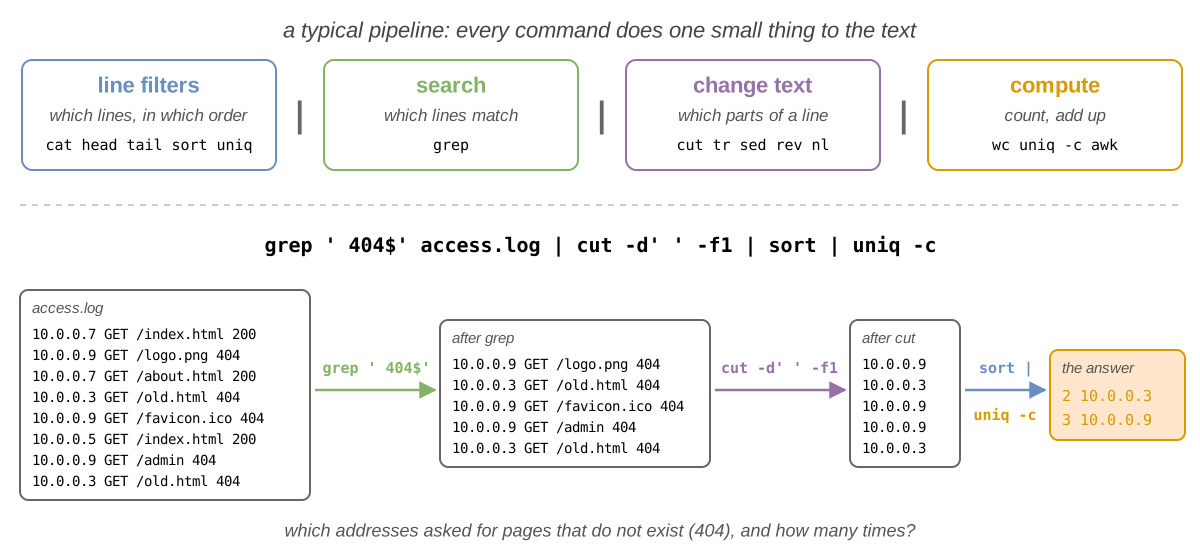
[student@fedora lab06]$ grep ' 404$' access.log | cut -d' ' -f1 | sort | uniq -c
      2 10.0.0.3
      3 10.0.0.9
grepkept the lines that end with404, the requests for pages that do not exist;cutkept only the first field, the address;sort | uniq -ccounted every address. Each command is explained in the sections below.
Build a pipeline one command at a time
Run the first command and look at its output. Then press ↑, add | and the next command, and look again:
each step should bring the text a little closer to the answer. While you work, add | head at the end to see only the
first lines of a long output, and remove it when you are done.
"Write programs that do one thing and do it well. Write programs to work together. Write programs to handle text streams, because that is a universal interface." (Doug McIlroy, the inventor of the Unix pipe)
All the commands of a pipeline run at the same time, each one in its own process, and the text flows between them while they run. The exercises at home and the challenges need the details: they are in How a Pipeline Runs.
Line Filters
The line filters work with whole lines: they choose which lines to keep and in which order, but do not change
them. The examples use the files that exercise 2 creates in ~/lab06; fruits.txt has 7 lines:
banana, apple, cherry, apple, kiwi, banana and apple.
Showing a File: cat and tac
You met cat in lab 02. Its options show what you cannot see in the text:
| Command | What it does |
|---|---|
cat <FILE>... | prints the files, one after another (concatenate) |
cat | with no file, prints what it reads from the keyboard, until Ctrl+D |
cat -n <FILE> | numbers every line |
cat -A <FILE> | shows the invisible characters: a tab as ^I, the end of every line as $ |
tac <FILE> | prints the lines in the reverse order, the last one first |
[student@fedora lab06]$ tac fruits.txt
apple
banana
kiwi
apple
cherry
apple
banana
[student@fedora lab06]$ printf 'a\tb \n' | cat -A
a^Ib $
tacprinted the same 7 lines, from the last one to the first one.cat -Ashowed the tab betweenaandb, and the space at the end of the line, before the$.
The First and the Last Lines: head and tail
| Command | What it prints |
|---|---|
head -n <N> <FILE> | the first N lines; without -n, the first 10 |
head -n -<N> <FILE> | all the lines, except the last N lines; |
tail -n <N> <FILE> | the last N lines; without -n, the last 10 |
tail -n +<N> <FILE> | the lines from line N to the end: -n +2 skips only the first line |
tail -f <FILE> | the last lines, then every new line written to the file, until Ctrl+C (follow) |
[student@fedora lab06]$ head -n 3 fruits.txt
banana
apple
cherry
[student@fedora lab06]$ head -n 5 fruits.txt | tail -n 1
kiwi
[student@fedora lab06]$ tail -n +2 students.csv
Alice,30,Paris
Bob,25,London
Carol,22,Bucharest
head -n 5 | tail -n 1kept the first 5 lines, then the last of them: the 5th line.tail -n +2skipped the first line ofstudents.csv, the header with the names of the columns.
tail -f is how administrators watch a log, a file where a program adds a line for everything it does. Leave it
running in a terminal, and you see every new line the moment it is written.
Sorting: sort
sort prints the lines in alphabetical order. The options change what it compares:
| Option | What it does |
|---|---|
-r | in the reverse order |
-n | compares the lines as numbers: 9 before 10 |
-u | prints every line only once (unique) |
-t <C> | the fields are separated by the character C (the default: spaces) |
-k <N>,<N> | sorts by field N only; -k 2,2n: by field 2, as a number; -k 2: from field 2 to the end |
[student@fedora lab06]$ sort numbers.txt
10
100
2
9
[student@fedora lab06]$ sort -n numbers.txt
2
9
10
100
[student@fedora lab06]$ sort -t, -k 2,2n students.csv
name,age,city
Carol,22,Bucharest
Bob,25,London
Alice,30,Paris
- Without
-n,sortcompared the numbers as text, character by character:100came before2, because1is before2. -t, -k 2,2nsorted the lines ofstudents.csvby the second field, the age, as a number. The header has no number in that field, so it counts as0and stays first.
Without -n, numbers are sorted as text: 100 before 2. Use -n whenever the lines start with a number, or
-k with n when the number is in another field.
Counting Repeated Lines: uniq
You met uniq in Repeated Lines in lab 03: it compares a line only with the
line right above it, so it comes after sort. Together with sort -nr and head, it finds the most frequent
lines:
[student@fedora lab06]$ sort fruits.txt | uniq -c | sort -nr | head -n 2
      3 apple
      2 banana
sort | uniq -ccounted every fruit,sort -nrput the largest count first, andhead -n 2kept the top two.
| Option | What it prints |
|---|---|
uniq -c | every line once, with how many times it appears |
uniq -d | only the lines that appear more than once |
uniq -u | only the lines that appear exactly once |
Regular Expressions
A regular expression (regex) is a pattern that describes some text. For example, c.l means "a c, then any
character, then an l": it matches col in color and cal in call. Most programs that search text understand
regular expressions: grep, sed and awk, the search with / in less, man and vim, and almost
every programming language.
Think of a description of a person that you give to a friend at the station: you do not know the name, but "tall, with a red hat" finds the right person in the crowd. A regex finds the lines that match the description.
grep '<REGEX>' <FILE> prints the lines that contain a match of the regex. The examples use words.txt:
color
colour
cat
category
concatenate
dog
banana
bat
orange
gal
goal
gooooal
notes.txt
2026-10-04
call 0722 123 456
A regex is not a glob
The * of a glob (see Globbing in lab 04) means "any characters"; in a regex, * means
"the previous item, any number of times", and "any characters" is .*. Always put the regex between single
quotes: without them, the shell may expand it as a glob, before grep starts. If the current directory has a file
banana.txt, grep ba* fruits.txt becomes grep banana.txt fruits.txt.
Basic Regular Expressions
| Regex | Matches (It means) | Example | Matches in words.txt (Lines of words.txt it matches) |
|---|---|---|---|
abc | the text abc, anywhere in the line | cat | cat, category, concatenate |
. | any single character | c.l | color, colour, call ... |
^ | the start of the line | ^ca | cat, category, call ... |
$ | the end of the line | r$ | color, colour |
[abc] | one of the characters inside (a class) | [0-9] | 2026-10-04, call ... |
[^abc] | one character that is not inside; ^ means not only right after [ | ^[^c] | every line that does not start with c |
* | the previous item, 0 or more times | go*al | gal, goal, gooooal |
.* | any characters, or none | ^c.*e$ | concatenate |
\ | the next character is plain text: \. is a real dot | \. | notes.txt |
[student@fedora lab06]$ grep 'go*al' words.txt
gal
goal
gooooal
[student@fedora lab06]$ grep '^[a-z]*$' words.txt | wc -l
12
[student@fedora lab06]$ grep '.' words.txt | wc -l
15
[student@fedora lab06]$ grep '\.' words.txt
notes.txt
go*almatched ag, any number ofo, even none, thenal.^[a-z]*$matched the lines that have only lowercase letters, from the start to the end: 12 of them..alone matched every line that is not empty;\.matched only the line with a real dot.
Extended Regular Expressions
With grep -E, five more characters are special: +, ?, { }, ( ) and |, and they make the regex shorter. The
table also shows \b, which GNU grep understands with or without -E:
| Regex | Matches | Example | Matches in words.txt |
|---|---|---|---|
+ | the previous item, 1 or more times | [0-9]+ | 2026-10-04, call ... |
? | the previous item, 0 or 1 time: it is optional | colou?r | color, colour |
{n} | the previous item, exactly n times; {n,m}: n to m | [0-9]{4} | 2026-10-04, call 0722 ... |
( ) | a group, repeated as one item | b(an)*a | banana, bat |
| | one of the alternatives (or) | cat|dog | cat, category, concatenate, dog |
\b | a word edge: the start or the end of a word | \bcat\b | only cat |
[student@fedora lab06]$ grep -E 'colou?r' words.txt
color
colour
[student@fedora lab06]$ grep -E '^[0-9]{4}-[0-9]{2}-[0-9]{2}$' words.txt
2026-10-04
[student@fedora lab06]$ grep -E '\b[0-9]{3}\b' words.txt
call 0722 123 456
^[0-9]{4}-[0-9]{2}-[0-9]{2}$matched a line that is only a date: 4 digits,-, 2 digits,-, 2 digits.\b[0-9]{3}\bmatched a number of exactly 3 digits,123; without the\b, it would match inside0722and2026too.
Without -E, grep uses the basic regular expressions, where +, ?, {, ( and | are plain characters
(\+, \?, ... are special instead). Use -E whenever you need one of them. The whole list is in man 7 regex.
grep Options
| Option | What it does |
|---|---|
-E | uses the extended regular expressions |
-i | ignores upper and lower case |
-v | prints the lines that do not match |
-n | prints the number of every line in front of it |
-c | prints only the number of matching lines; a line with two matches counts once |
-o | prints only the matching part, every match on its own line |
-w | matches only whole words, like \b...\b around the regex |
-q | prints nothing (quiet): the answer is in its exit code (see Exit Codes) |
-r | searches all the files of a directory, and of its subdirectories |
[student@fedora lab06]$ grep -n 'an' fruits.txt
1:banana
6:banana
[student@fedora lab06]$ grep -o -E '[0-9]+' words.txt
2026
10
04
0722
123
456
[student@fedora lab06]$ grep -v -c 'apple' fruits.txt
4
-nshowed thatbananais on the lines1and6.-oprinted every number ofwords.txton its own line, without the rest of the line.-v -ccounted the lines that do not containapple.
Change Text
Fields and Delimiters
Many text files are tables: every line is a row, and a character, the delimiter, splits it into
fields, the columns. The fields are numbered from 1.
| File | A line | The delimiter |
|---|---|---|
| a CSV file (comma-separated values) | Alice,30,Paris | , |
/etc/passwd (lab 05) | student:x:1000:1000:Student:/home/student:/bin/bash | : |
a log file, access.log | 10.0.0.9 GET /logo.png 404 | a space |
| many programs | the fields are aligned in columns | a tab |
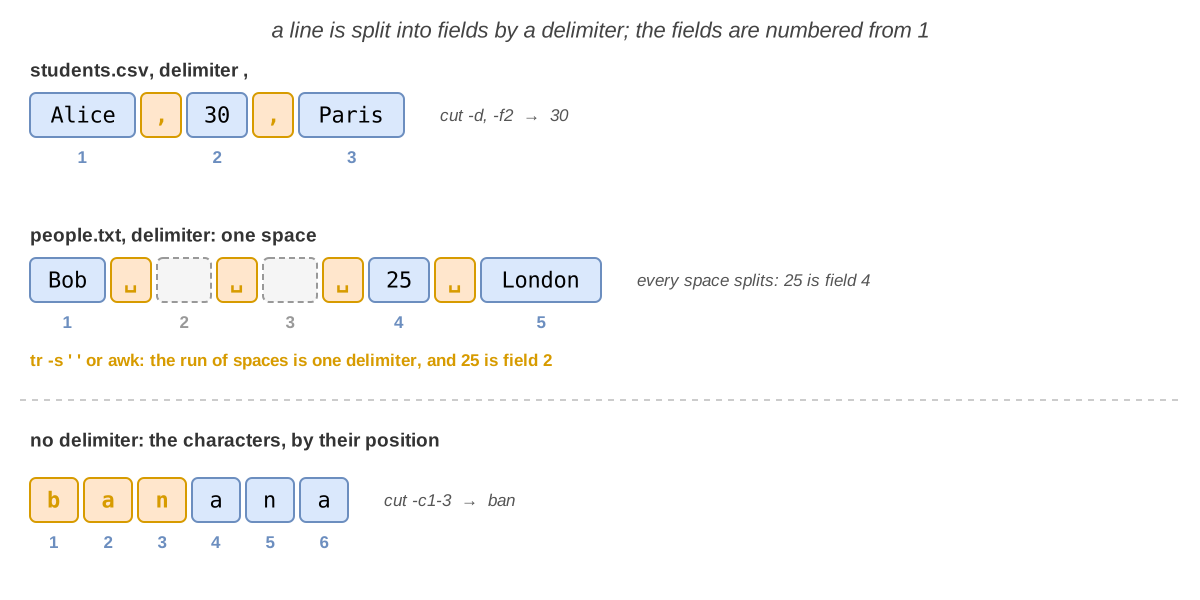
Every delimiter splits. In Bob 25 London, with three spaces after Bob, there are two empty fields
between the spaces, and 25 is field 4, not 2.
Cutting Columns: cut
| Command | What it prints |
|---|---|
cut -d<C> -f<N> <FILE> | field N of every line; the fields are separated by the character C |
cut -d<C> -f1,3 | fields 1 and 3, separated by the same C, in the order of the line: -f3,1 also prints field 1 first |
cut -d<C> -f2-4, -f2- | fields 2 to 4; from field 2 to the end |
cut -f<N> | without -d, the delimiter is the tab; a line with no tab is printed whole, whatever N is |
cut -c<N>-<M> <FILE> | the characters N to M of every line, counted from 1 |
[student@fedora lab06]$ cut -d, -f1 students.csv
name
Alice
Bob
Carol
[student@fedora lab06]$ cut -d, -f2- students.csv
age,city
30,Paris
25,London
22,Bucharest
[student@fedora lab06]$ cut -d' ' -f2 people.txt
30
-d, -f1printed the first field, the names;-f2-printed everything from the second field on.people.txthasAlice 30 ParisandBob 25 London: forBob, field2is the empty field between the first two spaces, socutprinted an empty line.tr, in the next section, fixes it.
Changing Characters: tr
tr (translate) changes single characters, not words. It reads only its standard input: give it a file
with < or with a pipe.
| Command | What it does | Example |
|---|---|---|
tr <SET1> <SET2> | changes every character of SET1 into the character at the same position in SET2 | tr abc xyz: cab → zxy |
tr -d <SET> | deletes every character of SET | tr -d a: banana → bnn |
tr -s <SET> | squeezes a run of the same character of SET into one | tr -s o: gooooal → goal |
A set is a list of characters, aeiou, or a range, a-z, 0-9; '\n' is the end of a line and '\t' a tab.
[student@fedora lab06]$ tr a-z A-Z < fruits.txt | head -n 2
BANANA
APPLE
[student@fedora lab06]$ echo 'call 0722 123 456' | tr -d 0-9
call
[student@fedora lab06]$ tr -s ' ' < people.txt | cut -d' ' -f2
30
25
[student@fedora lab06]$ echo "$PATH" | tr : '\n'
/home/student/.local/bin
/home/student/bin
/usr/local/bin
/usr/bin
...
a-zandA-Zhave the same length:abecameA,bbecameB, and so on.-d 0-9deleted the digits; the spaces stayed.tr -s ' 'left one space between the fields ofpeople.txt, socutfound the age ofBobin field2.tr : '\n'put every directory ofPATH(lab 04) on its own line.
Replacing Text: sed
sed (stream editor) changes the text as it passes through, like a worker on the assembly line: it reads a line,
changes it, prints it, and goes on to the next one. The file itself does not change. Unlike tr, sed works with
words and regular expressions, not with single characters. Its most used command is s (substitute), which replaces
the text that a regex matches:
sed 's/<REGEX>/<NEW TEXT>/<FLAGS>' <FILE>
| Written as | What it does |
|---|---|
s/apple/pear/ | replaces the first match of every line |
s/apple/pear/g | replaces every match of the line (global) |
s/apple/pear/gi | the same, ignoring upper and lower case |
sed -E 's/...//' | the regex is an extended one, as for grep -E |
s/apple//g | the new text is empty: deletes the matches |
s|/usr|/opt| | any character can separate the parts: useful when the text has / |
[student@fedora lab06]$ echo 'apple and apple pie' | sed 's/apple/pear/'
pear and apple pie
[student@fedora lab06]$ echo 'apple and apple pie' | sed 's/apple/pear/g'
pear and pear pie
[student@fedora lab06]$ echo 'call 0722 123 456' | sed -E 's/[0-9]+/N/g'
call N N N
[student@fedora lab06]$ sed 's/,/ /g' students.csv
name age city
Alice 30 Paris
Bob 25 London
Carol 22 Bucharest
- Without
g, only the firstapplechanged. [0-9]+matched each number, and every match becameN.sedprinted the changed text;students.csvitself did not change.
sed -i writes the result back into the file, instead of printing it. There is no undo: run the command without
-i first, and look at the output.
Reversing and Numbering: rev and nl
| Command | What it does |
|---|---|
rev <FILE> | reverses the characters of every line; the order of the lines stays (that is tac) |
nl <FILE> | adds a first column with the number of the line, and a tab; empty lines get no number |
[student@fedora lab06]$ rev fruits.txt | head -n 2
ananab
elppa
[student@fedora lab06]$ echo /usr/share/doc/bash | rev | cut -d/ -f1 | rev
bash
cutcannot count fields from the end.revput the last field first,cut -f1took it, and the secondrevturned it back.
Counting and Computing
Counting: wc
wc (word count) counts the lines, the words and the bytes:
| Option | What it counts |
|---|---|
-l | the lines |
-w | the words: the groups of characters separated by spaces |
-c | the bytes |
-m | the characters: a letter like ș takes 2 bytes, but it is 1 character |
[student@fedora lab06]$ wc fruits.txt
 7  7 44 fruits.txt
[student@fedora lab06]$ wc -l < fruits.txt
7
[student@fedora lab06]$ echo 'mașină' | wc -c -m
      7       9
- Without options,
wcprinted the lines, the words and the bytes, then the name of the file. - With
<,wcdid not know the name of the file (see Input in lab 03): it printed only the number. mașinăand the end of the line are 7 characters, but 9 bytes:șandătake two bytes each.
Computing: awk
awk is a small programming language for tables. An awk program is a list of conditions, each with an
action between { }: for every line, awk splits it into fields and runs the action of every condition that is
true for the line. A condition is optional; END is a condition that is true once, after the last line.

| Written as | What it is |
|---|---|
-F, | the delimiter is ,; without -F, any run of spaces and tabs |
$1, $2, ..., $NF | the fields; $NF is the last one, not to be confused with NF; $0 is the whole line |
NF, NR | the number of fields of the line; the number of the line, from 1 |
==, !=, <, >=, ... | compare two values: numbers as numbers, text as text; text goes between ": $2 == "apple" |
~ /regex/, !~ /regex/ | matches, does not match a regex |
&&, ||, ! | and, or, not |
{ print $1, $3 } | prints fields 1 and 3, separated by a space; print $1 $3, without the ,, prints alice3 |
{ s += $3; n++ } | adds field 3 to the variable s, and adds 1 to n; variables start at 0 |
The examples use orders.csv, a header and 6 orders:
name,fruit,count
alice,apple,3
bob,kiwi,1
carol,apple,2
alice,banana,5
dan,apple,1
alice,apple,2
[student@fedora lab06]$ awk -F, '{ s += $3 } END { print s }' orders.csv
14
[student@fedora lab06]$ awk -F, 'NR > 1 { s += $3; n++ } END { print s / n }' orders.csv
2.33333
[student@fedora lab06]$ awk -F, '$2 == "apple" { s += $3 } END { print s }' orders.csv
8
[student@fedora lab06]$ awk -F, '$2 ~ /an/ { print $1, $2 }' orders.csv
alice banana
[student@fedora lab06]$ awk '{ print NF, $NF }' people.txt
3 Paris
3 London
- The first program added field 3 of every line, and printed the sum at the end; the header
countis not a number, so it added0. NR > 1skipped the header, andncounted the orders: 14 / 6 = 2.33333.$2 == "apple"added only the apples;$2 ~ /an/printed the orders whose fruit containsan.- Without
-F,awksplitBob 25 Londonat the run of spaces: 3 fields, no empty ones.
Put the awk program between single quotes: $1 and $3 are for awk, not for the shell.
A Pipeline, Step by Step
How many customers ordered apples? Build the pipeline one command at a time, and look at the text after every step:
[student@fedora lab06]$ tail -n +2 orders.csv | grep ',apple,'
alice,apple,3
carol,apple,2
dan,apple,1
alice,apple,2
[student@fedora lab06]$ tail -n +2 orders.csv | grep ',apple,' | cut -d, -f1
alice
carol
dan
alice
[student@fedora lab06]$ tail -n +2 orders.csv | grep ',apple,' | cut -d, -f1 | sort -u
alice
carol
dan
[student@fedora lab06]$ tail -n +2 orders.csv | grep ',apple,' | cut -d, -f1 | sort -u | wc -l
3
tail -n +2skipped the header, andgrep ',apple,'kept the orders of apples; the commas aroundappleskip a fruit likepineapple.cutkept the names;aliceordered apples twice, sosort -ukept every name once;wc -lcounted them.
Exit Codes
Every command ends with a number between 0 and 255, its exit code: 0 means success, any other number an
error. The shell keeps the exit code of the last command in $? (see
Special Parameters in lab 04). The manual page of a command says what its
numbers mean, in the section EXIT STATUS:
grep ends with | When |
|---|---|
0 | it found at least one line |
1 | it found nothing |
2 | an error: for example, the file does not exist |
[student@fedora lab06]$ grep -q kiwi fruits.txt
[student@fedora lab06]$ echo $?
0
[student@fedora lab06]$ grep -q mango fruits.txt
[student@fedora lab06]$ echo $?
1
[student@fedora lab06]$ grep kiwi nope.txt
grep: nope.txt: No such file or directory
[student@fedora lab06]$ echo $?
2
grep -qprinted nothing; its exit code said if it foundkiwi,0, or not,1.
| Command | What it does |
|---|---|
true | nothing; it ends with 0 |
false | nothing; it ends with 1 |
exit <N> | ends the shell, or a script, with the exit code N |
A command killed by a signal (lab 04) ends with 128 plus the number of the signal: Ctrl+C
(SIGINT, 2) gives 130.
Chaining Commands: && and ||
| Written as | What it does |
|---|---|
a ; b | runs a, then b, whether a worked or not; like two separate lines |
a && b | runs b only if a ended with 0: "a, and then b" |
a || b | runs b only if a did not end with 0: "a, or else b" |
[student@fedora lab06]$ grep -q kiwi fruits.txt && echo 'kiwi found'
kiwi found
[student@fedora lab06]$ grep -q mango fruits.txt && echo 'mango found'
[student@fedora lab06]$ grep -q mango fruits.txt || echo 'no mango'
no mango
[student@fedora lab06]$ mkdir -p backup && cp fruits.txt backup/ && echo 'saved'
saved
&&skippedecho 'mango found', becausegrepended with1;||ranecho 'no mango'for the same reason.cpran only aftermkdirworked, andechoonly aftercpworked.
a && b || c is not "if a, then b, else c": the shell reads it from left to right, so c also runs when
a works but b fails. It is safe when b cannot fail, like echo.
a && b || c is not "if a, then b, else c". The shell reads it from left to right, and || looks at the
exit code of the last command that ran before it: when a works, that is b. So c also runs when a works but b fails: true && false || echo C prints C. You can use a && b || c as "if
a, then b, else c" only when b cannot fail, like echo: then c runs only when a fails.
The Exit Code of a Pipeline
The exit code of a pipeline is the exit code of its last command:
[student@fedora lab06]$ cut -d, -f2 orders.csv | grep -q kiwi && echo 'kiwi ordered' || echo 'no kiwi'
kiwi ordered
[student@fedora lab06]$ cut -d, -f2 nope.csv | sort
cut: nope.csv: No such file or directory
[student@fedora lab06]$ echo $?
0
- In the first line,
grep -qfoundkiwiin the column of the fruits: the pipeline ended with0. - In the second,
cutfailed, butsort, the last command, worked: the pipeline ended with0. The error message is on the screen, but$?,&&and||see only the0. How a Pipeline Runs shows how to catch the failure.
Text Editors
You edit text files all the time: settings in /etc and in ~/.config, programs, notes. On a server, over the
network, or on a virtual terminal (lab 04), there is no window: you need an editor that runs inside the terminal.
| Editor | What it is like |
|---|---|
nano | simple: what you type goes into the text, and the bottom of the screen lists the keys; the default editor of Fedora and Ubuntu |
vi, vim, nvim | modal: the keys are commands, and you type text only in Insert mode; vi is on every Unix system, nvim is a newer vim |
emacs | not modal: every command is a Ctrl or Alt combination; it can be extended with programs in its own language |
helix (hx) | modal like vim, but you select first, then act; it knows programming languages without any settings |
nano
You met nano in lab 02. The bottom of the screen lists its keys: ^ means
Ctrl and M- means Alt.
| Key | Action |
|---|---|
| Ctrl+O | save (write out), then Enter to keep the name |
| Ctrl+X | exit; if the file changed, it asks to save: Y or N |
| Ctrl+K | cut the line |
| Ctrl+U | paste the lines that you cut |
| Alt+U | undo |
| Ctrl+W | search (where is) |
| Ctrl+\ | search and replace |
| Ctrl+_ | go to a line, by its number |
vim
vim (Vi IMproved) is modal: the same key does different things in different modes. It starts in the
Normal mode, where every key is a command: j does not type a j, it moves the cursor down, and
x deletes a character. To type text, press i to enter the Insert mode; press Esc
to go back to the Normal mode. It takes some time to get used to, but it is also the strength of vim: when you edit,
you spend most of the time moving and changing text, not typing it, and in the Normal mode every letter is a command,
with no Ctrl to hold.

| Mode | What the keys do | Enter it with | The last line shows |
|---|---|---|---|
| Normal | move, delete, copy, paste | Esc, from any other mode | nothing |
| Insert | type text | from Normal: i, a, o | -- INSERT -- |
| Command line | type a command: save, quit, replace; Enter runs it | : (or / to search) | : (or /) and what you type |
| Visual | select text, then act on it: d deletes, y copies | v (characters), V (lines) | -- VISUAL --, -- VISUAL LINE -- |
| In Normal mode | Action |
|---|---|
| h j k l, or the arrows | left, down, up, right |
| w, b | the next word, the previous word |
| 0, $ | the start, the end of the line |
| gg, G | the first line, the last line |
| i, a | Insert mode, before, after the cursor |
| o, O | a new line below, above, in Insert mode |
| x, dd | delete a character, delete (cut) the line: p pastes it back |
| yy, p | copy (yank) the line, paste it below |
| u, Ctrl+R | undo, redo |
/text, n | search forward, go to the next match |
:w, :q, :wq, :q! | save, quit, save and quit, quit without saving |
:%s/old/new/g | replace in every line, like sed: old is a regex, % means all the lines |
A number in front of a command repeats it: 5j goes 5 lines down, 3dd deletes 3 lines. The keys h j k l are the ones of Sway, from lab 01.
Lost in vim?
Look at the last line to know the mode. Press Esc a few times to get back to the Normal mode, then type
:q! and Enter to quit without saving. vimtutor teaches the rest in 30 minutes.
How a Pipeline Runs
Going deeper
You do not need this section for the exercises of the lab, the 🧪 First Steps. Read it at home: the 🏠 Going Further exercises and the 📝 Challenges use it.
For a pipeline, the shell starts every command at the same time, each as a child process, and joins them with
pipes. A pipe is a small buffer in the kernel: the output (1) of a command writes into it, and the input (0)
of the next command reads from it. Think of a tube between two workers: the first one drops pieces in at one end, the
second takes them out at the other.

| What happens | The result |
|---|---|
| the pipe is empty, and the next command wants to read | it waits until there is text |
| the pipe is full (64 KiB) | the writer waits until the reader takes some text out |
| the writer ends | the reader gets the end of file, and can finish |
| the reader ends before the writer | at its next write, the writer gets the signal SIGPIPE (13), and ends |
| Ctrl+C, Ctrl+Z | they go to all the commands: the pipeline is one job (lab 04) |
[student@fedora lab06]$ yes | head -n 3
y
y
y
[student@fedora lab06]$ echo "${PIPESTATUS[@]}"
141 0
yesprintsywithout end;headended after 3 lines, andyesgotSIGPIPEat its next write:128 + 13 = 141.PIPESTATUSis a variable ofbashwith the exit codes of every command of the last pipeline;$?has only the last one.
The pipes of a process are in its directory in /proc (see
The /proc File System in lab 03): readlink /proc/<PID>/fd/1 prints
pipe:[48211] when output 1 goes to a pipe; both ends of the same pipe have the same number.
| Setting | What it does |
|---|---|
set -o pipefail | the exit code of a pipeline is the one of the rightmost command that failed, or 0 if none failed; set +o pipefail turns it off |
grep --line-buffered | grep writes every line at once; without it, when its output is a pipe, it waits until it has 4 KiB of text |
[student@fedora lab06]$ set -o pipefail
[student@fedora lab06]$ cut -d, -f2 nope.csv | sort
cut: nope.csv: No such file or directory
[student@fedora lab06]$ echo $?
1
[student@fedora lab06]$ set +o pipefail
- With
pipefail, the failure ofcutwas not hidden any more: the pipeline ended with1.
Troubleshooting
| Problem | Solution |
|---|---|
| A command waits, and the prompt does not come back | It reads the keyboard: you forgot the file, or the <. Press Ctrl+D or Ctrl+C |
tr: extra operand ‘fruits.txt’ | tr reads only its input: tr a-z A-Z < fruits.txt |
sort puts 100 before 2 | It sorts as text: add -n, or n after -k |
uniq leaves repeated lines | They are not next to each other: sort first |
cut prints empty lines, or the wrong field | There are several delimiters in a row: squeeze them with tr -s, or use awk |
cut -f2 prints the whole line | Without -d, the delimiter is the tab, and the line has none: give the delimiter with -d |
cut: the delimiter must be a single character | -d takes one character: -d,, -d' ', -d: |
grep finds lines that you did not expect | . and * are special in a regex: write \. for a real dot, \* for a real star |
grep: warning: stray \ before d | \d is not a digit in grep: use [0-9] |
grep -E 'a+' works but grep 'a+' finds nothing | In basic regexes, + is a plain character: use -E |
grep with * finds strange results, or the wrong files | The regex is not between single quotes, and the shell expanded it as a glob |
sed: -e expression #1, char 8: unknown option to `s' | The text has a /: use another separator, s|/usr|/opt| |
awk -F, '{ print $2 }' prints empty lines | The delimiter is wrong: look at a line with cat -A, and give the right one with -F |
awk "{ print $1 }" prints whole lines | Between double quotes, the shell replaced $1 with nothing: use single quotes |
vim writes letters in strange places, or does not type | You are in the wrong mode: press Esc, then i to type |
E37: No write since last change (add ! to override) | vim does not quit without saving: :wq saves, :q! throws the changes away |
vim: command not found | Use vi, or install vim-enhanced (Ubuntu: vim) |
Exercises
- 🧪 First Steps (exercises 1 - 15): one idea at a time, in the order of the lab, to do in the lab;
- 🏠 Going Further (exercises 16 - 34): longer exercises, to do at home; some of them look at how the commands of a pipeline run together, explained in How a Pipeline Runs;
- 📝 Challenges (exercises 35 - 40): the hardest ones, like the ones at the exam.
The filters only print: the files change only with >, sed -i or an editor. Before you write the result over a
file, look at it on the screen, and never redirect the output of a command into its own input file:
sort f.txt > f.txt leaves f.txt empty, because the shell empties the file for > before sort starts reading it.
🧪 First Steps
Do these exercises in order, during the lab. Each one starts with what it wants you to achieve, and tries one idea
from the lab: read the section linked at the end of the exercise if you get stuck. Run the commands in ~/lab06,
unless the exercise says otherwise.
-
Your editor: Choose
vim,nvim(Neovim),hx(Helix) oremacs, and start learning it with its own tutorial, for 20 minutes. You will continue the tutorial at home, in exercise 16.-
choose one of the four editors, and install it if it is missing:
Editor On Fedora On Ubuntu The tutorial vimsudo dnf install vim-enhancedsudo apt install vimvimtutornvimsudo dnf install neovimsudo apt install neovimnvim +Tutorhxsudo dnf install helixsudo snap install --classic helixhx --tutoremacssudo dnf install emacssudo apt install emacsemacs -nw -f help-with-tutorial -
start its tutorial, and follow it for 20 minutes: it is a text file that you change while you read it;
-
remember the lesson where you stopped, and quit the tutorial without saving.
💡 Every tutorial starts with how to move and how to quit. Helix selects first, then acts: x selects a line, d deletes it. In Emacs, Ctrl+X Ctrl+C quits;
-nwkeeps it in the terminal.Check: the tutorial opens inside the editor, at its first lesson; after 20 minutes you can move, insert, delete and quit without looking at it. → Text Editors
-
-
The practice tree: Create the files that the other exercises use, in
~/lab06.-
run these commands (copy them from the browser with Ctrl+C and paste them in the terminal with Ctrl+Shift+V):
mkdir -p ~/lab06cd ~/lab06printf '%s\n' banana apple cherry apple kiwi banana apple > fruits.txtprintf '%s\n' 10 9 100 2 > numbers.txtprintf '%s\n' color colour cat category concatenate dog banana bat orange \gal goal gooooal notes.txt 2026-10-04 'call 0722 123 456' > words.txtprintf '%s\n' name,age,city Alice,30,Paris Bob,25,London Carol,22,Bucharest > students.csvprintf '%s\n' 'Alice 30 Paris' 'Bob 25 London' > people.txtprintf '%s\n' name,fruit,count alice,apple,3 bob,kiwi,1 carol,apple,2 \alice,banana,5 dan,apple,1 alice,apple,2 > orders.csvcat > access.log << 'END'10.0.0.7 GET /index.html 20010.0.0.9 GET /logo.png 40410.0.0.7 GET /about.html 20010.0.0.3 GET /old.html 40410.0.0.9 GET /favicon.ico 40410.0.0.5 GET /index.html 20010.0.0.9 GET /admin 40410.0.0.3 GET /old.html 404END -
list the files of
~/lab06, and count the lines of each of them with one command.
Check:
~/lab06has 7 files:access.log(8 lines),fruits.txt(7),numbers.txt(4),orders.csv(7),people.txt(2),students.csv(4) andwords.txt(15). → Counting:wc -
Line filters
-
Both ends of a file: Look at parts of a file, without printing all of it.
- print
fruits.txtwith the number of every line; then print it from the last line to the first; - print the first 3 lines of
/etc/passwd, then only its last line; - print only the 5th line of
fruits.txt; - print
students.csvwithout its header; - create the empty file
live.log; in a second terminal, follow it; in the first terminal, add the linesfirstandsecondto it, one at a time; stop following it.
💡
man cat: search fornumber;man tail: search for+NUMand forfollow; add a line withechoand>>(lab 03).Check: the lines are numbered
1to7, andtacstarts withapple; the first line of/etc/passwdis the line ofroot; the 5th fruit iskiwi; without the header,students.csvstarts withAlice,30,Paris. Each line appears in the second terminal the moment you add it. → Showing a File · The First and the Last Lines - print
-
Sort and count: Put lines in the right order, and find the lines that repeat.
- sort
numbers.txtas text, then as numbers, then as numbers from the largest; - print the students of
students.csv, without the header, from the oldest to the youngest; then sort them by their city; - print every fruit of
fruits.txtonce, then only the fruits that appear exactly once; - print the most frequent fruit, with how many times it appears, with one pipeline.
💡
man sort: search forfield-separatorand forKEYDEF;man uniq: search forunique.Check:
10 100 2 9, then2 9 10 100, then100 10 9 2. By age:Alice,Bob,Carol; by city:Carol(Bucharest),Bob(London),Alice(Paris). The fruits areapple,banana,cherryandkiwi; onlycherryandkiwiappear once. The most frequent is3 apple. → Sorting:sort· Counting Repeated Lines - sort
Regular expressions
-
Basic regular expressions: Describe lines with a pattern, and find them in
words.txtwithgrep.For each, first write the regex on paper, then check it. Find the lines that:
- end with
l; - start with a digit;
- have an
o, and later in the line ane; - have exactly three characters, all of them lowercase letters;
- have at least one character that is neither a lowercase letter nor a digit.
💡 The table of Basic Regular Expressions. For step 4, think of
^and$.Check:
gal,goal,gooooal;2026-10-04;concatenate,orange,notes.txt;cat,dog,bat,gal;notes.txt(the.),2026-10-04(the-) andcall 0722 123 456(the spaces). → Basic Regular Expressions - end with
-
Extended regular expressions: Write shorter patterns with
grep -E, and see why a regex needs quotes.- find the lines that have a
g, one or moreo, thenal; - find the lines that are exactly
cator exactlydog; - find the lines with a phone number: 4 digits, a space, 3 digits, a space, 3 digits;
4. create the empty file
banana.txt, and check withlsthat no other file starts withba; first guess whatgrep ba* words.txtandgrep 'ba*' words.txtprint, then run them; deletebanana.txt.
💡 The table of Extended Regular Expressions; for step 4, print the words that
grepreceives withecho grep ba* words.txt.Check:
goalandgooooal, but notgal;catanddog, but notcategory;call 0722 123 456. Without quotes, the shell turnedba*intobanana.txt, andgrepsearched for the textbanana.txt: nothing. With quotes,grepgotba*, aband any number ofa:bananaandbat. → Extended Regular Expressions · Regular Expressions - find the lines that have a
-
grepoptions: Makegrepprint exactly what you need: other lines, only a part of them, or only a number.- print the settings of
/etc/login.defs(lab 05), without the comments (the lines that start with#) and without the empty lines; then count them; - print the line of the
UMASKsetting, with its line number; - print only the shell of every user (the text after the last
:), from the users database; count how many users have each shell; - count the lines of
words.txtthat containcat, then print only those wherecatis a whole word.
💡
man grep: search forinvert,line-number,only-matchingandword-regexp; an empty line is^$. Look up the users withgetent passwd(lab 05).Check: the settings are lines like
UID_MIN 1000, a few dozen of them;UMASKis022. Most users have Check: the settings are lines likeUID_MIN 1000, a few dozen of them;UMASKis022. Most users havenologin(/sbin/nologinon Fedora,/usr/sbin/nologinon Ubuntu), and only a few have/bin/bash.catis in 3 lines, but it is a whole word only incat. →grepOptions - print the settings of
Change text
-
Cut columns: Keep only some fields, or some characters, of every line.
- print the names and the cities of
students.csv, without the header; - print the name and the shell of every user, from the users database;
- print the first 3 characters of every fruit;
- print only the name of the current directory, with
pwd,revandcut.
💡
man cut: search fordelimiter,fieldsandcharacters;/etc/passwdhas 7 fields, separated by:.Check:
Alice,Paris,Bob,London,Carol,Bucharest; lines likestudent:/bin/bash;ban,app,che, ...;lab06. → Cutting Columns:cut· Reversing and Numbering - print the names and the cities of
-
Change characters: Change, delete and squeeze characters with
tr.- print
fruits.txtin capital letters; - print the fruits without their vowels;
- print the words of
the quick brown foxone per line; - print the age of every person in
people.txt, withtrandcut; - print the directories of your
PATHone per line, and count them.
💡
man tr: search fordeleteandsqueeze;trreads only its input.Check:
BANANA, ...;bnn,ppl,chrry,ppl,kw,bnn,ppl; 4 lines;30and25; one directory per line, among them/usr/bin. → Changing Characters:tr - print
-
Replace text: Change words and parts of lines with
sed, without changing the files.- replace
applewithpearinfruits.txt; then check thatfruits.txtdid not change; - print the phone line of
words.txtwith every digit replaced by#; - print
students.csvwith tabs instead of commas, then cut its second column without-d; - print the line
notes.txtofwords.txtwithout its extension; - print your home directory with
/homereplaced by/users.
💡 Replacing Text:
sed;\tis a tab; for step 5, use another separator than/.Check:
pearthree times, andfruits.txtstill hasapple;call #### ### ###;age,30,25,22;notes;/users/student. → Replacing Text:sed - replace
Counting and computing
-
Count: Count the lines, the words and the characters of a text.
- count the lines, the words and the bytes of
words.txt; then only its lines, without the name of the file; - count the users of the system;
- count the characters and the bytes of
Iași.
💡
man wc: search forchars.Check:
15 18 116 words.txt, then15; a few dozen users;Iașiand the end of the line are 5 characters, but 6 bytes:ștakes 2 bytes. → Counting:wc - count the lines, the words and the bytes of
-
Compute with
awk: Answer questions about the orders oforders.csvwithawk.-
print the name and the count of every order, without the header;
-
compute how many fruits
aliceordered in total; -
compute the average count of the orders of apples;
-
print the orders of at least 2 fruits, then count them;
-
print the name and the UID of the users whose UID is at least
1000, from the users database.💡 Computing:
awkhas all you need; the UID is field 3 of the users database. Skip the header withNR > 1:awkcompares the textcountwith a number as text, and"count" >= 2is true.
Check:
alice 3,bob 1, ...;10;2; 4 orders;student 1000, and alsonobody 65534. → Computing:awk -
A pipeline
-
Read a log: Answer questions about the requests of
access.log, with pipelines that you build one command at a time.- print the page of every request (the third field);
- print how many times each page was asked for, the most requested first;
- print the addresses that asked for a page that does not exist (status
404), each once; - count the requests that ended with
404.
💡 A Pipeline, Step by Step; look at the output after every command.
Check: 8 pages;
/index.htmland/old.htmlwere asked for twice, the others once;10.0.0.3and10.0.0.9;5. → A Pipeline, Step by Step · Filters
Exit codes
-
Did it work?: Read the exit code of a command, and run a command only if another one worked, or failed.
- first guess the exit code of each command, then check it:
grep -q apple fruits.txt,grep -q mango fruits.txt,grep apple nope.txt,ls /nope,trueandfalse; - start
sleep 100, stop it with Ctrl+C, and print its exit code; - print
foundonly ifcherryis infruits.txt; then printmissingonly ifmangois not in it; - create the directory
saveand, only if that worked, copyorders.csvinto it, with one line; run the same line again.
💡 Exit Codes and Chaining Commands;
man ls: search forExit status.Check:
0,1,2,2,0,1;sleepends with130:128 + 2, forSIGINT.found, thenmissing. The second time,mkdirfails withFile exists, andcpdoes not run. → Exit Codes · Chaining Commands - first guess the exit code of each command, then check it:
Text editors
-
Two editors: Write a file with
nano, then change it withvim.- with
nano, createtodo.txtwith three lines:buy milk,learn vimandcall bob; cut the last line and paste it above the first one; save and exit; - open
todo.txtwithvim; delete the linelearn vim, then undo; add the linepractice awkat the end; replacemilkwithbread, with a command; save and quit; - open it again, delete a line, and quit without saving;
- print
todo.txt.
💡 The tables of
nanoandvim; invim, always look at the last line to know the mode.Check:
todo.txthas 4 lines:call bob,buy bread,learn vimandpractice awk. →nano·vim - with
🏠 Going Further
Each exercise starts with its goal; you choose the commands. At the end, check the goal itself, not only that each
command worked. The exercises use the files of ~/lab06 from the First Steps.
-
Your editor, the essentials: Go on with the tutorial of the editor you chose in exercise 1, until you know enough to use it every day, then use it on a real file.
-
install the editor if it is missing on your computer:
Editor On Fedora On Ubuntu The tutorial vimsudo dnf install vim-enhancedsudo apt install vimvimtutornvimsudo dnf install neovimsudo apt install neovimnvim +Tutorhxsudo dnf install helixsudo snap install --classic helixhx --tutoremacssudo dnf install emacssudo apt install emacsemacs -nw -f help-with-tutorial -
start its tutorial again, go to the lesson where you stopped in the lab, and follow it up to the end of these lessons; you do not need the rest of the tutorial yet:
vim,nvim: lessons 1 - 6, until you knowo,yandp(lesson 7 is about help and settings);hx: chapters 1 - 6, until you know the replace command, r;emacs: the sections up to Searching, included;
-
quit the tutorial without saving;
-
open
todo.txtfrom exercise 15 with your editor, add the lineuse vim(oruse nvim,use hx,use emacs) at the end, save and quit; printtodo.txt.
💡 Every tutorial starts with how to move and how to quit. Helix selects first, then acts: x selects a line, d deletes it. In Emacs, Ctrl+X Ctrl+C quits;
-nwkeeps it in the terminal.Check: you did the lessons of your editor, and you can move, insert, delete, copy, paste, undo, search, save and quit without looking at the tutorial.
todo.txtends with the line of your editor, afterpractice awk. → Text Editors -
Line filters and search
-
Your favorite commands: You have used the terminal for six weeks. Find out which 5 commands you run most often.
- print the history of your shell, and find the field that holds the name of the command;
- print the 5 most used commands, each with how many times you ran it, the most used first.
💡
help history; every line ofhistorystarts with a number.Check: 5 lines like
42 ls, with the counts going down;lsandcdare usually near the top. Each terminal adds its commands to~/.bash_historywhen it is closed, so a new terminal does not know the commands of the ones still open. → Counting Repeated Lines · Computing:awk -
The largest programs: The disk of your computer is almost full. Find the 5 largest files in
/usr/bin, with sizes that are easy to read.- list
/usr/binin the long format, and sort the lines by the size, the 5th field, as a number; keep the 5 largest; - print only their size and their name;
- do it again with the sizes written as
2.1M, and sort them correctly.
💡
man sort: search forKEYDEFand forhuman;man ls: search forhuman.Check: the same 5 files in steps 1 and 3, in the same order; in step 3,
sort -nalone would read900Kas900and2.1Mas2.1, and think that900Kis the larger one. → Sorting:sort· Computing:awk - list
-
A sign-up form: A form saved everything people typed, without checking it. Keep only the valid phone numbers and e-mail addresses.
Create
contacts.txt:cat > ~/lab06/contacts.txt << 'END'07221234560722 123 456+40722123456072212345072212345670312345678ana.pop@upb.robob@gmailcarol@@yahoo.comdave_99@stud.upb.roerin@example.comEND- print the mobile phone numbers:
07and 8 more digits, nothing else on the line; - accept also the numbers written with
+4in front; - print the e-mail addresses: lowercase letters, digits,
.or_, then one@, then a domain of lowercase letters and dots, which ends with a.and some letters; 4. count the lines that are neither a phone number, as in step 2, nor an e-mail address, with onegrep.
💡 Extended Regular Expressions; a
+that is a plain character is written\+.Check:
0722123456; then also+40722123456;ana.pop@upb.ro,dave_99@stud.upb.roanderin@example.com;6lines are neither. → Extended Regular Expressions ·grepOptions - print the mobile phone numbers:
Columns and computing
-
Names from the secretary: The secretary exported the names as
Popescu, Ana, but the new system wantsAna Popescu, and an address for every student.Create
names.txtwithprintf '%s\n' 'Popescu, Ana' 'Ionescu, Mihai' 'Georgescu, Ioana' > names.txt:- print every name as
Ana Popescu, with onesed; - sort the result by the first name;
- print an e-mail address for every student, like
ana.popescu@upb.ro, all in lowercase.
💡
man sed: search for\1; in an extended regex,( )keeps what it matched, and\1,\2put it back in the new text.Check:
Ana Popescu,Mihai Ionescu,Ioana Georgescu; sorted:Ana,Ioana,Mihai;ana.popescu@upb.ro,mihai.ionescu@upb.ro,ioana.georgescu@upb.ro. → Replacing Text:sed· Changing Characters:tr - print every name as
-
The words of the manual: Which words does the manual of
bashuse most, and how many different words does it have?- print the text of
man bash, one word per line: every run of characters that are not letters becomes one end of line; - make all the words lowercase, and print the 10 most frequent ones, with their counts;
- count the different words.
💡
man tr: search forcomplement; the manual page, sent into a pipe, is plain text.Check:
theis the first, by far; small words likea,is,toandoffollow. There are a few thousand different words. → Changing Characters:tr· Counting Repeated Lines - print the text of
-
The memory of the browser: Your computer is slow, and you suspect Firefox. Find out how much memory all its processes use together.
Open Firefox with a few tabs, then:
-
list the memory (
RSS) and the whole command line of every process, and keep only the ones of Firefox; count them; -
add up their memory, and print it in MiB;
-
print the 3 processes of the system that use the most memory.
💡
man ps: search forrss(the unit is KiB) and forargs; a tab of Firefox is a process too, whose name is notfirefox, but whose command line has it.grep firefoxhasfirefoxin its own command line, so it finds itself;grep '[f]irefox'matches the same processes, but not itself.
Check: Firefox has several processes, one for every few tabs; together they use a few hundred MiB. Firefox is usually among the 3 largest processes. → Computing:
awk· Listing Processes -
-
The exam grades: The teaching assistant needs a report of the exam, from a file of grades.
Create
grades.csvwithprintf '%s\n' name,grade ana,9 bob,4 carol,7 dave,10 erin,3 grace,5 mallory,6 > grades.csv, then compute, withawk:-
how many students passed (a grade of at least
5); -
the average of all the grades, and the average of the students who passed;
-
the largest grade, and the student who got it;
-
the names of the students who did not pass, in alphabetical order.
💡 Skip the header in every step, with
NR > 1:awkcompares the textgradewith a number as text, so it would pass, and even become the largest grade. A variable can remember the largest value so far:NR > 1 && $2 > max { max = $2 }.
Check:
5;6.28571and7.4;dave 10;bobanderin. → Computing:awk -
-
An audit of the users: Write the report of the users of the system, as an administrator would do it each month.
From the users database:
- print every shell and how many users have it, the most used first;
- count the system users (a UID from
1to999); - print the name and the home directory of the regular users (a UID from
1000to60000).
💡
man login.defs: search forUID_MAX;awkconditions can use&&.Check:
nologinis the most used shell; there are a few dozen system users; the regular users arestudentand every user from lab 05 that is still there, with a home directory in/home.nobody(65534) is not a regular user. → Computing:awk· Cutting Columns:cut
Exit codes
-
Predict the chain: Learn to read
&&and||without running the commands.First write down, on paper, what each line prints, then check:
-
true && echo A || echo B -
false && echo A || echo B -
true || echo A && echo B -
false || false && echo C; echo $? -
true && false || echo DCheck:
A;B;B; nothing, then1;D. The shell reads from left to right, and each&&or||looks at the exit code of the last command that ran before it: in line 5,Dis printed although the first command worked. → Chaining Commands
-
-
What the numbers mean: Find out what the exit codes say, besides "success" and "error".
-
find in the manual what
lsmeans by1and by2, and produce each of them; -
start
sleep 100, end it withkillfrom another terminal, and print its exit code; do it again withkill -9; -
run
bash -c 'exit 42'and print its exit code; thenbash -c 'exit 300'.💡
man ls: search forExit status; hide the long output ofls -Rwith> /dev/null 2>&1;kill -l 15prints the name of signal15; an exit code is one byte.
Check:
ls /nopeends with2;ls -R /etcends with1, because some directories inside it cannot be read.killgives143(128 + 15,SIGTERM),kill -9gives137(128 + 9,SIGKILL).42, then44:300does not fit in one byte, and only300 - 256is kept. → Exit Codes · Signals -
-
A careful change: You must change
kiwiintomangoinorders.csv, directly in the file. Do it so that you can always go back.- with one line: copy
orders.csvtoorders.bak; only if the copy worked, change the file withsed -i; printchangedif both worked, ornot changedotherwise; - check the content of both files;
- run the same line again, but copy into
/nope/orders.bak; - put the original
orders.csvback, fromorders.bak.
💡 Replacing Text:
sedand Chaining Commands.Check: after step 1,
orders.csvhasbob,mango,1andorders.bakhasbob,kiwi,1. In step 3,cpfails,seddoes not run, andnot changedis printed. At the end,grep -c kiwi orders.csvprints1. → Chaining Commands · Replacing Text:sed - with one line: copy
How a pipeline runs
-
The processes of a pipeline: See that the commands of a pipeline run together, as one job.
- in the second terminal, print the PID of the shell, then run
sleep 300 | sleep 301 | cat; - in the first terminal, show the tree of processes of the second shell, with the PIDs; list these processes with their PID, PPID, process group, state and name;
- stop the pipeline with Ctrl+Z, and list them again; continue it with
fg, and end it with Ctrl+C.
💡
man pstree: search forpid;man ps: search forpgidand forstate.Check: the three commands are children of the same
bash, started at the same time, and they have the same process group: the PID of the firstsleep. They are allS(waiting); after Ctrl+Z, allT(stopped); Ctrl+C ends all three. → How a Pipeline Runs · Foreground and Background - in the second terminal, print the PID of the shell, then run
-
Follow the pipe: Find the pipe between two commands in
/proc.- in the second terminal, run
sleep 300 | cat; - in the first terminal, find the PIDs of
sleepandcat, and print where the inputs (0) and the outputs (1) of both lead; - end the pipeline.
💡
man pgrep;man readlink; the file descriptors of a process are in/proc/<PID>/fd(lab 03).Check: the output of
sleepand the input ofcatare the samepipe:[...], with the same number; the input ofsleepand the output ofcatare the terminal,/dev/pts/.... → How a Pipeline Runs · The/procFile System - in the second terminal, run
-
Who ends first: Find out what happens to a command whose reader stopped reading.
For each line, first guess the exit codes of the two commands, then print them with
PIPESTATUS:yes | head -n 3;seq 5 | sleep 2;seq 100000 | sleep 2.
💡
kill -l 13;seq 100000 | wc -ctells how much textseqwrites; the pipe holds 64 KiB.Check:
141 0:yesgotSIGPIPE.0 0: the 5 short lines fit in the pipe, andseqended beforesleep.141 0: about 575 KiB do not fit, soseqwaited for a reader; whensleepended without reading,seqgotSIGPIPE. → How a Pipeline Runs -
A failure in the middle: Every night, a pipeline counts the customers of the shop. One night the file was missing, and the report said
0, with no error. Make the pipeline tell the truth.-
run
cut -d, -f1 nope.csv | sort -u | wc -l; then, with oneecho, print its exit code and the exit codes of every command; -
add
&& echo ok || echo failedafter the pipeline; -
turn on
pipefail, and run step 2 again; then turn it off.💡 How a Pipeline Runs;
echois a command too: after it,$?andPIPESTATUSdescribe theecho, not the pipeline.
Check: the pipeline prints
0and ends with0, butPIPESTATUSis1 0 0; withoutpipefailit saysok, withpipefailit saysfailed. → How a Pipeline Runs · The Exit Code of a Pipeline -
-
Watch a live log: Watch the requests that end with
404while they arrive, and only their addresses.- in the second terminal, follow
live.logand keep only the lines that contain404; - in the first terminal, add the line
10.0.0.9 GET /x 404tolive.log, then the line10.0.0.7 GET / 200; - in the second terminal, add
cutat the end, to keep only the address; add another404line; - fix the pipeline of step 3, so that the address appears right away.
💡 How a Pipeline Runs;
man grep: search forline-buffered.Check: in step 2 only the
404line appears, right away. In step 3 nothing appears: the output ofgrepgoes into a pipe now, andgrepwaits until it has 4 KiB of text. Withgrep --line-buffered, the address appears at once. → How a Pipeline Runs · The First and the Last Lines - in the second terminal, follow
Text editors
-
Your editor on a real file: Change a file with the editor you learned in exercises 1 and 16, without retyping the lines that stay.
- copy
students.csvtoclass.csv, and open it with your editor; - add the line
Dave,27,Clujat the end; - copy the line of
Boband paste the copy under it; change the copy intoErin,24,Iasi; - replace every
,with;, in one command; save, quit, and print the file.
💡 Choose your editor:
- vim
- nvim
- hx
- emacs
Step Keys open the file vim class.csvadd a line at the end G goes to the last line, o opens a new line below; type it, Esc copy a line and paste it below on Bob: yy copies the line, p pastes it belowchange a whole line on the copy: cc deletes the text of the line; type the new one, Esc replace in the whole file :%s/,/;/g;:swithout%changes only the current linesave and quit :wqNeovim has the keys of
vim.Step Keys open the file nvim class.csvadd a line at the end G goes to the last line, o opens a new line below; type it, Esc copy a line and paste it below on Bob: yy copies the line, p pastes it belowchange a whole line on the copy: cc deletes the text of the line; type the new one, Esc replace in the whole file :%s/,/;/g;:swithout%changes only the current linesave and quit :wqStep Keys open the file hx class.csvadd a line at the end ge goes to the last line, o opens a new line below; type it, Esc copy a line and paste it below on Bob: x selects the line, y copies it, p pastes it belowchange a whole line on the copy: x selects the line, _ leaves out its end, c deletes it; type the new one, Esc replace in the whole file % selects the whole file, s ,Enter selects every,in it, r; replaces all of themsave and quit :wqStep Keys open the file emacs -nw class.csvadd a line at the end Alt+> goes to the end of the file; type it copy a line and paste it below at the start of Bob(Ctrl+A): Ctrl+K twice cuts the line, Ctrl+Y twice pastes it back, and a copychange a whole line on the copy (Ctrl+P goes up), at its start: Ctrl+K cuts the text; type the new one replace in the whole file Alt+< goes to the start, Alt+% ,Enter;Enter asks for every match; ! replaces all of themsave and quit Ctrl+X Ctrl+S, then Ctrl+X Ctrl+C Check:
class.csvhas 6 lines:name;age;city,Alice;30;Paris,Bob;25;London,Erin;24;Iasi,Carol;22;BucharestandDave;27;Cluj. → Text Editors - copy
Clean up
-
Clean up: Leave your home directory as it was before the lab.
- delete
~/lab06; - if
set -o pipefailis still on in a shell, close that terminal.
Check:
ls ~does not showlab06;set -o | grep pipefailprintspipefail offin a new terminal. → How a Pipeline Runs - delete
📝 Challenges
These exercises are like the ones at the exam. Each one gives you a result to reach, but not the steps: you decide the commands. Each one ends with the Check that will be used to grade it. Some of them need How a Pipeline Runs.
All the challenges start from the same setup, the one you will find at the exam: the directory ~/exam with four
files. web.log has one request per line, with 7 fields separated by a space: the address, the date, the time, the
method, the page, the status and the number of bytes sent. Copy and run these commands before the first challenge; run
them again to get the original files back:
mkdir -p ~/exam
cd ~/exam
cat > web.log << 'END'
10.0.0.7 2026-11-02 10:15:01 GET /index.html 200 5120
10.0.0.9 2026-11-02 10:15:04 GET /logo.png 404 0
10.0.0.7 2026-11-02 10:15:09 GET /about.html 200 2048
10.0.0.3 2026-11-02 10:16:12 GET /old.html 404 0
10.0.0.9 2026-11-02 10:16:30 GET /favicon.ico 404 0
10.0.0.5 2026-11-02 10:17:45 POST /login 200 512
10.0.0.9 2026-11-02 10:18:02 GET /admin 403 0
10.0.0.3 2026-11-02 10:18:40 GET /old.html 404 0
10.0.0.12 2026-11-02 11:02:11 GET /index.html 200 5120
10.0.0.5 2026-11-02 11:03:27 GET /exam.pdf 200 734003
10.0.0.9 2026-11-02 11:04:51 POST /login 401 0
10.0.0.9 2026-11-02 11:04:53 POST /login 401 0
10.0.0.9 2026-11-02 11:04:55 POST /login 401 0
10.0.0.7 2026-11-02 11:20:00 GET /index.html 200 5120
10.0.0.12 2026-11-02 12:01:10 GET /exam.pdf 200 734003
10.0.0.7 2026-11-02 12:30:44 GET /contact.html 200 1024
10.0.0.5 2026-11-02 12:31:02 POST /login 401 0
END
printf '%s\n' 'B 123 ABC' 'B 12 XYZ' 'IF 07 UPB' 'CJ 123 ABC' 'IS 99 ab' 'b 100 USO' \
    'TM 05 LNX' 'B1 23 ABC' 'AG 7 OOO' > plates.txt
printf '%s\n' name,lab,exam ana,4.5,3.5 bob,2,1.5 carol,3,4 dave,5,4.5 erin,1.5,2 \
    grace,3.5,1 mallory,4,2.5 > grades.csv
printf '%s\n' '# the settings of the exam server' port=8080 '# host=localhost' \
    host=0.0.0.0 debug=true users=ana,bob,carol > settings.conf
When you are done with all the challenges, remove everything with rm -rf ~/exam.
-
The busiest addresses: Find who uses the server most, and how much it sends.
With one pipeline for each:
- print the 3 addresses with the most requests, each with its number of requests, the busiest first;
- print the total number of bytes that the server sent;
- print the number of bytes sent to
10.0.0.12.
Check: the three outputs are exactly:
6 10.0.0.94 10.0.0.73 10.0.0.5then
1486950, then739123. → Filters · Computing:awk -
Who guesses passwords: A failed login is a
POSTrequest for/loginthat ends with401. Find the addresses that failed to log in at least 3 times, and how busy the server was in every hour.- print every address with at least 3 failed logins, with its number of failures;
- print the number of requests of every hour, in the order of the hours.
Check: step 1 prints exactly
3 10.0.0.9(10.0.0.5failed only once); step 2 prints exactly:→ Computing:8 106 113 12awk· Cutting Columns:cut -
Car plates: Keep only the valid car plates of
plates.txt, with onegrepand one regular expression.A valid plate has, separated by single spaces:
- the county:
B(Bucharest), or two capital letters; - a number: 2 or 3 digits for
B, exactly 2 digits for the other counties; - three capital letters.
Nothing else may be on the line.
Check: the command prints exactly
B 123 ABC,B 12 XYZ,IF 07 UPBandTM 05 LNX, and the same command with-cprints4. → Extended Regular Expressions - the county:
-
The final grades:
grades.csvhas, for every student, the grade of the lab and the grade of the exam. The final grade is their sum. A student passes with a final grade of at least5and an exam grade of at least2.5.With one pipeline, print the name and the final grade of every student who passed, the largest grade first.
Check: the output is exactly
dave 9.5,ana 8,carol 7andmallory 6.5;gracehas4.5andbob,erinhave less, so they are not printed. → Computing:awk· Sorting:sort -
Predict the exit codes: Predict what each line prints and its exit codes, then prove each answer.
In
~/exam, first fill in the table on paper; then run each line, followed byecho $?, or byecho "${PIPESTATUS[@]}"for lines 4 and 6:Line Prints Exit code(s) 1. grep -c ' 404 ' web.log2. grep -c ' 500 ' web.log3. grep -q ' 500 ' web.log && echo yes || echo no4. cut -d' ' -f1 web.log nope.log | sort -u | wc -l5. the same line, after set -o pipefail6. yes | head -n 1 > /dev/null7. mkdir -p backup && cp nope.log backup/ && echo saved || echo failedTurn
pipefailoff after line 5.Check:
→ Exit Codes · Chaining Commands · How a Pipeline RunsPrints Exit code(s) 1. 402. 01:grepfound nothing, even if it printed a number3. no0, the exit code ofecho no4. an error of cut, then51 0 0:cutfailed, but readweb.log5. an error of cut, then516. nothing 141 0:yesgotSIGPIPE7. an error of cp, thenfailed0, the exit code ofecho failed -
Configure with
vim: Changesettings.confwithvimonly, without retyping the lines that stay.At the end, the file must have exactly these lines, in this order:
port=80host=0.0.0.0debug=falseusers=ana,bob,carol,davetimeout=30💡 In
vim,:help :gexplains how to run a command, liked, on every line that matches a regex;:help Aexplains how to add text at the end of a line.Check:
cat -A settings.confprints the 5 lines, each ending with$, with no spaces before the$and no empty lines. →vim
Wrap-up Questions
Use the last 5 minutes of the lab to answer these questions together with your colleagues and the teaching assistant. There are no wrong answers for the last two.
- What is a filter? Why can the output of any filter be the input of any other one?
- Why does
uniqneedsortbefore it? Why doessortput100before2, and how do you fix it? - What is the difference between
*in a glob and*in a regular expression? Why do you put a regex between single quotes? - When do you use
cut, and whenawk? What happens tocutwhen the fields are separated by several spaces? - What is the difference between
trandsed? - What does the exit code
0mean? What do&&and||do with it? - Which exit code does a pipeline have? What can it hide?
- How do you quit
vimwithout saving? - Which filter surprised you most today?
- Which editor will you use from now on, and why?
Extra
column:column -t -s, students.csvaligns a CSV file as a table, for reading. →man columnjq: many programs and web services write JSON instead of lines;jqis the filter for it, with its own small language. Install it withsudo dnf install jq(Ubuntu:sudo apt install jq). →man jq- Other editors:
helix(hx --tutor) andemacs(Ctrl+H then T) have their own tutorials, likevimtutor; Visual Studio Code and Zed can use the keys ofvim.