04. The Command Line
In the third lab you learned to redirect what a command reads and writes, and to inspect the processes of the system. In this lab you will look closer at the shell and at the terminal it runs in. You will run commands in the background, stop them and bring them back, and send them signals. You will set variables and see which of them reach the commands you start. At the end you will find out exactly what the shell does with a line of text before a command starts: how it splits it into words, what the quotes and the globs do, and how it finds the program to run.
The most important idea of this lab is that the command never sees what you type. The shell reads the line, replaces the variables and the globs, removes the quotes, sets up the redirects, finds the program and only then starts it, with a list of words as its parameters.
Objectives
- Understand what a terminal, a pseudo terminal and a shell are, and use the virtual terminals
- Send signals to processes with
killcommand and with the keyboard, and handle a signal withtrap - Run commands in the background and manage them as jobs with
&,jobs,fg,bgandkill %N - See how the processes of a terminal are grouped in process groups and sessions, and keep a command running
after the terminal closes with
nohup - Use shell variables and environment variables, with
export,unset,printenvandenv, and the special parameters$?,$$and$! - Split a command line into its parts: the assignments, the command, its parameters and the redirects
- Use quotes and
\to control how the shell splits words and replaces variables - Select files with globs:
*,?,[...],[!...],**and{...} - Tell built-in commands from external ones with
type, and understand how the shell searches thePATH
Resources
- Razvan Deaconescu, Razvan Rughinis, Mihai Carabas, Alexandru Radovici, Utilizarea Sistemelor de
Operare, Printech 2021
- Chapter 4 - Procese, sections 4.3.3, 4.5.2 and 4.6.1
- Chapter 7 - Interfața în linia de comandă, sections 7.1 and 7.2.3 - 7.2.5
- Chapter 9 - Pornirea sistemului, section 9.6.1
- Brian Ward, How LINUX Works, 3rd Edition, No Starch Press, 2021
- Chapter 2 - Basic Commands and Directory Hierarchy, sections 2.1, 2.2, 2.4.2, 2.8 - 2.10 and 2.16
- Chapter 3 - Devices, section 3.4
- Chapter 11 - Introduction to Shell Scripts, section 11.2
- The lecture slides: 04. Command Line Interface
- The manual pages:
man bash(search forQUOTING,EXPANSION,Pathname Expansion,JOB CONTROL,SIGNALSandShell Variables),man 7 signal,man kill,man nohup,man env,man printenv,man ttyandman ps
Terminals
In the past, a computer was shared by many users. Each of them had a terminal: a keyboard and a screen (or a printer), without a processor, connected to the computer by a cable. These terminals were TeleTypes, and Linux still calls a terminal a TTY.
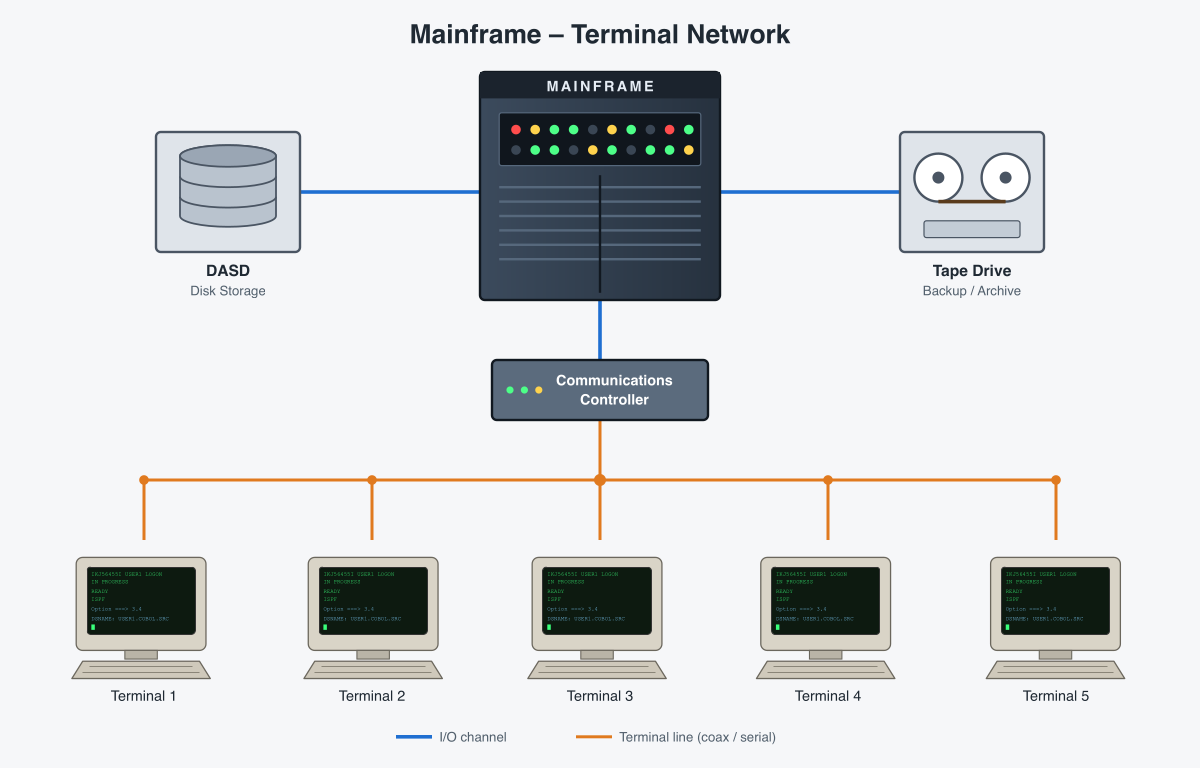
The terminals only sent the keys to the computer and printed what it sent back: all the programs ran on the mainframe.
Today, the kernel gives every program that runs in a terminal a terminal device, a special file in /dev. The
program reads the keys from it and writes the text to it, through the file descriptors 0, 1 and 2.
| Device | What it is | In ps |
|---|---|---|
/dev/tty1, /dev/tty2, ... | the virtual terminals of the kernel: each one uses the screen and the keyboard of the computer, one at a time | tty1 |
/dev/pts/0, /dev/pts/1, ... | the pseudo terminals: one for every terminal window or tab, and for every SSH connection | pts/0 |
/dev/tty | not a terminal of its own: a shortcut to the terminal of the process that opens it | never: ps shows the real one |
Virtual Terminals
A computer today has one screen and one keyboard, but the kernel makes them look like several terminals: the virtual terminals. Each one works like one of the old terminals, with its own login and its own programs, but only one of them is on the screen at a time.
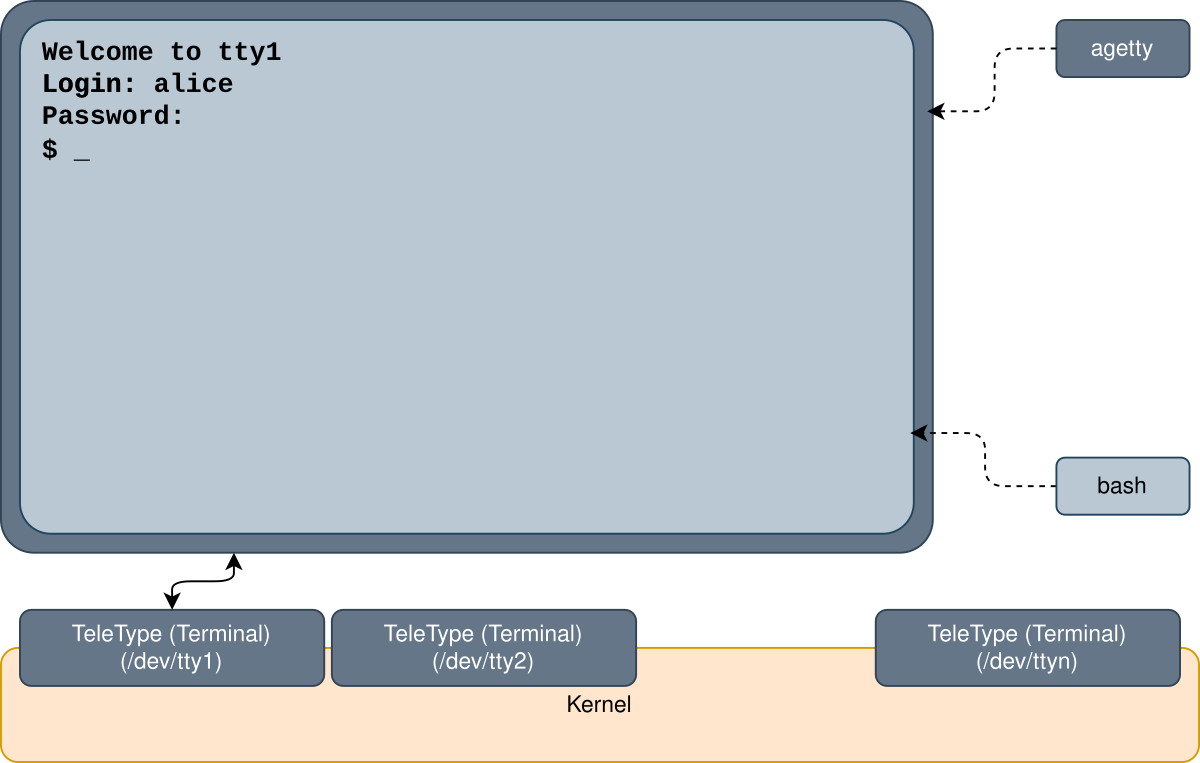
The kernel shows only one of them at a time. On /dev/tty1 in the image above, agetty printed the login prompt, and
after the login the shell of alice, bash, uses the same terminal. The graphical interface runs in one of the
virtual terminals too, usually the first or the second one. Before you leave it, find out which one, so you know how to come back.
Run this in a terminal in Sway:
[student@fedora ~]$ loginctl show-session $XDG_SESSION_ID -p VTNr
VTNr=2
loginctl asks systemd about your login session: here, Sway runs in the second virtual terminal, /dev/tty2.
Ctrl+Alt+F<n> switches to the virtual terminal n:
| Keys | Goes to |
|---|---|
| Ctrl+Alt+F3 ... F6 | a text mode terminal, /dev/tty3 ... /dev/tty6 |
| Ctrl+Alt+F2 | back to Sway, if VTNr is 2 (F1 if it is 1) |
In a text mode terminal, a program called agetty waits for a user. Log in with your user and password: login checks
them and starts your shell, bash.
fedora login: student
Password:
[student@fedora ~]$ tty
/dev/tty3
[student@fedora ~]$ exit
ttyprints the name of the terminal of the shell: this time a virtual terminal,/dev/tty3.exitcloses the shell andagettywaits for a new login.- Ctrl+Alt+F2 goes back to Sway, with all your windows exactly as you left them: Sway kept running while you were away.
In a VirtualBox virtual machine, Ctrl+Alt+F3 is caught by your own operating system, not by the virtual machine. Use Host+F3 instead (the Host key is usually the right Ctrl), and Host+F2 to go back. Other virtual machines have a menu to send these keys.
If you do not know where Sway is, try Ctrl+Alt+F1 and F2. One of them is Sway; the other one shows a login screen or a text terminal.
Terminal Emulators
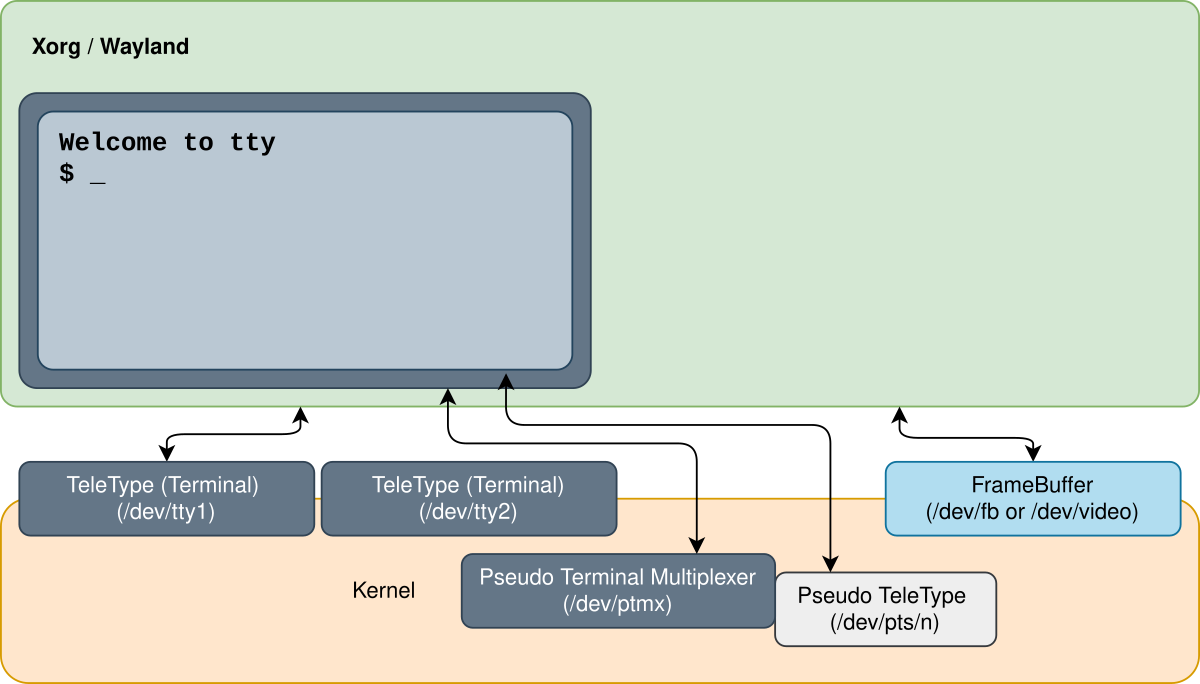
The graphical interface, Xorg or Wayland (Sway is a Wayland compositor), takes over one of the virtual terminals and
draws on the screen through the framebuffer of the kernel. In it, a terminal is a graphical application, a
terminal emulator: foot, kitty, ptyxis, alacritty, ghostty, ... Each window of a terminal emulator asks
the kernel for a pseudo terminal: it opens /dev/ptmx, and the kernel creates a new /dev/pts/<n>.
A pseudo terminal has two ends. The terminal emulator keeps one end, the master, and reads and writes it like
a file. The other end, the slave, is the file /dev/pts/<n>: it behaves exactly like a real terminal. When the
emulator starts the shell, it redirects /dev/pts/<n> as the 0, 1 and 2 of the shell.
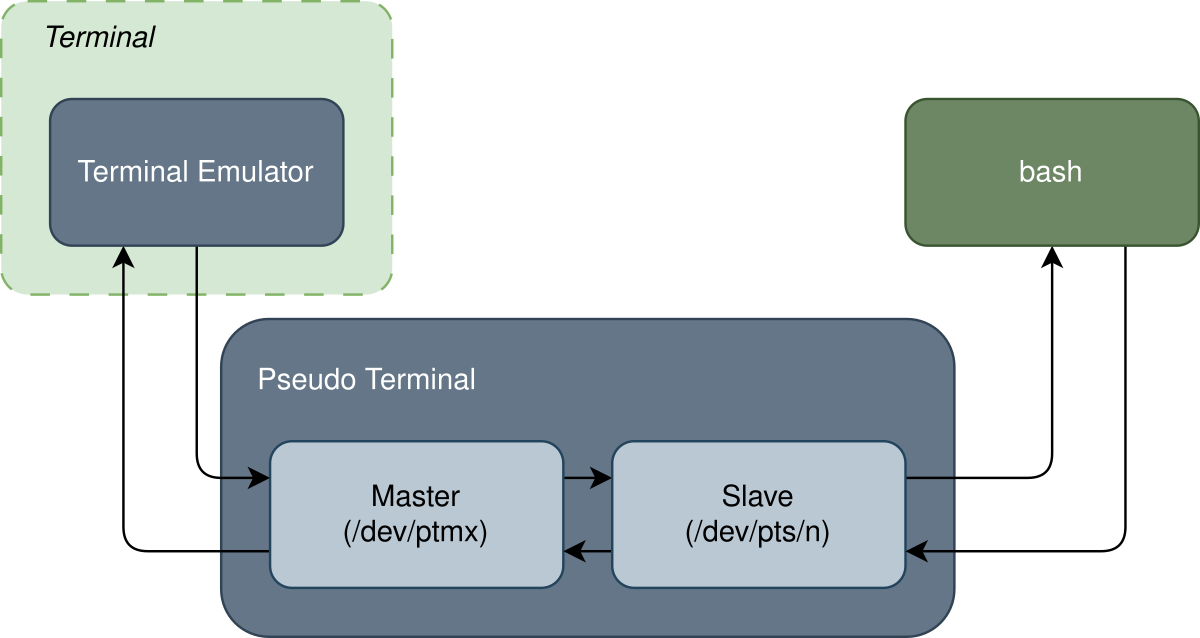
The keys you press are written by the emulator into the master, and the shell reads them from the slave. What the shell writes into the slave comes out of the master, and the emulator draws it in its window. The shell does not know that there is a window: it only sees a terminal.
[student@fedora ~]$ tty
/dev/pts/0
[student@fedora ~]$ ps
    PID TTY          TIME CMD
   2817 pts/0    00:00:00 bash
   3104 pts/0    00:00:00 ps
[student@fedora ~]$ ls /dev/pts
0  1  ptmx
[student@fedora ~]$ ls -l /proc/$$/fd/0
lrwx------. 1 student student 64 Oct 20 10:02 /proc/2817/fd/0 -> /dev/pts/0
- This shell runs in the first terminal window,
/dev/pts/0, andpsshows only the processes of this terminal. - There are two windows open, so there are two pseudo terminals,
0and1. - The standard input of the shell is the pseudo terminal, as you saw in lab 03.
A pseudo terminal is a file: what you write into it appears in the window of that terminal. With two terminals,
echo hello > /dev/pts/1 run in the first one writes hello in the second one.
Signals
A signal is a short message that the operating system sends to a process: a number, with a name that starts
with SIG. When a signal arrives, the process stops what it is doing and runs the default action of the signal,
or, if it has one, its own signal handler, and then continues.
| Default action | What happens to the process |
|---|---|
| Term | it ends |
| Core | it ends and leaves a copy of its memory (a core dump), for debugging |
| Stop | it is paused, until it receives SIGCONT |
| Cont | it continues, if it was stopped; otherwise nothing happens |
| Ign | nothing, the signal is thrown away |
On Fedora, the core dumps do not appear as files in the current directory: systemd-coredump keeps them.
coredumpctl list shows them, the newest last.
On Fedora, the core dumps do not appear as files in the current directory: systemd-coredump keeps them.
coredumpctl list shows them, the newest last.
The signals you will use most often:
| Number | Signal | Default action | Sent when | Can be handled? |
|---|---|---|---|---|
1 | SIGHUP | Term | the terminal closed (hang up) | yes |
2 | SIGINT | Term | you pressed Ctrl+C (interrupt) | yes |
3 | SIGQUIT | Core | you pressed Ctrl+\ | yes |
9 | SIGKILL | Term | someone wants the process to end now | no |
15 | SIGTERM | Term | someone asks the process to end; the default of kill | yes |
18 | SIGCONT | Cont | fg or bg continues a stopped job | yes, but it continues anyway |
19 | SIGSTOP | Stop | someone wants the process to stop now | no |
20 | SIGTSTP | Stop | you pressed Ctrl+Z | yes |
21 | SIGTTIN | Stop | a background process tried to read from the terminal | yes |
The numbers 18 to 21 are for x86 and ARM computers; other processors use other numbers. Use the names in
commands, kill -CONT, not kill -18: they work everywhere. man 7 signal has the full list.
Sending a Signal: kill
Despite its name, kill sends a signal. Only SIGTERM, its default, asks the process to end.
| Command | What it does |
|---|---|
kill -l | Lists all the signals, with their numbers |
kill -l <NUMBER> | Prints the name of a signal: kill -l 15 prints TERM |
kill <PID> | Sends SIGTERM, the default, to the process |
kill -KILL <PID> | Sends SIGKILL; kill -9 <PID> and kill -SIGKILL <PID> are the same |
kill -STOP <PID> | Stops the process |
kill -CONT <PID> | Continues the stopped process |
kill <PID1> <PID2> ... | Sends the signal (SIGTERM, or the one you give) to several processes |
kill %<N> | Sends the signal to job N of this shell (see jobs) |
Start sleep 1000 in the second terminal and send it signals from the first one:
[student@fedora ~]$ pgrep sleep
3150
[student@fedora ~]$ kill -STOP 3150
[student@fedora ~]$ ps -o pid,stat,cmd -p 3150
    PID STAT CMD
   3150 T+   sleep 1000
[student@fedora ~]$ kill -CONT 3150
[student@fedora ~]$ ps -o pid,stat,cmd -p 3150
    PID STAT CMD
   3150 S+   sleep 1000
[student@fedora ~]$ kill 3150
[student@fedora ~]$ ps -o pid,stat,cmd -p 3150
    PID STAT CMD
SIGSTOPpausedsleep: its state becameT(stopped).SIGCONTcontinued it: it is waiting again (S).SIGTERMended it:psfinds no process with this PID, and the second terminal printsTerminated.
Use kill -KILL only when kill alone does not work. SIGTERM lets a program clean up before it ends (save its
files, delete its temporary files), SIGKILL does not give it any chance.
Keys That Send Signals
The terminal turns some keys into signals for the process that runs in the foreground, the one that reads the keyboard:
| Keys | Sends | What happens, by default |
|---|---|---|
| Ctrl+C | SIGINT | the foreground job ends |
| Ctrl+\ | SIGQUIT | the foreground job ends, and the system saves a core dump |
| Ctrl+Z | SIGTSTP | the foreground job is stopped, and the shell shows the prompt (see below) |
| Ctrl+D | no signal | at the start of a line, end of file: the program reads nothing more |
[student@fedora ~]$ sleep 100
^C
[student@fedora ~]$ sleep 100
^\Quit (core dumped)
[student@fedora ~]$ sleep 100
^Z
[1]+  Stopped                 sleep 100
Ctrl+D at the prompt of the shell is the end of its input: the shell ends, and the terminal window closes.
Handling a Signal: trap
A program can replace the default action of a signal with its own signal handler: a part of its code that runs
when the signal arrives, instead of the default action. A bash script sets a handler with trap, which runs a
command or a function.. Create the file ~/lab04/stubborn.sh with nano:
#!/bin/bash

# the signal handler
function no_interruptions_please () {
    echo "No interruptions please"
}

# register the signal handler
trap no_interruptions_please SIGINT

while true; do
    echo "working"
    sleep 1
done
[student@fedora lab04]$ bash stubborn.sh
working
working
^CNo interruptions please
working
^CNo interruptions please
working
^\Quit (core dumped)
- The script writes
workingevery second, forever. - Ctrl+C sends
SIGINT: the script runs its handler, prints the message, and keeps working. - Ctrl+\ sends
SIGQUIT, which has no handler: the script ends.
| Command | What it does |
|---|---|
trap '<command>' <SIGNAL> | Runs command when SIGNAL arrives; the quotes make it one word |
trap '' <SIGNAL> | Ignores the signal |
trap - <SIGNAL> | Goes back to the default action |
trap -p | Prints the handlers |
trap keeps the handler as text, and the shell runs that text when the signal arrives, as if you typed it then.
The quotes decide when a variable in it is replaced:
SIGKILL and SIGSTOP cannot be handled or ignored: trap cannot change them. This is why kill -KILL always ends a
process.
Foreground and Background
A terminal has one job in the foreground: it reads the keyboard and receives the signals of the keys, and the shell waits for it to end before it shows the prompt again. All the commands you ran so far ran in the foreground.
The shell can also start commands in the background. They are called jobs: the shell does not wait for them and shows the prompt right away, so they run at the same time as the commands you type. A job is either running or stopped.
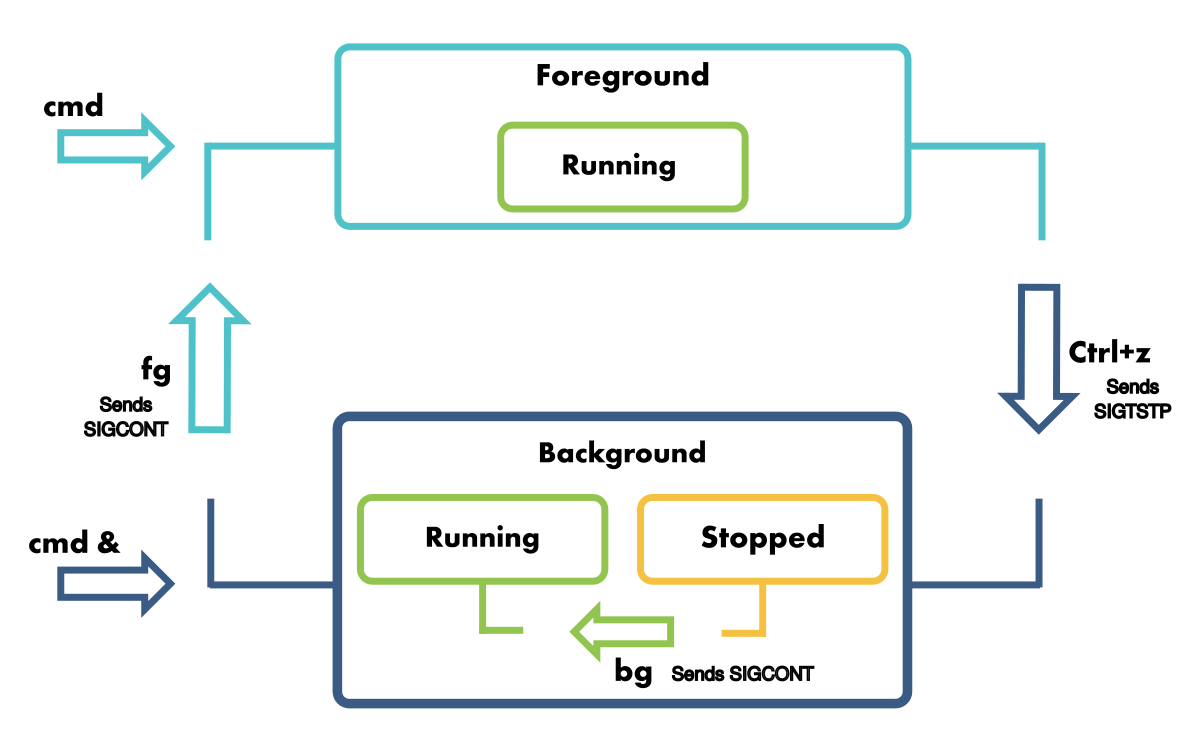
A command starts in the foreground (cmd) or in the background (cmd &). Ctrl+Z stops the
foreground process and moves it to the background, bg continues a stopped job in the background, and fg brings a job
back to the foreground. The rest of this section shows each of them.
Starting a Job: &
Put & at the end of a command to run it in the background:
[student@fedora ~]$ sleep 100 &
[1] 4242
[student@fedora ~]$ sleep 200 &
[2] 4250
[student@fedora ~]$ jobs
[1]-  Running                 sleep 100 &
[2]+  Running                 sleep 200 &
[student@fedora ~]$ echo $!
4250
[student@fedora ~]$ kill %1
[student@fedora ~]$
[1]-  Terminated              sleep 100
[1]is the job ID, which exists only in this shell;4242is the PID, for the whole system.jobslists the jobs of this shell:+marks the current job (the last one),-the previous one.$!is the PID of the last job started with&.%1means job 1:kill %1sentSIGTERMto it, and the shell said that it ended when it showed the next prompt.
| Command | What it does |
|---|---|
command & | Runs command in the background, as a job |
jobs | Lists the jobs of this shell |
jobs -l | Lists them with their PIDs |
fg %<N> | Brings job N to the foreground (and continues it, if it is stopped) |
bg %<N> | Continues the stopped job N in the background |
kill %<N> | Sends SIGTERM to job N |
fg, bg | Without %<N>, they work on the current job, the one with + |
A job still writes to the same terminal: its output gets mixed with the commands you type. Redirect its output, for
example find / -name passwd > found.txt 2> /dev/null &.
Stopping and Continuing: fg and bg
A command that runs in the foreground can be moved to the background later:
- press Ctrl+Z: the command is stopped (
SIGTSTP), and the shell prints its job ID, for example[1]+ Stopped, and shows the prompt; - find its job ID with
jobs; - run
bg %<N>: the job continues (SIGCONT) in the background.
fg %<N> brings it back to the foreground.
[student@fedora ~]$ sleep 100 > /dev/null
^Z
[1]+  Stopped                 sleep 100 > /dev/null
[student@fedora ~]$ jobs
[1]+  Stopped                 sleep 100 > /dev/null
[student@fedora ~]$ bg %1
[1]+ sleep 100 > /dev/null &
[student@fedora ~]$ jobs
[1]+  Running                 sleep 100 > /dev/null &
[student@fedora ~]$ fg %1
sleep 100 > /dev/null
^C
- After Ctrl+Z,
sleepis stopped and the shell shows the prompt. bgcontinued it in the background (the shell prints it with an&at the end).fgbrought it back to the foreground: the shell waits for it again, and Ctrl+C reaches it.
Ctrl+Z is useful when you forgot the &, or when you want to leave a program for a moment, for
example nano or less, run a command, then go back with fg.
Jobs That Read the Keyboard
Only the foreground process can read the keyboard. A job that tries to read it receives SIGTTIN and is stopped:
[student@fedora ~]$ cat &
[1] 4321
[student@fedora ~]$
[1]+  Stopped                 cat
[student@fedora ~]$ fg
cat
hello
hello
^D
cat without parameters reads the keyboard, so it stopped right away. fg brought it to the foreground, where it can
read: it printed back every line, until Ctrl+D.
You cannot close a shell that still has stopped jobs at the first try: exit prints There are stopped jobs., and
only a second exit closes it (and ends the jobs).
Sessions and Process Groups
The kernel groups the processes of a terminal in two levels:
| Group | What it is | Its ID: the PID of its leader | Its leader |
|---|---|---|---|
| process group | one job: all the processes of one command line, sleep 100 | cat is one group of two processes | PGID: the first process of the command line | the group leader |
| session | all the process groups of one terminal | SID, the PID of the shell | the session leader: the shell, s in STAT |
The terminal is the controlling terminal of the session. Its input, and the signals of the keys
(Ctrl+C, Ctrl+Z, ...), go to the foreground process group, so they
reach every process of the foreground job. + in the STAT column of ps marks the processes of the foreground
group.
[student@fedora ~]$ echo $$
3000
[student@fedora ~]$ sleep 100 | cat &
[1] 4243
[student@fedora ~]$ ps -o pid,ppid,pgid,sid,tty,stat,comm
    PID    PPID    PGID     SID TT       STAT COMMAND
   3000    2990    3000    3000 pts/0    Ss   bash
   4242    3000    4242    3000 pts/0    S    sleep
   4243    3000    4242    3000 pts/0    S    cat
   4250    3000    4250    3000 pts/0    R+   ps
bashis the session leader: its PID is theSIDof all the processes of the terminal, and it has ansinSTAT.sleepandcatare one job, so one group:4242, the PID ofsleep, the first process of the job.psruns in the foreground (+), in a group of its own.
Closing the Terminal: SIGHUP and nohup
When the terminal closes, the kernel sends SIGHUP (hang up) to the session leader, the shell. The shell sends
SIGHUP to all its jobs, and they end. A command started with nohup ignores SIGHUP, so it keeps running:
[student@fedora ~]$ sleep 1000 &
[1] 4300
[student@fedora ~]$ nohup sleep 2000 > /dev/null &
[2] 4301
nohup: ignoring input
Close this terminal window, and look for the two jobs from another terminal:
[student@fedora ~]$ pgrep -a sleep
4301 sleep 2000
[student@fedora ~]$ ps -o pid,ppid,sid,tty,comm -p 4301
    PID    PPID     SID TT       COMMAND
   4301       1    3000 ?        sleep
sleep 1000receivedSIGHUPand ended.sleep 2000ignored it and keeps running, without a terminal (?); its parent ended, so its new parent is PID1.
If you do not redirect its output, nohup writes it into the file nohup.out, because the terminal will not exist
anymore: nohup: ignoring input and appending output to 'nohup.out'.
If the shell is killed with SIGKILL, it cannot send SIGHUP to its jobs anymore: they keep running, without a
terminal, even without nohup.
Environment Variables
Every process has an environment: a list of variables, each written as NAME=value. Programs read it to configure
themselves: HOME tells them the home directory of the user, LANG the language, and PATH where to look for
programs. The names are case-sensitive (HOME and home are different variables) and, by convention, in
UPPER CASE.
A process receives its environment from its parent when it starts: usually a copy of the parent's environment. From then on the two are separate: a change in one does not reach the other.
| Command | What it does |
|---|---|
printenv | Prints all the environment variables |
printenv <NAME> | Prints the value of one variable |
env | Prints all the environment variables, like printenv |
echo $NAME | The shell replaces $NAME with its value, then echo prints it |
[student@fedora ~]$ printenv HOME
/home/student
[student@fedora ~]$ echo "I am $USER, my shell is $SHELL"
I am student, my shell is /bin/bash
[student@fedora ~]$ env | wc -l
35
Shell Variables and export
The shell has two kinds of variables:
- shell variables: they exist only inside this shell;
- environment variables: they are part of the environment, so every command started from this shell receives a copy.
| Syntax | What it does |
|---|---|
NAME=value | Creates a shell variable, or changes the value of an existing variable |
export NAME | Makes the variable an environment variable: every command started from now on receives it |
export NAME=value | Both at once |
NAME=value command | An environment variable only for command; the shell does not keep it |
unset NAME | Deletes the variable, from the shell and from the environment |
$NAME | Replaced by the shell with the value, or with nothing if the variable does not exist |
${NAME} | The same, with clear limits: "${NAME}_old" is the value followed by _old; "$NAME_old" is the variable NAME_old |
[student@fedora ~]$ GREETING=hello
[student@fedora ~]$ echo $GREETING
hello
[student@fedora ~]$ bash -c 'echo "child: $GREETING"'
child:
[student@fedora ~]$ export GREETING
[student@fedora ~]$ bash -c 'echo "child: $GREETING"'
child: hello
[student@fedora ~]$ unset GREETING
[student@fedora ~]$ echo "[$GREETING]"
[]
GREETING=hellocreated a shell variable, and the shell replaced$GREETINGwithhello.bash -c '...'starts a new shell, a child, that runs the text between the quotes. The child did not receiveGREETING: it was not part of the environment.- After
export, the child received a copy of it. - After
unset, the variable does not exist anymore, and$GREETINGis replaced with nothing.
No spaces around =. GREETING = hello runs the command GREETING, with the parameters = and hello:
bash: GREETING: command not found. Put the value between quotes when it has spaces: GREETING="good morning".
A process can change only its own environment, and the environment of the children it starts after that. A
child can never change a variable of its parent: this is why export and unset are commands of the shell, not
programs.
A Variable for One Command
NAME=value written before a command puts the variable only in the environment of that command:
[student@fedora ~]$ date +%H:%M
11:47
[student@fedora ~]$ TZ=Asia/Tokyo date +%H:%M
18:47
[student@fedora ~]$ echo "[$TZ]"
[]
[student@fedora ~]$ ls /nope
ls: cannot access '/nope': No such file or directory
[student@fedora ~]$ LANG=ro_RO.UTF-8 ls /nope
ls: nu se poate accesa '/nope': Fișier sau director inexistent
TZ(time zone) changed the time zone only for thatdate; the shell did not keep it.LANGchanged the language of the messages ofls(if the Romanian language is installed).
Variables Defined by the System
When the prompt shows up, the shell already has many variables, set when you logged in or by its startup files:
| Variable | Value |
|---|---|
HOME | your home directory, ~ |
USER | your user name |
SHELL | your shell, from /etc/passwd |
PWD, OLDPWD | the current directory and the previous one (cd - goes to OLDPWD) |
PATH | the directories with the programs, separated by : (see The PATH Search) |
LANG | the language and the encoding of the characters |
PS1 | the prompt; a shell variable, not exported |
PS1 is the text of the prompt, with some special sequences: \u is the user, \h the computer, \w the current
directory, \$ is $ (or # for root). Try PS1='\u in \w \$ '. The change lasts until you close the terminal.
Special Parameters: $?, $$ and $!
The shell sets a few more values that you can only read:
| Parameter | Value |
|---|---|
$? | the exit code of the last command: 0 means success, anything else an error |
$$ | the PID of the shell |
$! | the PID of the job most recently sent to the background, with & or bg |
[student@fedora ~]$ ls /nope
ls: cannot access '/nope': No such file or directory
[student@fedora ~]$ echo $?
2
[student@fedora ~]$ echo $?
0
ls failed, with the exit code 2. The second echo $? prints the exit code of the first echo, which succeeded: $?
changes after every command.
The Command Line
Before a command starts, the shell reads the whole line and splits it into parts:
[student@fedora lab04]$ LANG=C sort -r "$HOME/my notes.txt" my\ list.txt *.csv > sorted.txt 2> errors.txt
| Part | In the example | What it is |
|---|---|---|
| assignments | LANG=C | NAME=value words at the start: variables only for this command |
| the command | sort | the first word that is not an assignment or a redirect |
| the parameters | -r, "$HOME/my notes.txt", my\ list.txt, *.csv | everything else: options, file names, texts |
| redirects | > sorted.txt, 2> errors.txt | a redirect and the word after it; they are for the shell, not for the command, and can be anywhere |
Then, step by step:
- it splits the line into words at the spaces, except inside quotes and after a
\; - it sets apart the assignments and the redirects;
- it replaces
$NAMEand~with their values; - it splits again the values of the variables that were not between quotes;
- it expands the globs (
*.csv) into the names of the matching files; - it removes the quotes and the
\; - it sets up the redirects and runs the command, with the words that are left as its parameters.
sort receives 5 parameters: -r, /home/student/my notes.txt, my list.txt, a.csv and b.csv. It never sees the
quotes, the $, the * or the redirects.
To see the words that a command receives, use printf '[%s]\n' instead of the command: it prints every parameter
between brackets, on its own line.
[student@fedora lab04]$ printf '[%s]\n' -r "$HOME/my notes.txt" my\ list.txt *.csv
[-r]
[/home/student/my notes.txt]
[my list.txt]
[a.csv]
[b.csv]
The Order of Redirects
The redirects can be written anywhere in the line, even before the command, and the shell applies them from left to right:
[student@fedora lab04]$ 2> errors.txt ls > list.txt /nope .
[student@fedora lab04]$ ls /nope > all.txt 2>&1
[student@fedora lab04]$ ls /nope 2>&1 > all.txt
ls: cannot access '/nope': No such file or directory
- The first line is the same as
ls /nope . > list.txt 2> errors.txt. > all.txt 2>&1: first1goes toall.txt, then2goes where1goes now, also intoall.txt.2>&1 > all.txt: first2goes where1goes now, the display, then only1changes toall.txt. The error is on the display.
Quoting and Escaping
Some characters have a special meaning for the shell: the space, $, *, ?, [, {, ~, >, <, |, &, ;,
#, ', " and \. Quotes and \ turn the special meaning off:
| Written as | What it does |
|---|---|
'...' | single quotes: everything inside is plain text, nothing is replaced |
"..." | double quotes: $NAME is still replaced, but the result stays one word; globs are not expanded |
\ | the next character is plain text: \ is a space that does not split, \$ is a $ |
With NAME="Alice Smith" (three spaces), this is what echo receives:
| You type | echo receives | Why |
|---|---|---|
echo $NAME | Alice, Smith | no quotes: replaced, then split at the spaces |
echo "$NAME" | Alice Smith | double quotes: replaced, one word, the spaces are kept |
echo '$NAME' | $NAME | single quotes: nothing is replaced |
echo \$NAME | $NAME | \$: the $ is just a character |
echo my\ file.txt | my file.txt | \ : the space does not split |
echo "\$NAME is $NAME" | $NAME is Alice Smith | inside "...", \$ is a $, $NAME is replaced |
echo "it's" 'say "hi"' | it's, say "hi" | each kind of quotes protects the other one |
echo 'a\b' | a\b | inside '...', \ is just a character |
[student@fedora ~]$ NAME="Alice   Smith"
[student@fedora ~]$ echo $NAME
Alice Smith
[student@fedora ~]$ echo "$NAME"
Alice   Smith
[student@fedora ~]$ printf '[%s]\n' $NAME
[Alice]
[Smith]
echo $NAME received two words and printed them with one space between them: the three spaces were lost.
Put every variable between double quotes, "$NAME", unless you really want it split into words. A file name with
a space in a variable breaks a command without them: rm $FILE with FILE="my notes.txt" tries to delete my and
notes.txt.
Globbing
A glob is a pattern for file names. The shell replaces it with the names of the matching files, in alphabetical order, before the command starts. In this directory:
[student@fedora glob]$ ls
docs  notes.txt  photo1.png  photo2.png  photo3.png  photoA.png  report.md  todo.txt
| Glob | Matches | echo receives |
|---|---|---|
*.txt | *: any characters, or none (but not /) | notes.txt, todo.txt |
photo?.png | ?: exactly one character | photo1.png, photo2.png, photo3.png, photoA.png |
photo[12].png | [12]: one character, 1 or 2 | photo1.png, photo2.png |
photo[0-9].png | [0-9]: one character in the range | photo1.png, photo2.png, photo3.png |
photo[!0-9].png | [!0-9]: one character not in the range ([^0-9] also works) | photoA.png |
docs/**/*.txt | **: any directories, at any depth (needs shopt -s globstar) | docs/2026/exam.txt, docs/plan.txt |
{a,b,c}.pdf | {...}: one word for each, even if the file does not exist | a.pdf, b.pdf, c.pdf |
*.pdf | no file matches | *.pdf, the glob as it is |
When no file matches, bash gives the glob as it is to the command: ls *.pdf prints
ls: cannot access '*.pdf': No such file or directory. Other shells, like zsh, print an error and do not run the
command at all.
*and?do not match the.at the beginning of a hidden file:*does not include.bashrc, but.*does.{...}is not a glob: it makes the words even if there are no files, which is useful to create them, for examplemkdir -p 2026/{jan,feb,mar}ortouch photo{4..6}.png({4..6}is4 5 6).**works only aftershopt -s globstar; without it, it is the same as*.- Between quotes, a glob is plain text:
echo "*.txt"prints*.txt. This is how you give a pattern to a command that understands it by itself, likefind . -name "*.txt".
Running a Command
Built-in and External Commands
Not every command is a program:
| Kind | What it is | Examples | Help |
|---|---|---|---|
| built-in command | part of the shell: it runs inside it, without a new process | cd, export, unset, exit, jobs, fg, bg, trap, type | help <name> |
| some are built in only to be faster, and also exist as programs | echo, printf, kill, pwd | ||
| external command | an executable file on the disk, found in PATH; the shell starts it as a child process | ls, sort, grep, sleep, bash | man <name> |
type tells which one a command is:
[student@fedora ~]$ type cd
cd is a shell builtin
[student@fedora ~]$ type sort
sort is /usr/bin/sort
[student@fedora ~]$ type ls
ls is aliased to `ls --color=auto'
[student@fedora ~]$ type -a echo
echo is a shell builtin
echo is /usr/bin/echo
cdis built in,sortis the file/usr/bin/sort.lsis an alias: a short name for another command line, herels --color=auto.-ashows all the meanings of the name:echois built in, and there is also a program with the same name. The shell uses the first one.
cd, export, unset and exit must be built in: they change the shell itself, its current directory, its
variables, or stop it. A program started by the shell is a child process, and a child cannot change its parent.
The PATH Search
The kernel can only start a program from its path. When the first word is a name, the shell has to find the file:
- if the word has a
/, it is a path: absolute (/usr/bin/sort) or relative to the current directory (./hello,bin/hello,../tools/hello), used as it is; - otherwise, if it is an alias or a built-in command, the shell runs it itself;
- otherwise, the shell searches the directories of the
PATHvariable, from left to right, and runs the first file with that name; - if no directory has it:
command not found.
[student@fedora ~]$ echo $PATH
/home/student/.local/bin:/home/student/bin:/usr/local/bin:/usr/bin
[student@fedora ~]$ cd ~/lab04
[student@fedora lab04]$ ls bin
hello
[student@fedora lab04]$ hello
bash: hello: command not found
[student@fedora lab04]$ bin/hello
Hello!
[student@fedora lab04]$ PATH="$PATH:$HOME/lab04/bin"
[student@fedora lab04]$ hello
Hello!
[student@fedora lab04]$ type hello
hello is /home/student/lab04/bin/hello
- The shell does not look in the current directory, so
helloalone was not found. bin/hellohas a/, so it is a path, and the shell ran it.- After adding
~/lab04/binat the end ofPATH, the shell foundhellothere.
Add directories to PATH, never replace it: PATH=~/lab04/bin alone leaves the shell without /usr/bin, and ls,
cat and almost every other command become command not found. Close the terminal and open a new one to get the old
PATH back.
On Fedora, ~/.local/bin and ~/bin are already in PATH: copy a program of your own there and it works from any
directory, in every new terminal.
Troubleshooting
| Problem | Solution |
|---|---|
| Ctrl+C does not stop a program | It handles or ignores SIGINT: try Ctrl+\, or Ctrl+Z followed by kill %1; as a last resort, kill -KILL <PID> from another terminal |
kill does not end a process | It handles SIGTERM: use kill -KILL <PID> |
A stopped process does not react to kill | It receives the signal when it continues: kill -CONT <PID>, or use kill -KILL <PID> |
bash: kill: (4242) - Operation not permitted | The process belongs to another user |
bash: kill: %1: no such job or fg: current: no such job | The job belongs to another terminal (every shell has its own jobs), or it has already ended; use the PID |
[1]+ Stopped right after command & | The job tries to read the keyboard: bring it to the foreground with fg, or redirect its input |
There are stopped jobs. when you close the shell | Continue or end them (fg, kill %N); a second exit ends them |
| A job writes over the commands you type | Redirect its output to a file, or to /dev/null |
bash: NAME: command not found after NAME = value | No spaces around = |
| A child does not see a variable | It is a shell variable: export it |
bash: <command>: command not found | Check the name, then echo $PATH: the directory of the program is not in PATH, or PATH was replaced; open a new terminal |
A file in the current directory is command not found | The shell does not search the current directory: run it as ./name |
cannot access '*.pdf' | No file matches the glob, so the command received it as it is |
| A name with a space becomes two files | Put it, or the variable that holds it, between double quotes |
The shell shows > and waits | A quote is not closed: close it, or press Ctrl+C and type the line again |
Exercises
The exercises get harder as you go:
- 🧪 First Steps (exercises 1 - 23) goes once through everything in this lab, with easy exercises;
- 🏠 Going Further (exercises 24 - 51) has more exercises to do at home, harder as you go;
- 📝 Challenges (exercises 52 - 62) has the hardest ones.
Exercise 1 creates the files and directories that all the other exercises start from. Run the commands in ~/lab04,
unless the exercise says otherwise. If you change or delete one of the files from exercise 1, run its commands again to
get it back.
Some exercises ask for things that the lab does not show you, for example an option that is not in the tables
above. Find it in the manual page of the command (man <command>), as explained in
Searching in a Manual Page in lab 02. jobs, fg, bg, trap, export
and the other built-in commands do not have a manual page of their own: use help <command>, for example help trap,
or search man bash.
Keep two terminals side by side in Sway: the first one to run the commands, and the second one to run the commands
that you inspect, or to check the results. Many exercises use the PID of a process: it is different on your computer,
use the one that pgrep, ps or $! prints for you.
Do not use sudo to send signals: sudo kill can end the processes of the system. Send signals only to your own
processes, and check the PID twice before kill -KILL.
🧪 First Steps
-
The practice tree:
-
run these commands to create the files used in the exercises (copy them from the browser with Ctrl+C and paste them in the terminal with Ctrl+Shift+V):
mkdir -p ~/lab04/bin ~/lab04/glob/docs/2026cd ~/lab04printf 'pear\nfig\n' > 'my notes.txt'printf 'cherry\nBanana\napple\n' > 'my list.txt'printf 'banana,3\napple,5\n' > a.csvprintf 'cherry,1\nkiwi,7\n' > b.csvprintf '#!/bin/bash\necho Hello!\n' > bin/hellochmod +x bin/hellocat > stubborn.sh << 'EOF'#!/bin/bash# the signal handlerfunction no_interruptions_please () {echo "No interruptions please"}# register the signal handlertrap no_interruptions_please SIGINTwhile true; doecho "working"sleep 1doneEOFcd ~/lab04/globtouch notes.txt todo.txt report.md photo1.png photo2.png photo3.png photoA.png docs/plan.txt docs/2026/exam.txtcd ~/lab04 -
run
treein~/lab04; -
print
stubborn.shwithcat.
Check: you see
bin/hello, the two.csvfiles,my list.txt,my notes.txt,stubborn.shand theglobdirectory with 9 files;stubborn.shis the script from Handling a Signal.chmod +xmakeshelloa program that can be run (you will learn about it in the lab about permissions). → Navigation -
Terminals
-
Which terminal:
- print the terminal of the shell, in both terminals;
- list the pseudo terminals in
/dev/pts; - open a third terminal and list them again, then close it.
Check: each shell has its own
/dev/pts/<n>; the third terminal adds one more number to the list, and its number disappears after you close it. → Terminal Emulators -
Write to another terminal:
- find the terminal of the second shell, with
tty; - from the first terminal, write
hello from the first terminalinto the second one, withechoand a redirect.
Check: the text appears in the second terminal, without anything typed there. → Terminal Emulators
- find the terminal of the second shell, with
-
A virtual terminal:
- in a terminal in Sway, find out in which virtual terminal Sway runs, with
loginctl; - switch to the third virtual terminal with Ctrl+Alt+F3 (Host+F3 in VirtualBox);
- log in as
student, print the name of the terminal and list its processes withps; - log out with
exit; - switch back to Sway, using the number that
loginctlprinted.
Check:
VTNris1or2;ttyprints/dev/tty3, andpsshows abashontty3; afterexit, the terminal asks for a login again; back in Sway, your windows are exactly as you left them. → Virtual Terminals - in a terminal in Sway, find out in which virtual terminal Sway runs, with
Signals
-
The list of signals:
- list all the signals with
kill; - print the name of signal
9and the number ofSIGCONT, withkill -l.
Check: signal
9isKILL, andCONTis18. → Sending a Signal - list all the signals with
-
Stop and continue:
- in the second terminal, run
sleep 1000; - in the first terminal, find its PID and stop it with a signal;
- show its state with
ps -o pid,stat,cmd -p <PID>, and look at the second terminal; - continue it, show its state again, and run
jobsin the second terminal; - end it with
kill %1in the second terminal.
Check: the state is
TafterSIGSTOPandSafterSIGCONT, without the+. As soon assleepstopped, the second shell printed[1]+ Stopped (signal), took the terminal back and showed the prompt, so afterSIGCONT,jobsshowssleepasRunningin the background. → Sending a Signal - in the second terminal, run
-
Keys and signals:
- run
sleep 100and end it with Ctrl+C; - run it again and end it with Ctrl+\;
- run it again and stop it with Ctrl+Z;
- list the jobs.
Check: the terminal shows
^Cafter Ctrl+C,Quit (core dumped)after Ctrl+\ (onlyQuitif core dumps are turned off), andStoppedafter Ctrl+Z;sleepis still in the list of jobs. End it withkill %1. → Keys That Send Signals - run
-
A stubborn script:
- run
bash stubborn.sh; - press Ctrl+C a few times;
- stop it with Ctrl+\.
Check: Ctrl+C prints
No interruptions pleaseand the script keeps working; Ctrl+\ ends it. → Handling a Signal - run
Foreground and background
-
Two jobs:
- start
sleep 300andsleep 400in the background; - list the jobs, and then the jobs with their PIDs;
- print the PID of the last job with
$!; - end the first job using its job ID;
- end the second job too, and list the jobs again.
Check:
jobsshows[1]and[2], with+at[2];$!is the PID ofsleep 400; after the next command, the shell prints[1]- Terminated; at the end,jobsprints nothing. → Starting a Job - start
-
To the background and back:
- run
sleep 200 > /dev/nullin the foreground; - stop it with the keyboard;
- continue it in the background, and check with
jobsthat it runs; - bring it back to the foreground, and end it with the keyboard.
Check:
jobsshowsStopped, thenRunning; afterfg, the prompt does not show up until you press Ctrl+C. → Stopping and Continuing - run
-
The current job:
- start
sleep 300,sleep 400andsleep 500in the background; - list the jobs, and find the current one;
- run
fgwithout a job ID, and end the job with Ctrl+C; - list the jobs again, and end the others with
kill.
Check: the current job (
+) issleep 500, the last one started, andfgbrought it to the foreground; after it ended,sleep 400became the current job. → Starting a Job - start
Sessions
-
Session and groups:
- print the PID of your shell;
- start
sleep 100 | catin the background; - list the processes of the terminal with the columns
pid,ppid,pgid,sid,tty,statandcomm.
Check: all the processes have the PID of the shell as their
SID;sleepandcathave the samePGID, the PID ofsleep;bashhassandpshas+inSTAT. → Sessions and Process Groups -
Close the terminal:
- open a new terminal and start
sleep 1000 &andnohup sleep 2000 > /dev/null &in it; - close the window of this terminal;
- in another terminal, look for the two
sleepprocesses; - end
sleep 2000withkill.
Check: only
sleep 2000is still running, without a terminal (?). Its parent ended, so it was adopted: its new parent is PID1, or a process that adopts orphans, likesystemd --user(see which one withps -o pid,comm -p <PPID>). → Closing the Terminal - open a new terminal and start
Variables
-
Read variables:
- print
HOME,USERandSHELLwithprintenv; - print the sentence
I am student and I live in /home/studentwithechoand the variablesUSERandHOME; - count the environment variables.
Check: the sentence has your user and your home directory; there are a few dozen variables. → Environment Variables
- print
-
Shell variable or environment variable:
- set the shell variable
COLORtoblue, and print it; - check with
printenv COLORand withbash -c 'echo "$COLOR"'whether it is in the environment; - export it, and check again;
- delete it, and print it again.
Check: before
export,printenvprints nothing and the child prints an empty line; after it, both printblue; afterunset,echoprints an empty line. → Shell Variables andexport - set the shell variable
-
Only for one command:
- print the time with
date +%H:%M; - print the time in Tokyo and in New York (
America/New_York), by settingTZonly fordate; - print
TZ.
Check: the three times are different, and
TZis empty in the shell. → A Variable for One Command - print the time with
-
Exit codes:
- run
ls ~/lab04and print its exit code; - run
ls /nopeand print its exit code; - run
grep apple a.csvandgrep pear a.csv, and print the exit code after each of them; - run
echo $?twice in a row.
Check:
lshas the exit code0, then2;grephas0when it finds the text and1when it does not; the secondecho $?always prints0. → Special Parameters - run
The command line
-
The words of a command: Use
printf '[%s]\n'to see the words that the shell gives to a command:printf '[%s]\n' one two three;printf '[%s]\n' "one two three";printf '[%s]\n' ~ "~" '$HOME' "$HOME".
Check: the first line gives 3 words, the second one only 1, with the spaces kept;
~and"$HOME"become/home/student,"~"and'$HOME'stay as they are. → The Command Line · Quoting and Escaping -
Quotes and variables:
- set
NAME="Alice Smith"; - print it with
echo, without quotes, between double quotes and between single quotes; - print the text
$NAME is Alice Smithwith a singleechoand one pair of double quotes.
Check: without quotes, the three spaces become one; between double quotes they are kept; between single quotes
echoprints$NAME; the lastechoprints$NAME is Alice Smith, with the three spaces. → Quoting and Escaping - set
-
A dollar sign: Print the text
The price is $5withecho:- first with double quotes and nothing else, and see what goes wrong;
- with single quotes;
- with a
\and no quotes; - with double quotes and a
\.
Check: step 1 prints
The price is: the shell replaced$5with nothing.$5is the fifth positional parameter, a parameter given to a script, and it is empty in your shell. Single quotes and\turn off the meaning of$, so steps 2, 3 and 4 printThe price is $5. → Quoting and Escaping -
Globs: Go to
~/lab04/globand, withecho, print:- all the
.pngfiles; - the photos with a single digit after
photo; - the photos whose name does not have a digit after
photo; - all the files whose name has exactly 8 characters (count the extension too);
- all the
.pdffiles; - the names
photo7.pngandphoto8.png, with{...}.
Check:
photoA.pngis in the first and the third list, not in the second one; the fourth list istodo.txt; the fifthechoprints*.pdf, because no file matches; the last one prints both names, even if the files do not exist. → Globbing - all the
-
Built-in or external:
- find out with
typewhatcd,ls,sort,typeandsleepare; - show all the meanings of
killand ofecho; - print the
PATH, and find in which of its directoriessortis.
Check:
cdandtypeare built in,lsis an alias,sortandsleepare in/usr/bin;killandechoare built in, and also exist as programs in/usr/bin. For a program you already ran,typesayshashed, for examplesleep is hashed (/usr/bin/sleep): the shell remembers where it found it. → Built-in and External Commands · ThePATHSearch - find out with
-
Command not found:
- run
sl(a typo ofls), and print the exit code; - find out with
typewhetherslexists; - run
/usr/bin/nope, and print the exit code.
Check: the shell searched all the directories of
PATHand found nosl: the exit code is127, the code of the shell for command not found;/usr/bin/nopeis a path that does not exist, and its exit code is127too. If the shell offers to install a package forsl, answerN. → ThePATHSearch · Special Parameters - run
🏠 Going Further
-
The terminal in ps:
- list the processes of the terminal with
ps; - print the
0,1and2file descriptors of the shell, from/proc/$$/fd.
Check: the
TTYcolumn ofpsand the three links in/proc/$$/fdshow the same pseudo terminal astty. → Terminal Emulators · The/procFile System - list the processes of the terminal with
-
Names and numbers:
- in the second terminal, run
sleep 1000; - in the first terminal, end it with
kill, giving the signalSIGTERMby its number; - run
sleep 1000again and end it, givingSIGTERMby its name, with theSIGin front.
Check: both times the second terminal prints
Terminated:kill -15,kill -TERMandkill -SIGTERMsend the same signal. → Sending a Signal - in the second terminal, run
-
End a process:
- in the second terminal, run
sleep 1000; - in the first terminal, end it with
killand its default signal; - run
sleep 1000again, and end it withSIGKILL.
Check: the second terminal prints
Terminatedthe first time andKilledthe second time. → Sending a Signal - in the second terminal, run
-
SIGINT from kill:
- in the second terminal, run
bash stubborn.sh; - in the first terminal, find the PID of the script (look for
stubbornwithpgrep -f); - send it
SIGINTwithkill; - end it with
SIGTERM.
Check:
SIGINTsent withkillhas the same effect as Ctrl+C: the message appears in the second terminal;SIGTERMends the script, because it has no handler for it. → Sending a Signal · Handling a Signal - in the second terminal, run
-
Leave an editor for a moment:
- open
stubborn.shwithnano; - stop
nanowith Ctrl+Z (if it does not stop, press Ctrl+T, then Ctrl+Z), and runls; - go back to
nano, and quit it; - do the same with
less stubborn.sh.
Check:
nanoandlesscome back exactly as you left them. → Stopping and Continuing - open
-
A job that reads:
- start
catin the background; - list the jobs;
- bring it to the foreground, type two lines, and end its input.
Check:
catisStoppedright away; in the foreground it prints back every line you type, and Ctrl+D ends it. → Jobs That Read the Keyboard - start
-
A job with its own output:
- search the whole file system for files named
passwdwithfind, in the background, with the output infound.txtand the errors thrown away; - run
jobsuntil the job isDone; - print
found.txt.
Check: nothing from
findappears in the terminal, andfound.txthas/etc/passwd. → Starting a Job · Special Files - search the whole file system for files named
-
Jobs belong to a shell:
- in the second terminal, start
sleep 600in the background; - in the first terminal, list the jobs;
- in the first terminal, find the PID of
sleep 600withpgrep -f 'sleep 600', and end it.
Check:
jobsprints nothing in the first terminal: every shell has only its own jobs.kill %1does not work there, butkill <PID>does, and the second terminal printsTerminatedafter its next command. → Starting a Job - in the second terminal, start
-
One key, the whole group:
- run
sleep 100 | sleep 200in the second terminal; - in the first terminal, list the two processes with
pgrep -a sleep; - press Ctrl+C in the second terminal, and list them again.
Check: both
sleepprocesses ended at the same time: the signal reached the whole foreground group. → Sessions and Process Groups - run
-
Spaces around
=:- run
GREETING = hello; - run
GREETING=good morning; - set
GREETINGtogood morningcorrectly, and print it.
Check: the first command is
command not foundforGREETING, the second one formorning, because the shell ranmorningwithGREETING=goodin its environment. → Shell Variables andexport - run
-
The previous directory:
- go to
/etc, then to~/lab04; - print
PWDandOLDPWD; - run
cd -, and print them again.
Check:
cd -takes you back to/etc, and the two variables swap their values. → Variables Defined by the System - go to
-
Inherited by the children:
- export the variable
LEVELwith the value1; - start a new
bash(just typebash), printLEVEL, and set it to2; - leave the child with
exit, and printLEVELagain.
Check: the child printed
1, received from its parent; afterexit, the parent still has1: the child changed only its own copy. → Shell Variables andexport - export the variable
-
The PID of the shell:
- print the PID of your shell with
$$, and compare it with the line ofbashprinted byps; - start a new
bash(typebash), and print$$andpsagain; - leave it with
exit, and print$$once more.
Check: inside the new
bash,$$is a different number, andpsshows twobashprocesses; afterexit,$$is the first number again. → Special Parameters - print the PID of your shell with
-
The environment from /proc:
- in the second terminal, run
MESSAGE=secret sleep 1000; - in the first terminal, find the PID of
sleepand show its environment from/proc/<PID>/environ, with the\0bytes replaced by new lines (look inman trfor how to replace a character), keeping only the line ofMESSAGE; - look for
MESSAGEin the environment of the second shell in the same way.
Check:
sleephasMESSAGE=secret, the shell of the second terminal does not./proc/<PID>/environshows the environment that a process received when it started: a variable that the shell exports later does not appear there. → A Variable for One Command · The/procFile System - in the second terminal, run
-
The language of the messages:
- run
ls /nopewithLANGset toro_RO.UTF-8only forls; - sort
my list.txtwithsort(the name has a space), then withLANG=Conly forsort.
Check: the error is in Romanian (if the language is installed);
sortprintsapple,Banana,cherry, but withLANG=Cit printsBananafirst: it compares the bytes, and all the upper case letters come before the lower case ones. → A Variable for One Command - run
-
A new prompt:
- set
PS1so that the prompt shows the user, the path of the current directory (with~for your home directory) and the$(see the tip in Variables Defined by the System); - go to
~/lab04/glob; - check whether
PS1is an environment variable.
Check: the prompt changes right away and shows
~/lab04/glob;printenv PS1prints nothing: it is a shell variable. Close the terminal to get the old prompt back. → Variables Defined by the System - set
-
Split a command line: Without running it, write the words that
sortreceives, and where its output and its errors go, for:LANG=C sort -r "$HOME/my notes.txt" my\ list.txt *.csv > sorted.txt 2> errors.txtthen replace
sortwithprintf '[%s]\n'and remove the> sorted.txtredirect, to check your answer.Check: 5 words:
-r,/home/student/my notes.txt,my list.txt,a.csvandb.csv. The output ofsortgoes intosorted.txtand its errors intoerrors.txt;LANG=Cis only in its environment. → The Command Line -
Redirects anywhere:
- run
2> errors.txt ls > list.txt /nope .; - print the two files;
- write the same command with the redirects at the end.
Check:
list.txthas the files of~/lab04anderrors.txtthe error for/nope, both times. → The Order of Redirects - run
-
The order of redirects:
- run
ls /nope . > all.txt 2>&1and printall.txt; - run
ls /nope . 2>&1 > all.txtand printall.txt.
Check: the first time, both the list and the error are in the file; the second time, the error is on the display, because
2was copied from1before1changed. → The Order of Redirects - run
-
Variables with spaces:
- set
FILE="my notes.txt"; - run
cat $FILE, thencat "$FILE"; - set
OPTS="-t, -k2 -n"and sorta.csvandb.csvwithsort $OPTS, then withsort "$OPTS".
Check:
cat $FILElooks formyandnotes.txt;cat "$FILE"works.sort $OPTSreceives three options and sorts the lines by the number after the comma:cherry,1,banana,3,apple,5,kiwi,7.sort "$OPTS"receives one word, so-ttakes, -k2 -nas the separator:sort: multi-character tab. → Quoting and Escaping - set
-
Special names:
- create the files
rock & roll.txt,it's mine.txtand$HOME.txtwith onetouchcommand; - list them with
ls, then withls -N; - delete them with one
rmcommand, this time using\instead of quotes.
Check:
lsshows the names between quotes, only for display;ls -Nshows exactly these three names, and$HOME.txtis not/home/student.txt.rmdeletes all three. → Quoting and Escaping - create the files
-
Names from braces:
- in
~/lab04, create the directoriestrips/2025andtrips/2026with onemkdir -pcommand and{...}; - create the files
jan.txt,feb.txtandmar.txtin both directories, with onetouchcommand; - show the result with
tree trips.
Check:
treeshows two directories with three files each; check what the shell made of the words withecho trips/{2025,2026}/{jan,feb,mar}.txt. → Globbing - in
-
More globs: In
~/lab04/glob:- print all the
.txtfiles fromglob, at any depth (turnglobstaron first); - print only
photo1.pngandphoto2.png, with one glob; - create
photo4.png,photo5.pngandphoto6.pngwith onetouchand a{...}range; - print the hidden files of your home directory with
echo ~/.*, and check whether the list has.and..; find theshoptoption that decides this inman bash.
Check: the first list has
docs/2026/exam.txt,docs/plan.txt,notes.txtandtodo.txt;photo?.pngnow matches 7 files;~/.*has.bashrcand the other hidden files, but not.and..: the optionglobskipdotsis on by default sincebash5.2. → Globbing - print all the
-
Glob or text: In
~/lab04/glob:- run
find . -name *.txt; - run
find . -name "*.txt"; - find out why the first one fails, using
printf '[%s]\n'instead offind.
Check: without quotes, the shell replaced
*.txtwithnotes.txt todo.txtbeforefindstarted, sofindreceived the wrong parameters (find: paths must precede expression); with quotes,findreceived the pattern and found all 4 files. → Globbing - run
-
Run a program from a directory: In
~/lab04:- run
hello; - run it with a relative path, then with an absolute path;
- go to
~/lab04/binand run it from there; - add
~/lab04/binat the end ofPATH, go to your home directory and runhello.
Check:
helloalone iscommand not found, butbin/hello,/home/student/lab04/bin/helloand, inbin,./hellowork; after the change ofPATH,helloworks from any directory, andtype helloshows its path (hello is hashed (...), because you already ran it). → ThePATHSearch - run
-
A broken PATH: Open a new terminal:
- set
PATHto/tmp, and runls; - run
/usr/bin/ls; - run
cd ~andecho $HOME; - close the terminal.
Check:
lsiscommand not found, but/usr/bin/lsworks, because it is a path;cdandechostill work, because they are built in. → ThePATHSearch - set
-
Your own bin:
- create
~/.local/bin, if it does not exist, and copybin/hellothere; - open a new terminal and run
hellofrom your home directory; - find out from where it was started.
Check:
type helloprintshello is hashed (/home/student/.local/bin/hello): on Fedora, this directory is already inPATH. → ThePATHSearch - create
-
Who wins:
- create the directory
~/lab04/firstwith two programs,lsandecho, that printNot the real ls!andNot the real echo!(do as forbin/helloin exercise 1:printfwith single quotes, thenchmod +x); - add
~/lab04/firstat the beginning ofPATH; - run
ls,\ls,/usr/bin/lsandecho hi; - run
type -a lsandtype -a echo; - close the terminal.
Check:
lsand\ls(which skips the alias) both printNot the real ls!: the alias only replaces the wordlswithls --color=auto, and thislsis still searched inPATH, where~/lab04/firstcomes first./usr/bin/lsis a path, so there is no search.echo hiprintshi: a built-in command comes before thePATHsearch.type -alists the meanings in the order the shell tries them. → ThePATHSearch - create the directory
📝 Challenges
-
Ignore and restore:
- edit
stubborn.shso that it also ignoresSIGTERM; - run it in the second terminal, and try to end it from the first terminal with
kill, then withkill -KILL; - in your shell, make
SIGINTprintNot now, press Ctrl+C at the prompt, then go back to the default action.
Check:
killdoes nothing to the script,kill -KILLends it;trap -pshows the handler of your shell before you remove it. → Handling a Signal - edit
-
Kill the shell:
- open a new terminal, and start
sleep 1000 &andsleep 2000 &in it; - print the PID of this shell;
- from another terminal, end this shell with
SIGKILL; - list the processes of the session of the killed shell (look in
man psfor the option that selects a session), with the columnspid,ppid,sid,ttyandcomm; - end the two
sleepprocesses.
Check: the window closed, but both
sleepprocesses are still running, without a terminal; their new parent is PID1, or a process that adopts orphans, likesystemd --user. The shell could not sendSIGHUPto them. → Closing the Terminal - open a new terminal, and start
-
A session in text mode:
- log in on
/dev/tty3(Ctrl+Alt+F3) and startsleep 1000 &; - go back to Sway, and list the processes of that terminal with
ps -t tty3 -o pid,ppid,sid,stat,comm; - find the session leader of
tty3, and its parent; - go back to
tty3, endsleep, and log out.
Check:
bashis the session leader: it hassinSTAT, and its PID is theSIDofsleep; its parent islogin, which checked your password and started it. → Virtual Terminals · Sessions and Process Groups - log in on
-
Why cd is built in: Fedora also has a program called
cd, in/usr/bin.- find it with
type -a cd; - go to your home directory, run
/usr/bin/cd /tmp, and print the current directory; - explain what happened.
Check: the current directory is still your home directory:
/usr/bin/cdran as a child process and changed only its own current directory, then ended. → Built-in and External Commands - find it with
-
Your own alias:
- add the line
alias lt='ls -lt'at the end of~/.bashrc, withnano; - run
ltin the same terminal, then in a new terminal; - in the old terminal, run
source ~/.bashrc, and tryltagain; - find out with
typewhatltis.
Check: in the old terminal,
ltiscommand not foundat first:bashreads~/.bashrconly when it starts, or when you ask it to withsource; in the new terminal, and aftersource,ltlists the files, the newest first, andtypeprintslt is aliased to `ls -lt'. → Built-in and External Commands - add the line
-
An empty environment: Look in
man envfor the option that starts a command with an empty environment.- run
envwith this option, followed bybash -c 'echo "[$HOME] [$PATH]"'; - run
envwith this option, followed bybash -c 'ls'; - run
envwith this option, followed byTZ=Asia/Tokyo /usr/bin/date.
Check:
HOMEis empty,PATHhas a default value thatbashsets by itself, solsstill works;dateprints the time in Tokyo: the only variable it received isTZ. → Environment Variables - run
-
Background PIDs:
- start
sleep 300 | sleep 400in the background; - print
$!, and list the jobs with their PIDs; - end the whole job with one
kill, using the job ID.
Check:
$!is the PID ofsleep 400, the last process of the pipe;jobs -lshows both PIDs;kill %1ends both processes, because it sends the signal to the whole process group. → Starting a Job · Sessions and Process Groups - start
-
Count with globs: Go to
/usr/binand, withoutlsorfind, using only a glob:- print, one per line, the programs whose name starts with
gand has exactly 4 characters (useprintf '%s\n'); - count them, in the same command line;
- do the same for the programs whose name ends with a digit;
- go back to
~/lab04.
Check: the first count is the same as
find /usr/bin -maxdepth 1 -name 'g???' | wc -l; the first list hasgzipandgrep, and the third one haspython3. → Globbing · Pipes - print, one per line, the programs whose name starts with
-
Another shell:
- install
zshwithsudo dnf install zsh, and start it by typingzsh(if it shows a configuration menu, press q); - in
~/lab04/glob, runecho *.pdfandecho docs/**/*.txt; - set
NAME="Alice Smith"and runprintf '[%s]\n' $NAME; - leave
zshwithexit, open a new terminal (so thatglobstaris off), go to~/lab04/glob, setNAMEagain and run the same three commands inbash.
Check:
zshprintszsh: no matches found: *.pdfand does not runecho; it understands**without any option, and it does not split$NAMEinto words.bashprints*.pdf, onlydocs/2026/exam.txt(withoutglobstar,**is*), and two words. → Globbing · Quoting and Escaping - install
-
The exit code of a signal:
- run
sleep 100, stop it with Ctrl+C, and print the exit code; - do the same with Ctrl+\;
- run
bash -c 'kill -KILL $$'(a shell that sendsSIGKILLto itself) and print the exit code.
Check: the exit codes are
130,131and137: a process ended by a signal has the exit code128+ the number of the signal (2,3and9). → Special Parameters · Signals - run
-
Clean up:
- end all your
sleepprocesses with one command (look inman pkillfor how to match the exact name); - delete
~/.local/bin/hello,~/lab04/first,~/lab04/trips,glob/photo4.png,glob/photo5.png,glob/photo6.png,found.txt,list.txt,errors.txt,all.txtandsorted.txtwith onermcommand, without errors for the ones that do not exist (use{...}for the photos); - remove the
ltalias from the end of~/.bashrc, withnano.
Check:
pgrep sleepprints nothing,ls ~/lab04shows only the files from exercise 1, andls ~/lab04/globshows the same 7 names as before exercise 46. → Managing Files - end all your
Wrap-up Questions
Use the last 5 minutes of the lab to answer these questions together with your colleagues and the teaching assistant. There are no wrong answers for the last two.
- What is the difference between a terminal, a terminal emulator and a shell?
- What is the difference between
SIGTERMandSIGKILL? Why can'tSIGKILLbe handled? - What happens when you press Ctrl+C, Ctrl+Z and Ctrl+D?
- What is the difference between a job ID and a PID?
- Why do the jobs of a terminal end when you close it? How can you keep one running?
- What is the difference between a shell variable and an environment variable?
- Why can't a child process change a variable of its parent?
- What is the difference between
"$NAME"and'$NAME'? - Why does the shell not run a program from the current directory without
./? - Which of the keys, globs or shortcuts from this lab will you use most often?