03. Processes and Redirects
In the second lab you learned to find your way in the file system tree and to work with files and directories. In this
lab you will learn to redirect what a command reads and writes: you will save the output of a command into a file,
keep the errors apart and give a command a file instead of the keyboard. Then you will put many files together into
archives, and make them smaller by compressing them, with tar, gzip, bzip2, xz and zip. At the end
you will inspect processes: the running programs, through the files that the kernel makes for them in /proc, and
with top, htop and btop.
The most important idea of this lab is that a command reads from its standard input and writes to its standard output, without knowing what is behind them: the keyboard, the display, a file or another command. The shell decides, and a redirect is how you tell it.
Objectives
- Understand the standard input, the standard output and the standard error of a command
- Redirect the output, the errors and the input of a command with
>,>>,2>,2>>,&>and< - Connect commands with pipes (
|), count repeated lines withsortanduniq, and use the special files/dev/null,/dev/zeroand/dev/urandom - Compress and decompress files with
gzip,bzip2andxz - Create, list and extract archives with
tar, uncompressed or compressed (.tar.gz,.tar.bz2,.tar.xz), and withzip - Find out the type of an archive with
file - List processes with
psand find their PID and PPID - Inspect a process through its directory in
/proc: its state, its command, its current directory and its open files - Watch the processes live with
top,htopandbtop
Resources
- Razvan Deaconescu, Razvan Rughinis, Mihai Carabas, Alexandru Radovici, Utilizarea Sistemelor de
Operare, Printech 2021
- Chapter 2 - Utilizarea sistemului de fișiere, section 2.4
- Chapter 4 - Procese, sections 4.2, 4.4, 4.7 and 4.8
- Brian Ward, How LINUX Works, 3rd Edition, No Starch Press, 2021
- Chapter 2 - Basic Commands and Directory Hierarchy, sections 2.14, 2.16 and 2.18
- Chapter 8 - A Closer Look at Processes and Resource Utilization, sections 8.1 and 8.2
- htop and btop
- The lecture slides: 03. Processes
- The manual pages:
man sort,man uniq,man tar,man gzip,man bzip2,man xz,man zip,man unzip,man ps,man proc,man top,man htop,man hier(the directories of the system), andman bash(search forREDIRECTION)
Standard Input, Output and Error
Every running command has a list of the files it has open, the File Descriptor Table. The index in this table is the file descriptor, and the first three are always there:
| File descriptor | Name | The command uses it to | Redirect | By default, in a terminal |
|---|---|---|---|---|
0 | stdin, the standard input | read its input | < | comes from the keyboard |
1 | stdout, the standard output | write its results | > | goes to the display |
2 | stderr, the standard error | write its error messages | 2> | goes to the display |
A command reads its input from 0, writes its results to 1 and its error messages to 2. It does not know what is
behind them. Before it starts the command, the shell can connect any of them to a file: this is a redirect.
Redirects
| Redirect | What it does |
|---|---|
command > file | Writes the output (1) into file. The file is emptied first, or created |
command >> file | Appends the output to the end of file |
command 2> file | Writes the errors (2) into file |
command 2>> file | Appends the errors to the end of file |
command > out 2> err | The output into out, the errors into err |
command &> file | Both the output and the errors into file |
command > file 2>&1 | The same, written in the older way: "2 goes where 1 goes" |
command < file | Reads the input (0) from file, instead of the keyboard |
> empties the file before the command starts, even if the command fails. ls > notes.txt deletes everything that
was in notes.txt. Use >> when you want to keep the old content.
Output: > and >>
[student@fedora lab03]$ ls Music > list.txt
[student@fedora lab03]$ cat list.txt
jazz.mp3
pop.mp3
rock.mp3
[student@fedora lab03]$ echo "--- end ---" >> list.txt
[student@fedora lab03]$ cat list.txt
jazz.mp3
pop.mp3
rock.mp3
--- end ---
[student@fedora lab03]$ echo "new" > list.txt
[student@fedora lab03]$ cat list.txt
new
ls Music > list.txtprinted nothing on the display: its output went intolist.txt, which was created.>>added a line at the end of the file.- The last
>emptied the file and wrote onlynew.
Errors: 2> and 2>>
Error messages are written to 2, not to 1. A > alone does not redirect them:
[student@fedora lab03]$ ls Music /nope > list.txt
ls: cannot access '/nope': No such file or directory
[student@fedora lab03]$ ls Music /nope > list.txt 2> errors.txt
[student@fedora lab03]$ cat errors.txt
ls: cannot access '/nope': No such file or directory
[student@fedora lab03]$ ls /nada 2>> errors.txt
[student@fedora lab03]$ cat errors.txt
ls: cannot access '/nope': No such file or directory
ls: cannot access '/nada': No such file or directory
[student@fedora lab03]$ ls Music /nope &> all.txt
[student@fedora lab03]$ cat all.txt
ls: cannot access '/nope': No such file or directory
Music:
jazz.mp3
pop.mp3
rock.mp3
- With
> list.txt, the list went into the file, but the error still appeared on the display. - With
2> errors.txt, the error went into its own file, and2>>added a second error at the end of it. - With
&>, both the list and the error went into the same file.
Input: <
< gives a command a file instead of the keyboard. The command reads its input from 0 and does not know that it
is a file:
[student@fedora lab03]$ sort < fruits.txt
apple
apple
apple
banana
banana
cherry
kiwi
[student@fedora lab03]$ wc -l fruits.txt
7 fruits.txt
[student@fedora lab03]$ wc -l < fruits.txt
7
sortread the lines fromfruits.txtand printed them in alphabetical order.wc -l fruits.txtcounted the lines of a file that it opened by itself, so it knows its name and prints it.- With
<, the shell opened the file and gave it towcas its input:wcdoes not know any name, so it prints only the number.
Run sort without anything: it reads from the keyboard. Type a few words, one per line, then press
Ctrl+D (end of input): sort prints them in order. In the same way, cat > notes.txt saves
everything you type into notes.txt, until you press Ctrl+D.
Pipes: |
A pipe connects the output (1) of a command to the input (0) of the next one, without any file in
between:
[student@fedora lab03]$ ls /usr/bin | wc -l
1843
[student@fedora lab03]$ ls -l /usr/bin | less
ls /usr/bin | wc -lcounted the programs in/usr/bin:lswrote the names, one per line, andwc -lcounted the lines.ls -l /usr/bin | lessshowed the long list one screen at a time, instead of letting it run off the screen.
| Command | What it does with its input |
|---|---|
sort | Sorts the lines in alphabetical order |
uniq | Removes the lines that repeat the line right above them |
wc -l | Counts the lines |
head -n <N> | Keeps the first N lines |
head -c <N> | Keeps the first N bytes |
tail -n <N> | Keeps the last N lines |
grep <text> | Keeps the lines that contain text |
less | Shows it one screen at a time, like man (quit with q) |
Searching for a text: grep
grep prints only the lines that contain a text. It reads the files given as parameters, or its input when there are
none, so it works at the end of a pipe too:
[student@fedora lab03]$ grep apple fruits.txt
apple
apple
apple
[student@fedora lab03]$ grep -c apple fruits.txt
3
[student@fedora lab03]$ grep -i APPLE fruits.txt
apple
apple
apple
[student@fedora lab03]$ grep student /etc/group
wheel:x:10:student
student:x:1000:
[student@fedora lab03]$ ps | grep bash
   2817 pts/0    00:00:00 bash
grep apple fruits.txtprinted the three lines offruits.txtthat containapple;-conly counted them.-iignores the difference between upper and lower case letters.grep student /etc/groupshowed the groups ofstudent: its own group, andwheel, the group of the users that are allowed to usesudo.ps | grep bashkept only the line ofbashfrom the list ofps.
| Option | What it does |
|---|---|
-i | Ignores upper and lower case |
-c | Prints only how many lines contain the text |
-v | Prints the lines that do not contain the text |
-n | Prints the line number in front of every line it finds |
-r | Searches in all the files of a directory, and of its subdirectories |
Put the text between quotes when it has spaces: grep 'model name' /proc/cpuinfo.
Repeated Lines: uniq
uniq removes a line when it is the same as the line right above it. It compares only neighbor lines, so it is
almost always used after sort, which puts the same lines next to each other:
[student@fedora lab03]$ uniq fruits.txt
banana
apple
cherry
apple
kiwi
banana
apple
[student@fedora lab03]$ sort fruits.txt | uniq
apple
banana
cherry
kiwi
[student@fedora lab03]$ sort fruits.txt | uniq -c
      3 apple
      2 banana
      1 cherry
      1 kiwi
[student@fedora lab03]$ sort fruits.txt | uniq -c | sort -nr
      3 apple
      2 banana
      1 kiwi
      1 cherry
[student@fedora lab03]$ sort fruits.txt | uniq -d
apple
banana
uniq fruits.txtchanged nothing: infruits.txt, no line is the same as the one above it.- After
sort, the threeapplelines are together, anduniqkept only one of them. -cwrote in front of every line how many times it appeared.sort -nrsorted these lines by the number in front of them (-n), from the largest (-r): the most frequent line is the first one.-dprinted only the lines that appear more than once.
| Option | What it does |
|---|---|
uniq -c | Prints in front of every line how many times it appears (count) |
uniq -d | Prints only the lines that appear more than once (duplicates) |
uniq -u | Prints only the lines that appear exactly once (unique) |
uniq -i | Ignores upper and lower case |
sort -n | Sorts by the number at the beginning of the line, not alphabetically (10 after 9, not before) |
sort -r | Sorts in reverse order |
sort -u | Sorts and removes the repeated lines, the same as sort | uniq |
Without sort, uniq removes only the repeated lines that are next to each other. uniq fruits.txt still has
three apple lines.
Special Files
The kernel makes some special files in /dev. They are not stored on the disk: a driver in the kernel answers
when a command reads or writes them.
| File | Reading gives | Writing | Used for |
|---|---|---|---|
/dev/null | nothing: end of file right away | everything is discarded | throwing away output you don't want: find /etc -name passwd 2> /dev/null |
/dev/zero | bytes with the value 0, without end | everything is discarded | creating a file of a given size: head -c 1M /dev/zero > zeros.bin |
/dev/urandom | random bytes, without end | allowed, but not needed | random data, keys and passwords: head -c 16 /dev/urandom | xxd |
[student@fedora lab03]$ find /etc -name passwd 2> /dev/null
/etc/pam.d/passwd
/etc/passwd
[student@fedora lab03]$ head -c 8 /dev/zero | xxd
00000000: 0000 0000 0000 0000                      ........
[student@fedora lab03]$ head -c 8 /dev/urandom | xxd
00000000: 9f3a 51c2 07e8 b4d1                      .:Q.....
2> /dev/nullthrew away thePermission deniedmessages offind.head -c 8kept the first 8 bytes, andxxdshowed them in hexadecimal: zeros, then random bytes (different every time).
Archives and Compression
An archive is a single file that holds many files and directories, together with their names, their dates and
their permissions. Compression makes a file smaller, by writing the same information with fewer bytes. On Linux, the
two are usually done by different programs: tar makes the archive, and gzip, bzip2 or xz compress it. zip
does both at once.
Compressing One File: gzip, bzip2 and xz
The three compressors work in the same way: they replace a file with a compressed one, with an extension added at the end, and they put it back when you decompress it.
| Compress | Decompress | Extension | |
|---|---|---|---|
gzip <file> | gunzip <file>.gz or gzip -d | .gz | the fastest, compresses the least |
bzip2 <file> | bunzip2 <file>.bz2 or bzip2 -d | .bz2 | slower, compresses more |
xz <file> | unxz <file>.xz or xz -d | .xz | the slowest, usually compresses the most |
| Option | Means (the same for all three) |
|---|---|
-k | keep the original file |
-c | write the result to the standard output, to use with > or |: the original is kept |
-v | verbose: print how much smaller the file got |
-1 ... -9 | from the fastest (-1) to the best compression (-9) |
[student@fedora lab03]$ gzip -k numbers.txt
[student@fedora lab03]$ bzip2 -k numbers.txt
[student@fedora lab03]$ xz -k numbers.txt
[student@fedora lab03]$ ls -l numbers.txt*
-rw-r--r--. 1 student student 108894 Oct  6 10:12 numbers.txt
-rw-r--r--. 1 student student  25147 Oct  6 10:12 numbers.txt.bz2
-rw-r--r--. 1 student student  45016 Oct  6 10:12 numbers.txt.gz
-rw-r--r--. 1 student student   4948 Oct  6 10:12 numbers.txt.xz
[student@fedora lab03]$ rm numbers.txt
[student@fedora lab03]$ unxz -k numbers.txt.xz
[student@fedora lab03]$ wc -l numbers.txt
20000 numbers.txt
- With
-k, each compressor keptnumbers.txtand made a compressed copy of it. - The same file became 45 KB with
gzip, 25 KB withbzip2and less than 5 KB withxz. - After deleting
numbers.txt,unxz -kput it back fromnumbers.txt.xz, with all its 20000 lines.
Without -k, gzip numbers.txt deletes numbers.txt and leaves only numbers.txt.gz. This is the normal
behavior of all three compressors.
With -v, the three compressors print how well they compressed, but not in the same way:
[student@fedora lab03]$ gzip -v -k numbers.txt
numbers.txt:	 58.7% -- created numbers.txt.gz
[student@fedora lab03]$ bzip2 -v -k numbers.txt
  numbers.txt:  4.330:1,  1.847 bits/byte, 76.91% saved, 108894 in, 25147 out.
[student@fedora lab03]$ xz -v -k numbers.txt
numbers.txt (1/1)
  100 %         4,948 B / 106.3 KiB = 0.045
| Compressor | Prints | Better compression means |
|---|---|---|
gzip -v | how much it saved, as a percentage: 58.7% | a larger percentage |
bzip2 -v | how much it saved (76.91% saved), and the sizes before (in) and after (out) | a larger percentage |
xz -v | the new size, the old size and the ratio between them: 0.045 means the new file is 4.5% of the old one, so 95.5% was saved | a smaller ratio |
The 100 % that xz prints is not the compression: it is how much of the file it has read so far, and it always
ends at 100 %.
A compressor works on one file. It cannot put a directory or several files together: this is the job of tar.
Archives: tar
tar (tape archive) puts files and directories together into a single file, usually called .tar. Its options are
letters, written together, and the most used ones are:
| Letter | Long form | Means |
|---|---|---|
c | --create | create an archive |
t | --list | list the content of an archive |
x | --extract | extract an archive |
r | --append | add files at the end of an archive (not for compressed archives) |
v | --verbose | verbose: print the name of every file |
f <archive> | --file <archive> | the name of the archive file |
-C <directory> | --directory <directory> | change to directory first: extract the archive there, or take the files from there |
Every tar command has exactly one of c, t, x and r: what to do. The other letters change how it is done.
The letters are written together, without a - (tar cvf, the old style, or tar -cvf). Put f last: the word
right after the letters is the name of the archive. -C is written apart, with its own -.
| Command | What it does |
|---|---|
tar cvf music.tar Music fruits.txt | Creates music.tar with the directory Music, everything inside it, and the file fruits.txt |
tar tf music.tar | Lists the content of music.tar |
tar tvf music.tar | Lists the content with the details: permissions, owner, size and date |
tar xvf music.tar | Extracts music.tar in the current directory |
tar xvf music.tar -C /tmp/extract | Extracts it in /tmp/extract (the directory must exist) |
tar xvf music.tar Music/jazz.mp3 | Extracts only one file, with the name it has in the archive |
tar rvf music.tar numbers.txt | Adds numbers.txt at the end of the archive |
tar x overwrites the files that already exist, without asking. Extract into an empty directory with -C when you
are not sure what is in the archive.
[student@fedora lab03]$ tar cvf music.tar Music fruits.txt
Music/
Music/jazz.mp3
Music/pop.mp3
Music/rock.mp3
fruits.txt
[student@fedora lab03]$ tar tf music.tar
Music/
Music/jazz.mp3
Music/pop.mp3
Music/rock.mp3
fruits.txt
[student@fedora lab03]$ mkdir /tmp/extract
[student@fedora lab03]$ tar xvf music.tar -C /tmp/extract
Music/
Music/jazz.mp3
Music/pop.mp3
Music/rock.mp3
fruits.txt
[student@fedora lab03]$ file music.tar
music.tar: POSIX tar archive (GNU)
tar cvfcreated the archive and printed every file it put in it, the directoryMusicwith everything inside it.tar tflisted the content without extracting anything.tar xvf ... -C /tmp/extractrecreated the same files in/tmp/extract:/tmp/extract/Music/jazz.mp3, and so on.filelooked inside the archive and found that it is atararchive.
Do not forget the name of the archive after f. tar cvf Music tries to create an archive called Music and stops
with Cowardly refusing to create an empty archive. Worse, tar cvf fruits.txt Music overwrites fruits.txt with
an archive.
A .tar archive is not compressed. It is as large as all its files together, plus a little: for every file and
directory, tar adds 512 bytes with its name, permissions, owner and date, and it fills the end of every file up to a
multiple of 512 bytes.
Compressed Archives: .tar.gz, .tar.bz2 and .tar.xz
tar can compress the archive, with one more letter. It runs gzip, bzip2 or xz for you:
| Letter | Compressor | Extension | Example |
|---|---|---|---|
z | gzip | .tar.gz or .tgz | tar czvf music.tar.gz Music |
j | bzip2 | .tar.bz2 or .tbz2 | tar cjvf music.tar.bz2 Music |
J | xz | .tar.xz or .txz | tar cJvf music.tar.xz Music |
To list or extract a compressed archive, you do not need the letter: tar finds out the compression by
itself.
[student@fedora lab03]$ tar cf all.tar Music numbers.txt
[student@fedora lab03]$ tar czf all.tar.gz Music numbers.txt
[student@fedora lab03]$ tar cjf all.tar.bz2 Music numbers.txt
[student@fedora lab03]$ tar cJf all.tar.xz Music numbers.txt
[student@fedora lab03]$ ls -l all.*
-rw-r--r--. 1 student student 112640 Oct  6 10:20 all.tar
-rw-r--r--. 1 student student  25333 Oct  6 10:20 all.tar.bz2
-rw-r--r--. 1 student student  45234 Oct  6 10:20 all.tar.gz
-rw-r--r--. 1 student student   5692 Oct  6 10:20 all.tar.xz
[student@fedora lab03]$ file all.*
all.tar:     POSIX tar archive (GNU)
all.tar.bz2: bzip2 compressed data, block size = 900k
all.tar.gz:  gzip compressed data, from Unix, original size modulo 2^32 112640
all.tar.xz:  XZ compressed data, checksum CRC64
[student@fedora lab03]$ tar tvf all.tar.xz
drwxr-xr-x student/student   0 2026-10-06 10:12 Music/
-rw-r--r-- student/student   0 2026-10-06 10:12 Music/jazz.mp3
-rw-r--r-- student/student   0 2026-10-06 10:12 Music/pop.mp3
-rw-r--r-- student/student   0 2026-10-06 10:12 Music/rock.mp3
-rw-r--r-- student/student 108894 2026-10-06 10:12 numbers.txt
- The four archives hold the same files. The
.taris a little larger than the files themselves; the compressed ones are much smaller,xzthe smallest. filerecognized every type from the content, not from the extension.tar tvflisted the.tar.xzarchive without being told it is compressed withxz.
A compressed archive is a .tar archive compressed as a single file: all.tar.gz is exactly what you get with
tar cf all.tar ... followed by gzip all.tar. This is why it has two extensions.
Zip Archives: zip and unzip
zip archives and compresses in one step, and its archives open on every operating system, including Windows and
macOS.
| Command | What it does |
|---|---|
zip music.zip Music/* | Creates music.zip with the files in Music |
zip -r music.zip Music fruits.txt | Creates music.zip with the directory Music, everything inside it, and fruits.txt |
zip -u music.zip numbers.txt | Adds numbers.txt to the archive, or updates it if it changed |
zip -sf music.zip | Lists the names in the archive |
unzip -l music.zip | Lists the content, with sizes and dates |
unzip music.zip | Extracts the archive in the current directory |
unzip music.zip -d /tmp/unzipped | Extracts it in /tmp/unzipped (the directory is created) |
unzip music.zip fruits.txt | Extracts only one file |
When zip is given an archive name, it creates the archive if it doesn’t exist. If the archive already exists, zip updates it: files not yet in the archive are added, files with the same path are replaced, and all other existing entries are left unchanged.
[student@fedora lab03]$ zip -r music.zip Music fruits.txt
  adding: Music/ (stored 0%)
  adding: Music/jazz.mp3 (stored 0%)
  adding: Music/pop.mp3 (stored 0%)
  adding: Music/rock.mp3 (stored 0%)
  adding: fruits.txt (deflated 40%)
[student@fedora lab03]$ unzip -l music.zip
Archive:  music.zip
  Length      Date    Time    Name
---------  ---------- -----   ----
        0  10-06-2026 10:12   Music/
        0  10-06-2026 10:12   Music/jazz.mp3
        0  10-06-2026 10:12   Music/pop.mp3
        0  10-06-2026 10:12   Music/rock.mp3
       44  10-06-2026 10:12   fruits.txt
---------                     -------
       44                     5 files
zip printed how much it compressed every file: the empty .mp3 files were stored as they are, and fruits.txt
became 40% smaller.
Without -r, zip music.zip Music puts only the empty directory in the archive, not the files inside it.
zip creates music.zip only if it does not exist yet. If the archive already exists, zip adds to it the files
that are not in it, and replaces the ones that have the same name (it prints updating: instead of adding: for
them). The files that are already in the archive stay there. To start from an empty archive, delete the old one first.
Which One to Use
| Format | Archive and compress with | Extract with | Use it for |
|---|---|---|---|
.tar | tar cf | tar xf | putting files together, without compressing them |
.tar.gz | tar czf | tar xf | the most common archive on Linux, fast |
.tar.bz2 | tar cjf | tar xf | smaller archives, older programs |
.tar.xz | tar cJf | tar xf | the smallest archives, for example the source code of the Linux kernel |
.zip | zip -r | unzip | files you send to people who use Windows or macOS |
Not sure what an archive is? Run file on it. The extension is only part of the name: file looks at the content.
Inspecting Processes
A program is a file on the disk, for example /usr/bin/sleep. When you run it, the operating system loads it into
memory and it becomes a process. Every process has a number, the PID (Process ID), and remembers the PID of
the process that started it, its parent: the PPID (Parent Process ID).
Listing Processes: ps
| Command | What it shows |
|---|---|
echo $$ | The PID of the current shell |
ps | The processes of the current terminal |
ps -f | The same processes, with more columns: UID, PID, PPID, the start time and the full command |
ps -e | All the processes of the system (every process) |
ps -ef | All the processes of the system, with the columns of -f |
ps -p <PID> | Only the process with this PID |
ps -o <columns> | Only the columns you choose, for example ps -o pid,ppid,stat,cmd |
ps --no-headers | Without the first line, the one with the names of the columns |
pgrep <name> | Only the PIDs of the processes whose name contains name |
The columns that ps prints, and the names you give to -o to choose them:
| Column | Name for -o | What it shows |
|---|---|---|
UID or USER | user | The user that owns the process |
PID | pid | The number of the process |
PPID | ppid | The number of its parent |
C | c | How much of the processor it uses, as a percentage |
STIME | stime | When it started |
TTY | tty | The terminal it runs in (pts/0, pts/1, ...); ? for the processes that have no terminal |
TIME | time | How much processor time it has used so far, not how long it has been running |
STAT | stat | Its state: S, R, T or Z, from the table of states below, followed by some details (for example s for the first process of a session, like a shell, and + for a process that runs in the foreground of its terminal) |
CMD | cmd | The full command line, with its parameters |
COMMAND | comm | Only the name of the program, without its parameters |
[student@fedora ~]$ ps -o pid,ppid,stat,cmd
    PID    PPID STAT CMD
   2817    2790 Ss   bash
   3110    2817 R+   ps -o pid,ppid,stat,cmd
- The shell,
bash, waits for a command (S) and is the first process of its session (s). psruns (R) in the foreground of the terminal (+), and its parent isbash.
[student@fedora ~]$ echo $$
2817
[student@fedora ~]$ ps -f
UID          PID    PPID  C STIME TTY          TIME CMD
student     2817    2790  0 10:02 pts/0    00:00:00 bash
student     3105    2817  0 10:15 pts/0    00:00:00 ps -f
- The shell of this terminal is
bash, with the PID2817, the same number as$$. psis a process too, started bybash: its PPID is2817. Every time you run it, it gets a new PID.
To have a process to look at, open a second terminal and start a command that keeps running, for example
sleep 1000 (it waits for 1000 seconds). Find it from the first terminal:
[student@fedora ~]$ pgrep sleep
3150
[student@fedora ~]$ ps -f -p 3150
UID          PID    PPID  C STIME TTY          TIME CMD
student     3150    2905  0 10:16 pts/1    00:00:00 sleep 1000
sleep runs in the other terminal (pts/1), and its parent, 2905, is the bash of that terminal. When you are done
with it, stop it with Ctrl+C in its terminal.
The /proc File System
The kernel shows every process as a directory in /proc, named after its PID, for example for the sleep above it will be /proc/3150.
Like the special files, these files are not on the disk: the kernel makes up their content when you read them.
/proc/self is always the directory of the process that reads it, and /proc/$$ is the one of your shell.
| File | What it shows |
|---|---|
/proc/<PID>/status | The name, the state, the PID, the PPID, the owner and the memory of the process |
/proc/<PID>/cmdline | The command line, with the words separated by \0 bytes instead of spaces |
/proc/<PID>/cwd | A link to the current directory of the process |
/proc/<PID>/exe | A link to the program that runs |
/proc/<PID>/fd/ | The File Descriptor Table: one link for every open file |
/proc/<PID>/environ | The environment variables, separated by \0 bytes |
/proc/<PID>/maps | How the program and its libraries are placed in memory |
[student@fedora ~]$ head -n 7 /proc/3150/status
Name:	sleep
Umask:	0022
State:	S (sleeping)
Tgid:	3150
Ngid:	0
Pid:	3150
PPid:	2905
[student@fedora ~]$ ls -l /proc/3150/exe /proc/3150/cwd
lrwxrwxrwx. 1 student student 0 Oct  6 10:17 /proc/3150/cwd -> /home/student
lrwxrwxrwx. 1 student student 0 Oct  6 10:17 /proc/3150/exe -> /usr/bin/sleep
[student@fedora ~]$ cat -v /proc/3150/cmdline
sleep^@1000^@
[student@fedora ~]$ ls -l /proc/3150/fd
total 0
lrwx------. 1 student student 64 Oct  6 10:17 0 -> /dev/pts/1
lrwx------. 1 student student 64 Oct  6 10:17 1 -> /dev/pts/1
lrwx------. 1 student student 64 Oct  6 10:17 2 -> /dev/pts/1
statusshows thatsleepis waiting (S), and that its parent is2905.exepoints to the program,/usr/bin/sleep, andcwdto the directory where it was started.cmdlineseparates the words with\0bytes, which are invisible:cat -vshows them as^@.0,1and2point to/dev/pts/1: the second terminal, which is both its keyboard and its display.
The letter in the State line (and in the STAT column of ps) is the state of the process:
| Letter | State | Means |
|---|---|---|
R | Running or Ready | Runs on a processor, or waits for one |
S | Sleeping (waiting) | Waits for something: a key, a timer, data from a pipe |
T | Stopped | Paused, for example with Ctrl+Z |
Z | Zombie | Finished, but its parent has not read its exit code yet |
/proc also has files about the whole system:
| File | What it shows |
|---|---|
/proc/cpuinfo | The processors, one block for each of them |
/proc/meminfo | The memory, in kB: MemTotal, MemFree, MemAvailable, ... |
/proc/uptime | Two numbers: the seconds since the system started, then the seconds the processors were idle (added up for all of them) |
/proc/loadavg | The load in the last 1, 5 and 15 minutes, then the processes that are now in the Running state / all processes, and the last PID given |
/proc/version | The version of the kernel, and the compiler that built it |
The PIDs and the paths above are different on your computer: use the ones that pgrep and ps print for you. You can
read the files of your own processes; for the processes of other users, most of them say Permission denied.
top
top shows the processes live, like the Task Manager of Windows. It updates the list every few seconds, with the
processes that use the most processor time at the top.
top - 10:30:12 up  1:28,  1 user,  load average: 0.08, 0.12, 0.10
Tasks: 248 total,   1 running, 247 sleeping,   0 stopped,   0 zombie
%Cpu(s):  1.3 us,  0.7 sy,  0.0 ni, 97.9 id,  0.0 wa,  0.1 hi,  0.0 si,  0.0 st
MiB Mem :   3911.4 total,   1873.2 free,   1245.6 used,    1042.9 buff/cache
MiB Swap:   3911.0 total,   3911.0 free,      0.0 used.    2665.8 avail Mem

    PID USER      PR  NI    VIRT    RES    SHR S  %CPU  %MEM     TIME+ COMMAND
   1718 student   20   0 1186420  98340  61200 S   1.3   2.5   0:12.41 sway
   2790 student   20   0  318264  41212  30124 S   0.3   1.0   0:02.03 foot
      1 root      20   0   49736  38544  10208 S   0.0   1.0   0:02.31 systemd
- The first lines are a summary of the system: the time since it started, the load, how many processes are in every state, the use of the processors and of the memory.
- Below, every process has its PID, its owner (
USER), its memory (RES, in KB), its state (S), the share of the processor and of the memory it uses, and its command.
| Key | Action |
|---|---|
| P | Sort by processor use (the default) |
| M | Sort by memory use |
| T | Sort by the processor time used so far |
| c | Show the full command line |
| u | Show only the processes of a user (type the name and press Enter) |
| 1 | Show every processor on its own line |
| V | Show the processes as a tree |
| h | Help |
| q | Quit |
top -b -n 1 prints the list only once, without updating it, so you can redirect it: top -b -n 1 > top.txt.
htop
htop does the same job as top, but with colors, bars for every processor, and menus at the bottom of the screen.
Start it with htop and quit with q or F10.
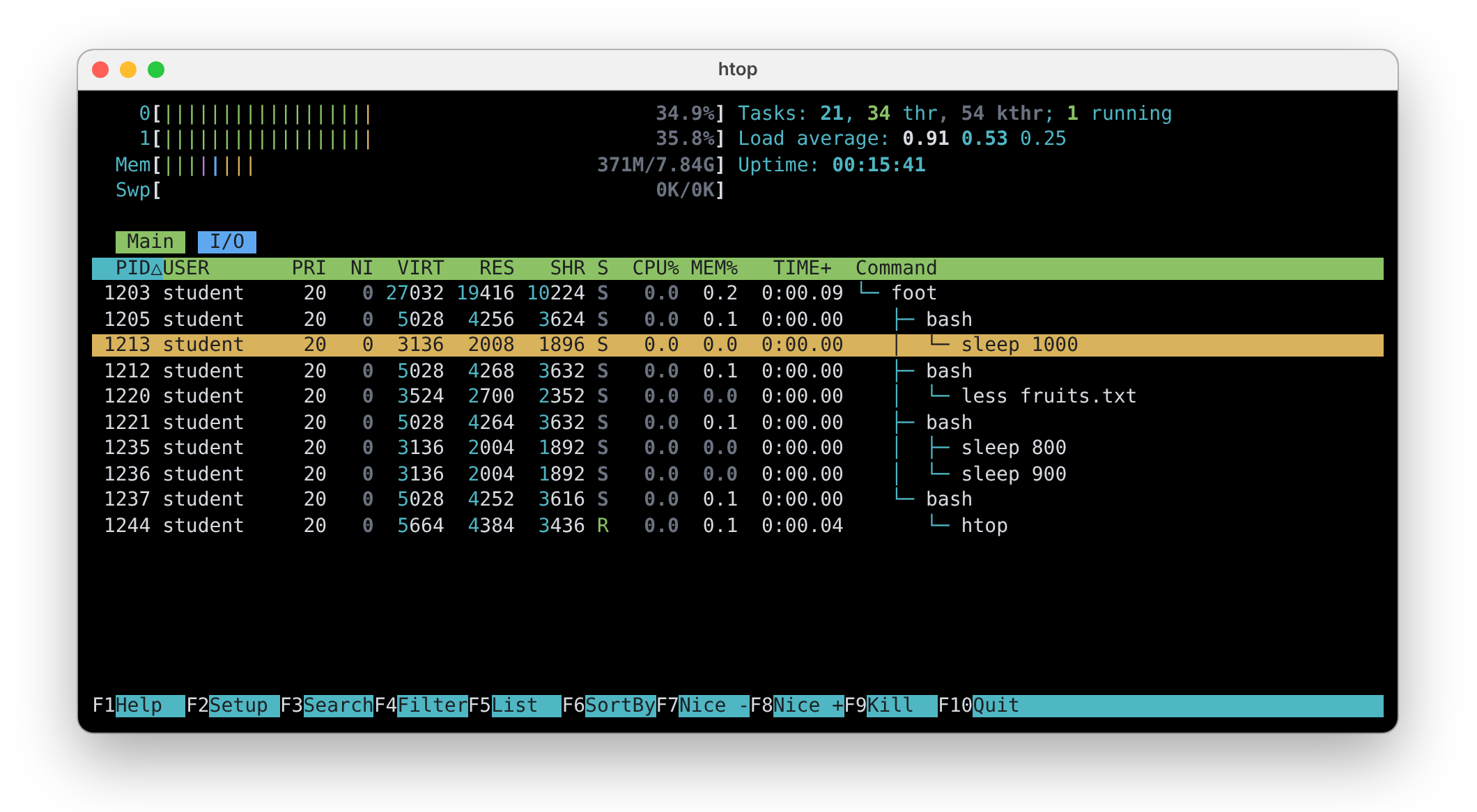
At the top, htop shows a bar for every processor (0 and 1), the memory (Mem) and the swap (Swp), the number of
tasks, the load average and the uptime. Below them is the list of processes, one per line, and at the bottom the menu
with the function keys. In the image above, the list shows only the processes of student (u) as a tree
(F5): the terminal (foot) runs four bash shells, and each of them runs a command (the third one runs the
pipeline sleep 800 | sleep 900). The chosen process is sleep 1000.
| Key | Action | Like |
|---|---|---|
| ↑ ↓ | Choose a process | |
| F3 or / | Search: jump to the next process whose command contains a text (press again for the next one) | pgrep |
| F4 or \ | Filter: show only the processes whose command contains a text (Esc shows all again) | |
| F5 or t | Show the processes as a tree | V in top |
| F6 | Choose the column to sort by | |
| P / M | Sort by processor use / memory use / processor time | P / M in top |
| u | Show only the processes of a user, chosen from a list | u in top |
| l | Show the open files of the chosen process | ls -l /proc/<PID>/fd |
| F2 | Setup: choose the columns and the colors | |
| F1 or h | Help | |
| q or F10 | Quit |
htop also shows the threads of the processes, in green. Press H to hide them and the list becomes much
shorter.
btop
btop is a newer program of the same kind. Its screen is split into boxes: the processors with a graph of their use,
the memory and the disks, the network, and the list of processes. Start it with btop and quit with q.
| Key | Action |
|---|---|
| ↑ ↓ | Choose a process |
| Enter | Show the details of the chosen process |
| f or / | Show only the processes that match a text (filter) |
| e | Show the processes as a tree |
| ← → | Choose the column to sort by |
| r | Reverse the sorting order |
| 1 ... 4 | Show or hide the boxes: processors, memory, network, processes |
| Esc or m | Menu |
| h or F1 | Help |
| q | Quit |
Troubleshooting
| Problem | Solution |
|---|---|
bash: <command>: command not found | The program is not installed: install it with sudo dnf install <package> on Fedora, or with sudo apt install <package> on Debian and Ubuntu; the package usually has the same name as the command |
The error still shows on the display after > | Errors go to 2: use 2> or &> |
| A file is empty after a redirect | > empties the file first: use >> to append |
| A command waits and does nothing | It reads from the keyboard: type the input and press Ctrl+D, or stop it with Ctrl+C |
gzip: numbers.txt.gz already exists | The compressed file is already there: delete it, or add -f to overwrite it |
The original file disappeared after gzip | Normal: use -k to keep it, or decompress it with gunzip |
tar: Cowardly refusing to create an empty archive | The name of the archive after f is missing |
tar: ...: Not found in archive | The name is wrong: list the archive with tar tf and copy the name exactly |
tar: /tmp/extract: Cannot open: No such file or directory | The directory given to -C must exist: create it with mkdir |
A zip archive has a directory, but not its files | Add -r |
No such file or directory in /proc/<PID> | The process has finished, or the PID is wrong: check it with pgrep or ps |
Permission denied in /proc/<PID> | The process belongs to another user |
Exercises
The exercises get harder as you go:
- 🧪 First Steps (exercises 1 - 32) goes once through everything in this lab, with easy exercises;
- 🏠 Going Further (exercises 33 - 47) has harder exercises;
- 📝 Challenges (exercises 48 - 54) has the hardest ones.
Exercise 1 creates the files and directories that all the other exercises start from; any other file an exercise
needs, it creates by itself. Run the commands in ~/lab03, unless the exercise says otherwise. If you change or
delete one of the files from exercise 1, run its commands again to get it back.
Some exercises ask for things that the lab does not show you, for example an option that is not in the tables
above. Find it in the manual page of the command (man <command>), as explained in
Searching in a Manual Page in lab 02.
Many exercises use the files of the system, from /etc, /usr, /var, /proc and /dev, so that you also get to
know how a Linux system is organized. To find out what a directory is for, look in man hier; to find out what a file
in /etc contains, look in section 5 of the manual, for example man 5 passwd, man 5 shells or man 5 os-release.
Keep two terminals side by side in Sway: the first one to run the commands, and the second one to run the commands
that you inspect, or to check the results. Many exercises use the PID of a process: it is different on your computer,
use the one that pgrep or ps prints for you.
Do not use sudo to look at processes. The files in /proc are made by the kernel: read them, but do not try to
change them.
🧪 First Steps
-
The practice tree:
-
run these commands to create the files used in the exercises (copy them from the browser with Ctrl+C and paste them in the terminal with Ctrl+Shift+V):
mkdir -p ~/lab03/Music ~/lab03/Photos ~/lab03/Reports ~/lab03/Archivestouch ~/lab03/Music/jazz.mp3 ~/lab03/Music/rock.mp3 ~/lab03/Music/pop.mp3touch ~/lab03/Photos/cat.jpg ~/lab03/Photos/dog.jpgprintf 'banana\napple\ncherry\napple\nkiwi\nbanana\napple\n' > ~/lab03/fruits.txtseq 1 20000 > ~/lab03/numbers.txt -
go to
~/lab03and runtree; -
count the lines of
fruits.txtandnumbers.txtwithwc -l.
Check: you see the four directories, the five empty files,
fruits.txtandnumbers.txt;wc -lprints7and20000. → Navigation -
Redirects
-
The root of the system:
- save the tree of
/, only one level deep, intoReports/system.txt(look inman treefor the option that limits how deeptreegoes); - print
Reports/system.txtwithcat.
Check:
treeprinted nothing on the display, and the file shows the main directories of the system:boot,dev,etc,home,proc,tmp,usrandvar;binis a link tousr/bin. → Output - save the tree of
-
Append and overwrite:
- save the tree of
/usr, one level deep, intoReports/tree.txt; - append the tree of
/var, one level deep, toReports/tree.txt, and print the file; - overwrite
Reports/tree.txtwith the tree of/home, one level deep, and print the file again.
Check: after the append, the file has both trees:
/usrwithbin,libandshare, then/varwithcache,libandlog; after the overwrite, it has only the tree of/home, withstudent. → Output - save the tree of
-
Errors apart:
- with a single
ls -acommand, list/etc/skel(the files copied into the home directory of every new user) and/root(the home directory of the administrator), so that the list goes intoReports/list.txtand the error intoReports/errors.txt; - print the content of the two files.
Check: nothing appears on the display when you run
ls;Reports/list.txthas, among others,.bashrcand.bash_profile, andReports/errors.txthas aPermission deniedfor/root. → Errors - with a single
-
Append errors:
- run
ls /rootand save its error intoReports/errors.txt, overwriting the file; - print
/etc/shadow(the file with the passwords of the users) withcat, and append its error toReports/errors.txt; - print the content
Reports/errors.txt.
Check:
Reports/errors.txthas two lines, one for/rootand one for/etc/shadow: onlyrootcan read them. → Errors - run
-
The users and the groups:
- copy
/etc/passwd(the list of the users) intoReports/users.txtwithoutcp: print it withcatand redirect the output into the new file; - copy
/etc/group(the list of the groups) intoReports/groups.txtin the same way; - count the lines of the two copies and of the two originals with
wc -l.
Check: every copy has the same number of lines as its original. → Output
- copy
-
Everything in one file:
- run
ls -a /etc/skel /rootso that both the list and the error go intoReports/all.txt, using&>, and print the file; - run the same command again, this time with the older way,
> Reports/all.txt 2>&1(see the table of redirects), and print the file again.
Check: both times,
Reports/all.txthas the error for/rootand the files of/etc/skel, and nothing appears on the display when you runls. → Redirects - run
-
Silence:
- search
/etcand/usrfor files calledos-releasewithfind, and throw the errors away so that you do not see anyPermission deniedmessage; - print the content of
/etc/os-release(the file that describes your distribution) withcat.
Check:
findprints only two paths,/etc/os-releaseand/usr/lib/os-release;/etc/os-releasehas the name and the version of your distribution,Fedora Linux. → Special Files - search
-
Input from a file:
- sort
/etc/shells(the list of the shells installed in the system) withsort, giving it the file with<; - count the lines of
/etc/passwdwithwc -l, giving it the name of the file as a parameter; - count them again, this time giving the file with
<.
Check: the shells in
/bincome before the ones in/usr/bin; both counts are the same, but only the firstwcprints the name of the file. → Input - sort
-
Type a file:
- run
catwith a redirect, so that what you type goes intoReports/todo.txt; - type three lines, then press Ctrl+D at the beginning of a new line to end the input;
- print the content of
Reports/todo.txt.
Check:
cat Reports/todo.txtprints the three lines you typed. → Input - run
-
Pipes:
- count the programs in
/usr/binwithls,wc -land a pipe; - count the files and directories in
/etc(the configuration of the system) thatlsshows, in the same way; - show the long list of
/etc(ls -l) on one screen at a time, withless.
Check: there are more than a thousand programs and a few hundred entries in
/etc;lessstops after every screen, and you quit it with q. → Pipes - count the programs in
-
Search with grep:
- show the line of your user,
student, from/etc/passwd(the list of the users); - count the lines of
/etc/passwdthat containnologin: these are the users of the services, which cannot log in; - list the programs in
/usr/binwhose name containszip.
Check: your line ends with
/home/student:/bin/bash; most of the users havenologin; the list of programs hasgzipandgunzip. → Searching for a Text - show the line of your user,
-
Repeated lines:
- run
uniq fruits.txtand find out why it does not remove anything; - print every fruit from
fruits.txtonly once; - print every fruit with the number of times it appears, the most frequent first;
- print only the fruits that appear exactly once (look in
man uniq).
Check:
uniq fruits.txtprints the same 7 lines; aftersort, you get 4 fruits,3 appleis the first line of the count, and onlycherryandkiwiappear exactly once. → Repeated Lines - run
-
Zeros and random bytes:
- show the first 16 bytes of
/dev/zeroin hexadecimal, withheadandxxd; - show the first 16 bytes of
/dev/urandomin the same way, and run the command twice.
Check: the bytes of
/dev/zeroare all zeros; the bytes of/dev/urandomare different every time you run the command. → Special Files - show the first 16 bytes of
Processes
-
My shell:
- print the PID of your shell;
- list the processes of the terminal with all the columns of
-f; - show only the
Name,State,PidandPPidlines of the/proc/$$/statusfile of your shell: givegrepevery text after its own-e(grep -e Name -e State ...), and look inman grepfor the option that matches only whole words, so thatPiddoes not also matchTracerPid.
Check:
psandstatusshow the same PID and PPID forbash, and its state isS. → Listing Processes · The/procFile System -
Inspect a process:
- in the second terminal, run
sleep 1000; - in the first terminal, find the PID of
sleepwithpgrep; - print its
/proc/<PID>/statusfile; - print its command line, from
/proc/<PID>/cmdline, withcat -v; - find out its program and its current directory, from the links
/proc/<PID>/exeand/proc/<PID>/cwd; - stop
sleepwith Ctrl+C in the second terminal.
Check: the state is
S, the command line issleep^@1000^@, the program is/usr/bin/sleep, and the current directory is the one you were in when you ransleep(runpwdin the second terminal to compare). → The/procFile System - in the second terminal, run
-
Open files:
- list the File Descriptor Table of your shell, from
/proc/$$/fd; - in the second terminal, run
sleep 1000; - in the first terminal, find the PID of
sleepand list its File Descriptor Table; - stop
sleepwith Ctrl+C and try to list its table again.
Check:
0,1and2point to a/dev/pts/...file, a different one for each terminal (bashalso keeps255open on the same terminal, for its own use); after Ctrl+C,/proc/<PID>no longer exists. → The/procFile System - list the File Descriptor Table of your shell, from
-
The system: Find out about your computer using only the files in
/proc:- the model of the processor: the
model namelines of/proc/cpuinfo(usegrep); - how many processors you have: count the
processorlines of/proc/cpuinfo; - the total memory: the
MemTotalline of/proc/meminfo; - for how many seconds the system has been running: the first number in
/proc/uptime; - the version of the kernel:
/proc/version.
Check: the number of processors is the same as the one printed by
nproc, the time matches theuppart ofuptime, and the version of the kernel is the same asuname -r. → The/procFile System - the model of the processor: the
-
top and htop:
- start
top, sort the processes by memory, then by processor, and quit; - start
htop, search forbashand press F3 until the chosen line is thebashof the first terminal (the PID printed byecho $$), show the processes as a tree, and quit.
Check:
topshows theTasksline with the number of processes in every state; in the tree ofhtop, yourbashis under the terminal. → top · htop - start
Archives and compression
-
Three compressors:
- delete
numbers.txt.gz,numbers.txt.bz2andnumbers.txt.xz, if they exist; - compress
numbers.txtwithgzip, withbzip2and withxz, keeping the original file every time; - compare the sizes of the four files with
ls -l.
Check: you have
numbers.txt,numbers.txt.gz,numbers.txt.bz2andnumbers.txt.xz, and the.xzfile is the smallest. → Compressing One File - delete
-
How much smaller:
- delete
numbers.txt.gz,numbers.txt.bz2andnumbers.txt.xz, if they exist; - compress
numbers.txtwithgzip, withbzip2and withxz, keeping the original file, so that each of them prints how much smaller the file got (look in their manual pages for the option that prints more details).
Check:
gzipandbzip2printed how much they saved, as a percentage, and the one ofbzip2is larger;xzprinted a ratio instead (about0.045, the new size divided by the old one), so it saved about 95%, the most of the three. → Compressing One File - delete
-
Decompress:
- delete
numbers.txt.gzandnumbers.txt.bz2, if they exist; - compress
numbers.txtwithgzip, without keeping the original, and check withlsthatnumbers.txtis gone; - get
numbers.txtback fromnumbers.txt.gz; - compress
numbers.txtwithbzip2, keeping the original, then deletenumbers.txt; - get
numbers.txtback fromnumbers.txt.bz2, this time keeping the compressed file.
Check:
wc -l numbers.txtprints20000both times;numbers.txt.gzis gone (gunzipdeleted it, likegzipdeletes the original), butnumbers.txt.bz2still exists. → Compressing One File - delete
-
What kind of file:
- delete
numbers.txt.bz2andnumbers.txt.xz, if they exist; - compress
numbers.txtwithbzip2and withxz, keeping the original; - find out the types of
numbers.txt,numbers.txt.bz2andnumbers.txt.xz, with a singlefilecommand; - delete
numbers.txt.bz2andnumbers.txt.xz; - find out the type of
/usr/share/man/man1/ls.1.gz, the manual page ofls.
Check:
filesaysASCII text,bzip2 compressed dataandXZ compressed data, andgzip compressed dataforls.1.gz: the manual pages are stored compressed withgzip, andmandecompresses them when you read them. → Which One to Use - delete
-
A tar archive:
- create
Archives/music.tarwith the directoriesMusicandPhotosand the filefruits.txt; - list the content of the archive;
- find out the type of the archive with
file.
Check: the archive has
Music/,Photos/, the five empty files andfruits.txt, andfilesaysPOSIX tar archive. → Archives - create
-
Extract:
- create
Archives/music.tarwithMusic,Photosandfruits.txt(if it already exists,taroverwrites it); - create the directory
/tmp/extractwithmkdir -p, so that there is no error if it already exists; - extract
Archives/music.tarinto/tmp/extract.
Check:
tree /tmp/extractshowsMusic,Photosandfruits.txt, with the same files as in~/lab03. → Archives - create
-
Only one file:
- create
Archives/music.tarwithMusic,Photosandfruits.txt; - create the directory
/tmp/singlewithmkdir -p, so that there is no error if it already exists; - extract only
Photos/dog.jpgfromArchives/music.tarinto/tmp/single.
Check:
tree /tmp/singleshowsPhotos/dog.jpg, and nothing else. → Archives - create
-
Add a file:
- create
Archives/music.tarwithMusic,Photosandfruits.txt; - add
numbers.txttoArchives/music.tar, without creating the archive again; - list the archive with the details of every file.
Check:
numbers.txtis the last file in the list, with the size108894. → Archives - create
-
Compressed archives:
- create
Archives/all.tarwithMusic,Photosandnumbers.txt; - create
Archives/all.tar.gz,Archives/all.tar.bz2andArchives/all.tar.xz, each with the same three entries, compressed withgzip,bzip2andxz; - compare the sizes of the four archives with
ls -l.
Check: the
.taris the largest and the.tar.xzthe smallest. → Compressed Archives - create
-
List compressed archives:
- create
Archives/all.tar.gz,Archives/all.tar.bz2andArchives/all.tar.xz, each withMusic,Photosandnumbers.txt; - list the content of each archive, without telling
tarhow it is compressed; - find out the types of the three archives with
file.
Check: all three lists are the same;
fileshows a different compression for each of them. → Compressed Archives - create
-
Extract compressed archives:
- create
Archives/all.tar.gz,Archives/all.tar.bz2andArchives/all.tar.xz, each withMusic,Photosandnumbers.txt; - create the directories
/tmp/gz,/tmp/bz2and/tmp/xz; - extract each archive into its own directory: the
.tar.gzinto/tmp/gz, the.tar.bz2into/tmp/bz2and the.tar.xzinto/tmp/xz; - show the three directories with
tree.
Check: the trees of the three directories are the same. → Compressed Archives
- create
-
A zip archive:
- delete
Archives/all.zip, if it exists (zipwould update it, not create it again); - create
Archives/all.zipwithMusic,Photosandnumbers.txt, with everything inside the directories; - list the content of the archive;
- extract it into
/tmp/unzipped.
Check:
unzip -llists 8 entries, andtree /tmp/unzippedshowsMusicwith three files,Photoswith two files, andnumbers.txt. → Zip Archives - delete
-
Update a zip archive:
- delete
Archives/all.zip, if it exists; - create
Archives/all.zipwithMusic,Photosandnumbers.txt, with everything inside the directories; - add
fruits.txttoArchives/all.zip; - list the files in the archive with
zip -sf; - extract only
fruits.txtfrom the archive into/tmp/fruit.
Check:
zip -sf Archives/all.ziplistsfruits.txtas the last file, and/tmp/fruithas onlyfruits.txt. → Zip Archives - delete
🏠 Going Further
- Order matters:
- run
ls /etc/skel /root > Reports/a.txt 2>&1and printReports/a.txt; - run
ls /etc/skel /root 2>&1 > Reports/b.txtand printReports/b.txt; - find out why the error is in
a.txt, but not inb.txt.
- run
Check: the second command printed the error on the display, and Reports/b.txt has only the list of
/etc/skel. Hint: the shell reads the redirects from left to right. → Redirects
-
See and save: In a single command line, save the list of the programs in
/usr/binintoReports/programs.txtand count them (look inman teefor the command that writes its input both to a file and to its output).Check: the number printed is the same as
wc -l < Reports/programs.txt. → Pipes -
Redirects seen from inside:
- in the second terminal, run
sleep 900 < ~/lab03/fruits.txt > /tmp/out.txt 2> /dev/null; - in the first terminal, find the PID of
sleepand list its File Descriptor Table; - stop
sleepwith Ctrl+C in the second terminal.
Check:
0points tofruits.txt,1to/tmp/out.txtand2to/dev/null: the shell changed the table beforesleepstarted. → The/procFile System · Redirects - in the second terminal, run
-
A pipe seen from inside:
- in the second terminal, run
sleep 800 | sleep 900; - in the first terminal, find the PIDs of the two
sleepprocesses (look inman pgrepfor the option that also prints the command line, so you can tell them apart); - list the File Descriptor Tables of both processes;
- stop them with Ctrl+C in the second terminal.
Check:
1ofsleep 800and0ofsleep 900point to the samepipe:[...], with the same number. → The/procFile System · Pipes - in the second terminal, run
-
What does less read:
- in the second terminal, open
/etc/services(the list of the network services and their ports) withless; - in the first terminal, find the PID of
less; - list the files that
lesshas open, and print its command line and its current directory, using/proc; - quit
lesswith q.
Check: besides
0,1and2,lesshas/etc/servicesopen, at file descriptor3or higher. → The/procFile System - in the second terminal, open
-
Where is the other shell:
- in the second terminal, go to
~/lab03/Musicand print the PID of the shell; - in the first terminal, find the current directory of that shell, using
/proc; - open its
environfile withlessand find the value of theHOMEvariable:lesswarns that it may be a binary file, because of the\0bytes between the variables, so answer y; the\0bytes show up as^@, and you search with /.
Check:
cwdpoints to/home/student/lab03/Music, andenvironhasHOME=/home/student. → The/procFile System - in the second terminal, go to
-
Save top:
- run
topso that it prints its list only once and does not update it (see the tip in top); - keep only the first 15 lines of its output, and save them into
Reports/top.txt, in the same command line.
Check:
Reports/top.txthas 15 lines, starting with the summary oftop. → top · Pipes - run
-
htop in depth: In
htop:- hide the threads;
- show only your processes;
- sort them by memory;
- choose the
bashof the first terminal (the PID printed byecho $$) and show its open files (ifhtopsays that it cannot runlsof, install it withsudo dnf install lsof); - add the
PPIDcolumn: press F2, go to Screens, choosePPIDin Available Columns, press Enter to add it, then leave the menu with F10.
Check: the open files of
bashare the same as inls -l /proc/$$/fd, and thePPIDofbashis the PID of the terminal. → htop -
Whose processes:
- count the processes of
rootwithps,wc -land a pipe (look inman psfor the option that selects the processes of a user, and use--no-headers, so thatwc -ldoes not also count the line with the names of the columns); - count your own processes in the same way;
- count them again, without
--no-headers.
Check:
roothas many more processes thanstudent: most of the system runs asroot. Without--no-headers, each number is larger by one. → Listing Processes · Pipes - count the processes of
-
Who runs the processes:
- list all the processes of the system with
ps, printing only the column of the user, without the header line; - in the same command line, using
sortanduniq, print every user only once, with the number of its processes in front of it, the user with the most processes first.
Check: the first line is
root, with the same number asps -u root --no-headers | wc -l, andstudentis among the first lines; the numbers added up are the same asps -e --no-headers | wc -l. Some users may show up as numbers instead of names:psprints the UID when the name is too long for the column. → Listing Processes · Repeated Lines - list all the processes of the system with
-
Big files:
- create
Archives/zeros.binwith the first 10 MB of/dev/zero, usinghead(look inman headfor the option that prints a number of bytes instead of lines); - create
Archives/random.binwith the first 10 MB of/dev/urandom, in the same way; - compress both files with
xz, keeping the originals; - compare the sizes of the four files with
ls -lh; - delete the four files: they are big.
Check:
zeros.bin.xzis a few KB,random.bin.xzis still about 10 MB: random data cannot be compressed. → Special Files · Compressing One File - create
-
Compress into another file: Compress
/etc/services(the list of the network services) without copying it and without changing/etc: use the option-c, which writes the compressed data to the standard output, and a redirect.- compress it with
gzipintoArchives/services.gz; - compress it with
bzip2intoArchives/services.bz2; - compress it with
xzintoArchives/services.xz; - put
timein front of each of the three commands, and compare the times and the sizes of the files.
Check: the three files exist,
/etc/servicesis unchanged,xzmakes the smallest file and takes the longest. → Compressing One File - compress it with
-
Read without extracting: Look in
man gzipandman xzfor the commands that print the content of a compressed file, without creating any new file.- compress
/etc/serviceswithgzip -cintoArchives/services.gz, and withxz -cintoArchives/services.xz; - print the content of
Archives/services.gzone screen at a time, withless; - count the lines of
Archives/services.xz; - print the first 20 lines of the compressed manual page
/usr/share/man/man1/ls.1.gz.
Check: the count is the same as
wc -l < /etc/services; the manual page is a text file with formatting commands, lines that start with., like.THand.SH. → Compressing One File - compress
-
Compression from the name:
- create
Archives/photos.tar.bz2withPhotos, without tellingtarthe compressor: let it choose the compressor from the extension of the archive (look inman tarfor this option); - find out the type of the archive with
file.
Check:
file Archives/photos.tar.bz2saysbzip2 compressed data. → Compressed Archives - create
-
Without the full path:
- create
/tmp/doc.tar.gzwith the directory/usr/share/doc/bash(the documentation ofbash), so that the names in the archive start withbash/and not withusr/share/doc/(look inman tarfor the option that changes the directory before adding the files); - list the content of the archive.
Check:
tar tf /tmp/doc.tar.gzlists names that start withbash/. → Archives - create
📝 Challenges
-
Count with /proc:
- count the directories in
/procwhose name is a number (a wildcard can have a range of characters:[0-9]matches one digit; seeman 7 glob); - count the processes of the system with
ps -e --no-headersandwc -l; - compare the two numbers.
Check: the two numbers are almost the same: every process is a directory in
/proc. → The/procFile System - count the directories in
-
The shells of the users: Every line of
/etc/passwdhas 7 fields separated by:, and the last one is the shell of the user.- print only the shell of every user (look in
man cutfor the options that choose the separator and keep only one field of every line); - in the same command line, print every shell only once, with the number of users that have it, the most used first;
- print only the shells that are used by more than one user.
Check: a
nologinshell is the first line, with most of the users. You may see both/sbin/nologinand/usr/sbin/nologin: they are the same program (/sbinis a link tousr/sbin), butuniqcompares only the text, so it counts them on separate lines./bin/bashis used byrootandstudent, and the numbers added up are the same aswc -l < /etc/passwd. → Repeated Lines · Pipes - print only the shell of every user (look in
-
Who has the file open:
- in the second terminal, open
/etc/hosts(the names of the computers that the system knows without asking the network) withless; - in the first terminal, find the file descriptor that points to
/etc/hosts, without usingpgreporps: search/proc/*/fdwithfind(look inman findfor the test that checks where a symbolic link points to), and throw away thePermission deniederrors for the processes of other users; - check with
ps -pthat the number in the path thatfindprints is the PID ofless; - quit
lesswith q.
Check:
findprints a path like/proc/3402/fd/4, andps -p 3402showsless. → The/procFile System - in the second terminal, open
-
Back up the configuration:
- create
/tmp/etc.tar.gzwith the whole/etcdirectory (the configuration of the system), except/etc/pki, the directory with the certificates that the system uses to check secure connections, like thehttps://websites (look inman tarfor the option that leaves files out of the archive); - in the same command, save the errors of
tarintoReports/etc-errors.txt; - count the entries in the archive, with
tar tfandwc -l; - count only the
Permission deniedlines inReports/etc-errors.txt, withgrep -c.
Check:
tar tf /tmp/etc.tar.gzlistsetc/passwdandetc/os-release, but nothing frometc/pki.Reports/etc-errors.txthas aPermission deniedfor every file that onlyrootcan read, like/etc/shadow, and two more lines that are not about a file. The first one,tar: Removing leading `/' from member names, only tells you thattarsaves/etc/passwdasetc/passwd, so that the archive can be extracted anywhere. The last one,tar: Exiting with failure status due to previous errors, only says that there were errors. This is why you count only thePermission deniedlines. → Compressed Archives - create
-
Strip a directory:
- create
Archives/all.tar.gzwithMusic,Photosandnumbers.txt; - create the directory
/tmp/flat; - extract
Archives/all.tar.gzinto/tmp/flatso that the files ofMusicandPhotosend up directly in/tmp/flat, without their directories (look inman tarfor the option that removes directories from the beginning of the names).
Check:
tree /tmp/flatshows the five empty files directly under/tmp/flat, but notnumbers.txt.--strip-components=1removes the first part of every name:Music/jazz.mp3becomesjazz.mp3, butnumbers.txtis in the top directory of the archive, so nothing is left of its name, andtardoes not extract it (the same happens to the namesMusic/andPhotos/). → Archives - create
-
Archives through a pipe:
- create
/tmp/music.tar.gzwith the directoryMusic, in a single command line, so thattarwrites the archive, not compressed, to its standard output (an archive file named-means the standard output),gzipcompresses it in a pipe, and a redirect saves it; - create the directory
/tmp/piped; - extract
/tmp/music.tar.gzinto/tmp/pipedin another pipe:gunzip -cdecompresses it to its standard output, andtarreads the archive from its standard input (an archive file named-means the standard input).
Check:
file /tmp/music.tar.gzsaysgzip compressed data, andtree /tmp/pipedshowsMusic. → Pipes · Compressed Archives - create
-
Clean up: With a single
rmcommand, delete everything that the exercises create in/tmp, without any error for the ones you did not create (look inman rm):
rm -rf does not ask anything, and what it deletes cannot be recovered. Read the command twice before you press
Enter: a space in the wrong place, like rm -rf /tmp /extract instead of rm -rf /tmp/extract,
deletes much more than you want.
- the directories
/tmp/extract,/tmp/single,/tmp/gz,/tmp/bz2,/tmp/xz,/tmp/unzipped,/tmp/fruit,/tmp/flatand/tmp/piped; - the files
/tmp/out.txt,/tmp/doc.tar.gz,/tmp/etc.tar.gzand/tmp/music.tar.gz.
Check: rm prints nothing, and ls /tmp no longer shows them. → Managing Files
Wrap-up Questions
Use the last 5 minutes of the lab to answer these questions together with your colleagues and the teaching assistant. There are no wrong answers for the last two.
- What are the file descriptors
0,1and2, and where do they point to in a terminal? - What is the difference between
>and>>? And between>and2>? - Why does
wc -l < filenot print the name of the file? - What is the difference between an archive and a compressed file? Why does a
.tar.gzhave two extensions? - When would you use
.tar.xz, and when.zip? - What is the difference between a program and a process? What are the PID and the PPID?
- Where are the files in
/procstored? - What can you find out about a process from
/procthatpsdoes not show? - When would you use
top, and whenhtoporbtop? - Which redirect or archive format will you use most often?
Extra
- The memory of a process: Print
/proc/$$/mapswithless. Find the lines of/usr/bin/bashand oflibc.so.6: this is how the loader placed the program and its libraries in memory. → The/procFile System - Zstandard: Fedora also has
zstd, a newer compressor. Compressnumbers.txtwith it and compare the size and the time withgzipandxz; then create a.tar.zstarchive (look inman tarfor the option that compresses the archive withzstd). → Compressing One File - Archive managers: Open an archive with
yazi(lab 02): it shows the content of.tar.gzand.ziparchives as a preview. → Yazi - htop settings: Press F2 in
htopand change the meters at the top of the screen. → htop