02. Files Management
In the first lab you learned to move around Sway and to run your first commands in the terminal. Now it is time to work with files and directories. Everything you keep on a computer (documents, movies, programs, settings) is a file, stored somewhere in a big tree of directories. In this lab you will learn how to find your way in this tree, how to name any file with a path, and how to create, copy, move and delete files, first with commands and then with Yazi, a file manager that runs in the terminal.
The most important idea of this lab is the path. Take your time with it: every command that works with files, in this lab and in all the following ones, receives paths.
Objectives
- Understand how files and directories are organized in Linux: one tree, starting from
/ - Write absolute and relative paths, and know what
.,..and~mean - Calculate the absolute path from the current directory and a relative path
- Read the manual page of a command and understand its
SYNOPSIS - Navigate with
pwd,cd,lsandtree, and type less with TAB completion - Find files anywhere in a directory tree with
find - Read text files with
catandnano, and find out the type of any file withfile - Create, copy, move, rename and delete files and directories with
mkdir,touch,nano,cp,mv,rmandrmdir - Work with names that contain spaces and other special characters
- Install and use Yazi to manage files with a few keys, including tabs
Resources
- Razvan Deaconescu, Razvan Rughinis, Mihai Carabas, Alexandru Radovici, Utilizarea Sistemelor
de Operare, Printech 2021
- Chapter 2 - Utilizarea sistemului de fișiere, sections 2.1.2, 2.1.3, 2.3.1, 2.3.2, 2.3.4 and 2.3.5
- Brian Ward, How LINUX Works, 3rd Edition, No Starch Press, 2021
- Chapter 2 - Basic Commands and Directory Hierarchy, sections 2.3, 2.4, 2.5.3, 2.5.5, 2.5.6, 2.12, 2.13 and 2.19
- Yazi - Quick Start
- Yazi - Installation
- The lecture slides: 02. Files Management
- The manual pages:
man ls,man cp,man mv,man rm,man mkdir,man tree,man find,man file
The File System Tree
On Windows, every drive has its own tree: C:\, D:\, and so on. On Linux there is only one tree, and it starts
from a single directory called the root, written /. Everything is somewhere below it: the programs, the settings,
the other disks and your own files.
/
├── bin/          programs (ls, cp, mv, ...)
├── etc/          system wide settings
├── home/         the users' files
│   └── student/  your home directory, also called ~
│       ├── Downloads/
│       ├── Movies/
│       └── watchlist.txt
├── tmp/          temporary files, anyone can write here
└── usr/          installed software
Your own files live in your home directory, /home/student (use your own user name instead of student).
Usually you can write only in your home directory and in /tmp.
Names in Linux are case sensitive: Movies, movies and MOVIES are three different names. Windows and macOS
(with its default settings) do not care about upper and lower case letters, Linux does.
Hidden Files
A file or a directory whose name starts with a . is hidden: ls, tree and the file managers do not show it,
unless you ask them to. There is nothing secret about hidden files, Linux only hides them to keep the listings short.
Most of them keep the settings of your programs, in your home directory:
/home/student
├── .bashrc       settings of the shell (hidden)
├── .config/      settings of most programs: Sway, Yazi, ... (hidden)
├── .local/       data of the programs, for example the trash (hidden)
├── Downloads/
└── Movies/
ls -a(all) also lists the hidden files, and so doesfind, without any option.- To hide a file, rename it so that its name starts with a
.:mv notes.txt .notes.txt. To show it again, rename it back:mv .notes.txt notes.txt.
Do not delete the hidden files of your home directory if you do not know what they are: you can lose the settings of your programs.
Paths
A path tells the operating system where a file or a directory is. It is the list of directories you walk through,
separated by /, and at the end the name of the file.
The Current Directory
Every terminal (and every running program) has one current directory: the directory where it "is" right now. When
you open a new terminal, the current directory is your home directory. The prompt shows it (~ means your home):
[student@fedora ~]$ pwd
/home/student
pwd (print working directory) prints the current directory as an absolute path.
Absolute Paths
An absolute path starts with /. It is the full address of a file, from the root down to the file, so it
works the same no matter where you are:
/home/student/Movies/the_odyssey.mkv
/etc/hosts
/tmp
Think of the full postal address of a person: country, city, street, number, name. Anyone can use it.
Relative Paths
A relative path does not start with /. It starts from the current directory. If you are in
/home/student, then:
Movies/the_odyssey.mkv      means   /home/student/Movies/the_odyssey.mkv
watchlist.txt               means   /home/student/watchlist.txt
A relative path is shorter, but it depends on where you are: the same relative path means another file when you are in another directory. Think of directions such as "the second door on the left": they are correct only from where you are standing.
. and ..
Every directory has two hidden entries:
| Name | Means |
|---|---|
. | the directory itself (the current directory) |
.. | the parent directory, one level up |
They can be used anywhere in a path, and .. can be repeated to go up several levels. If you are in
/home/student/Movies:
/
└── home
    ├── student
    │   ├── Movies            <-- .      (you are here)
    │   │   └── the_odyssey.mkv
    │   ├── Downloads
    │   │   └── supergirl.mp4
    │   └── watchlist.txt
    └── bob
        └── notes.txt
| Relative path | Walk | Absolute path |
|---|---|---|
./the_odyssey.mkv | stay in Movies, open the file | /home/student/Movies/the_odyssey.mkv |
../watchlist.txt | up to student, open the file | /home/student/watchlist.txt |
../Downloads/supergirl.mp4 | up to student, down into Downloads | /home/student/Downloads/supergirl.mp4 |
../../bob/notes.txt | up to student, up to home, down into bob | /home/bob/notes.txt |
The root has no parent: /.. is still /.
From Relative to Absolute
This is how the operating system turns a relative path into an absolute one:
- join the current directory, a
/and the relative path; - from left to right, drop every
.; - from left to right, every
..removes itself and the directory that is still left before it.
For example, from /home/student/Movies the path ../Downloads/./../../bob/notes.txt becomes:
/home/student/Movies/../Downloads/./../../bob/notes.txt      1. join
/home/student/Movies/../Downloads/../../bob/notes.txt        2. drop the .
/home/student/Downloads/../../bob/notes.txt                  3. Movies/.. cancel each other
/home/student/../bob/notes.txt                               3. Downloads/.. cancel each other
/home/bob/notes.txt                                          3. student/.. cancel each other
A .. does not always cancel its neighbor: it removes the last directory still left before it. In the example
above, the last .. removed student, which was far away from it in the original path.
You can check your calculation with the realpath command, which prints the absolute path of any path:
[student@fedora Movies]$ realpath ../Downloads/./../../bob/notes.txt
/home/bob/notes.txt
The Home Directory: ~
In the terminal, ~ is replaced with the path of your home directory, so ~/Movies is /home/student/Movies, from
any directory. Paths that start with ~ behave like absolute paths.
~ is a feature of the shell (the program that reads your commands). It does not work in every program: for
example, Windows and most graphical applications do not understand it.
Every File is a Path
When a command expects a file or a directory, you can give it any path to it: a name, a relative path, an
absolute path or a path with ~. From /home/student/Movies, all these commands print the same file:
$ cat ../watchlist.txt
$ cat /home/student/watchlist.txt
$ cat ~/watchlist.txt
$ cat ../../student/Downloads/../watchlist.txt
You can also mix relative and absolute paths in the same command: cp ../watchlist.txt /tmp/.
Reading the Manual
Every command has a manual page: man ls, man cp, and so on. The page opens in a viewer with its own keys:
| Key | What it does |
|---|---|
| ↑ / ↓ | Scrolls one line up / down |
| Page Down or Space | Scrolls one page down |
| Page Up or b | Scrolls one page up |
| g / G | Jumps to the beginning / the end of the page |
/ word Enter | Searches for word, see Searching in a Manual Page |
| n / N | Jumps to the next / previous match of the search |
| h | Shows the help, with all the keys |
| q | Quits |
A manual page has several parts: NAME (what the command does, in one line), SYNOPSIS (how to call it),
DESCRIPTION (what it does and all its options, one after another) and, at the end, SEE ALSO (related
commands). The most useful part of a manual page is the SYNOPSIS: it shows how to call the command.
SYNOPSIS
       cp [OPTION]... SOURCE DEST
       cp [OPTION]... SOURCE... DIRECTORY
| Notation | Meaning |
|---|---|
[ ] | optional: this may or may not be present |
... | can repeat: there may be more than one of these |
SOURCE, DEST, FILE, DIRECTORY | a path (relative or absolute) |
-r | a short option: one dash and a single letter |
--recursive | a long option: two dashes and a full word, often the same as a short one |
Searching in a Manual Page
A manual page is long: man ls has more than 200 lines. Do not read it from the top, search in it:
| Key | What it does |
|---|---|
/ word Enter | Searches forward for word and jumps to the first line that contains it |
| n | Jumps to the next match |
| N | Jumps to the previous match |
? word Enter | Searches backward, towards the beginning of the page |
When you search, man highlights every match on the screen. The search is case sensitive: /Size does not find
size.
For example, say you want ls to list the files in reverse order, but you do not know the option:
-
Run
man ls. -
Type /, then
reverse, and press Enter. The page jumps to the first line that containsreverse:-r, --reversereverse order while sorting -
This is what you were looking for: the option is
-r(or the long one,--reverse). If the first match is not what you need, press n until you find it. -
Press q and try it:
ls -r.
How to search well:
- Search for what you want to do, not for the option, since you do not know it yet:
size,hidden,reverse,directories,sort,time. The manual is in English, so search for English words. - Try other words if you find nothing:
size, thenhuman, thenbytes. - Read the lines around every match, a word can appear in many options. Press n to go to the next one.
- Jump to an option you already know: in the manual, an option starts its line, after a few spaces. To jump to
the description of
-l, search for^ *-l:^means "the start of the line" and*means "any number of spaces". Searching only for-lalso stops at every place where-lis just mentioned.
Always read the manual before searching online or asking an AI. The manual on your computer is written for the version installed on your computer. An answer found online might be for another version, or simply wrong.
Most commands also print a short summary of their options with --help, for example ls --help.
Working in the Terminal
TAB Completion
You do not have to type the full names of files, directories and commands. Type the first letters and press Tab:
- if only one name starts with those letters, the shell writes the rest of it for you;
- if several names start with them, nothing happens: press Tab a second time to see all of them, type one or two more letters and press Tab again.
| You type | You press | The shell |
|---|---|---|
cd Mo | Tab | completes it to cd Movies/ (only Movies starts with Mo) |
cat wa | Tab | completes it to cat watchlist.txt |
ls /etc/host | Tab Tab | shows all the names that start with host, for example host.conf hosts |
ls /etc/she | Tab | completes it to ls /etc/shells |
whoa | Tab | completes the command to whoami |
ls --recu | Tab | completes the option to ls --recursive |
Completion works for every part of a path: cd /usTabshTabdoTab becomes
cd /usr/share/doc/.
Use Tab all the time: it is faster, and it does not make typing mistakes. If Tab completes nothing, even when you press it twice, then no name starts with what you typed: the path is wrong.
Editing a Command
You can fix a command before you press Enter, without typing it again:
| Key | What it does |
|---|---|
| ← / → | Moves the cursor one character left / right |
| Ctrl+A | Jumps to the beginning of the line |
| Ctrl+E | Jumps to the end of the line |
| ↑ / ↓ | Brings back the previous / next command you ran, so you can run it again or change it |
For example, you typed ls ~/lab02/Gmaes/2026 and ls says No such file or directory: press ↑, move
the cursor to the mistake with ←, fix it and press Enter. To add sudo or an option at the
beginning of a long command, press Ctrl+A, then Ctrl+E to go back to the end.
Scrolling the Terminal
When a command prints more lines than fit on the screen, the first ones scroll off the top. Scroll the terminal back with the keyboard (or with the mouse wheel):
| Key | What it does |
|---|---|
| Shift+Page Up | Scrolls the terminal one page up, towards older lines |
| Shift+Page Down | Scrolls the terminal one page down, back towards the prompt |
This works in foot and in Ghostty. Typing anything brings the terminal back to the prompt.
Navigation
| Command | What it does |
|---|---|
pwd | Prints the full path of the directory you're in ("print working directory") |
cat <file> | Prints a file's entire contents to the screen |
cd <directory> | Changes the current directory |
cd or cd ~ | Goes to your home directory |
cd - | Goes to the previous directory (where you were before the last cd) |
ls | Lists the current directory |
ls <path> | if <path> is a directory, list the directory's contents / if <path> is a file, list the details of the file |
ls -a | Also lists the hidden files (names that start with .) |
ls -l | Long format listing: type, permissions, owner, size, last modified date |
tree | Lists a directory and everything inside it, as a tree |
tree -L <number of levels> | Only <number of levels> level deep |
In the output of ls -l, the first letter is the type: d for a directory, - for a regular file. On Fedora,
the permissions end with a .: it shows that the file has an SELinux label, you can ignore it for now. The first
line, total, is the space used by the listed files, in blocks of 1 KB.
$ ls -l
total 32
drwxr-xr-x. 2 student student  4096 Sep 20 18:02 Downloads
drwxr-xr-x. 2 student student  4096 Sep 26 21:15 Movies
-rw-r--r--. 1 student student 21504 Sep 28 21:40 watchlist.txt
tree is not always installed. On Fedora install it with sudo dnf install tree, on Ubuntu with
sudo apt install tree.
Examples
The examples use this home directory. The prompt shows the name of the current directory (~ is your home):
/home/student
├── .bashrc
├── Downloads
│   └── supergirl.mp4
├── Movies
│   └── the_odyssey.mkv
└── watchlist.txt
pwd
[student@fedora ~]$ pwd
/home/student
[student@fedora ~]$ cd Movies
[student@fedora Movies]$ pwd
/home/student/Movies
pwd printed the absolute path of the current directory: first the home directory, then, after cd Movies, the
Movies directory inside it. The prompt shows only the last part of it (~, then Movies).
cd
[student@fedora ~]$ cd Movies
[student@fedora Movies]$ cd ../Downloads
[student@fedora Downloads]$ cd /etc
[student@fedora etc]$ cd -
/home/student/Downloads
[student@fedora Downloads]$ cd
[student@fedora ~]$
cd Movieswent intoMovies, using a relative path (from~).cd ../Downloadswent up to/home/student, then down intoDownloads.cd /etcwent to/etc, using an absolute path.cd -went to the previous directory (/etc, where we were before the lastcd), and printed its path.cdalone went back to the home directory.
The Previous Directory: cd -
The shell remembers the directory you were in before the last cd. cd - goes there and prints its path:
[student@fedora ~]$ cd /etc
[student@fedora etc]$ cd ~/Movies
[student@fedora Movies]$ cd -
/etc
[student@fedora etc]$
cd - is not a "back" button. A browser's Back button remembers every page you visited, and pressing it again
takes you one more step into the past. The shell remembers only one directory, and cd - is itself a cd, so it
replaces that directory with the one you just left. Pressing it again takes you forward, to where you came from.
For example, with three directories:
[student@fedora ~]$ cd /etc
[student@fedora etc]$ cd /tmp
[student@fedora tmp]$ cd ~/Movies
[student@fedora Movies]$ cd -
/tmp
[student@fedora tmp]$ cd -
/home/student/Movies
[student@fedora Movies]$ cd -
/tmp
- After
cd /etc,cd /tmpandcd ~/Movies, the previous directory is/tmp./etcis already forgotten. - The first
cd -went to/tmp, and the previous directory becameMovies. - The second
cd -did not go back to/etc. It went toMovies, and the previous directory became/tmpagain. - From now on,
cd -only switches between/tmpandMovies, like the "previous channel" button of a TV remote.
Do not confuse cd - with cd .., either:
| Command | Goes to | Pressed twice |
|---|---|---|
cd - | the directory you were in before the last cd | you are back where you started |
cd .. | the parent of the current directory, one level up the tree | you are two levels up |
| a browser's Back | the previous page, then the one before it, and so on | the shell has no such command |
cd - is very useful when you work in two directories at the same time, for example to copy files from one to the other.
ls
[student@fedora ~]$ ls
Downloads  Movies  watchlist.txt
[student@fedora ~]$ ls Movies
the_odyssey.mkv
[student@fedora ~]$ ls -a
.  ..  .bashrc  Downloads  Movies  watchlist.txt
[student@fedora ~]$ ls -l
total 32
drwxr-xr-x. 2 student student  4096 Sep 20 18:02 Downloads
drwxr-xr-x. 2 student student  4096 Sep 26 21:15 Movies
-rw-r--r--. 1 student student 21504 Sep 28 21:40 watchlist.txt
[student@fedora ~]$ ls -l watchlist.txt
-rw-r--r--. 1 student student 21504 Sep 28 21:40 watchlist.txt
lslisted the current directory. It does not show what is insideMovies.ls Movieslisted theMoviesdirectory, without changing the current directory.ls -aalso listed the hidden entries:.bashrc, and.and.., which are in every directory.ls -llisted one entry per line: the type (ddirectory,-file), the permissions, the owner, the size in bytes, the modification date, and the name.ls -l watchlist.txtshowed the details of only one file.
tree
[student@fedora ~]$ tree
.
├── Downloads
│   └── supergirl.mp4
├── Movies
│   └── the_odyssey.mkv
└── watchlist.txt

3 directories, 3 files
[student@fedora ~]$ tree -L 1
.
├── Downloads
├── Movies
└── watchlist.txt

3 directories, 1 file
treeshowed the current directory and everything inside it, and counted the directories and files. The count includes the directory it started from,., so there are 3 directories.tree -L 1stopped after the first level, likels.
Finding Files: find
ls and tree show you what is in a directory. When you know the name of a file but not where it is, use
find. It walks through a directory and through everything inside it, and prints the path of every entry that
matches what you ask for.
find [directory]... [filter]...
| Command | What it does |
|---|---|
find | Prints every file and directory below the current directory |
find <directory> | Lists everything inside <directory>, including subdirectories |
find <directory> -name '<name>' | Only entries whose name is exactly <name> |
find <directory> -name '*.txt' | Only the entries whose name ends with .txt (* means "any characters") |
find <directory> -type f | Only the files |
find <directory> -type d | Only the directories |
The filters can be combined, for example: find ~ -type f -name '*.txt' finds only the files whose name ends with .txt.
Always put the name after -name between quotes ('*.txt'). Without quotes, the shell might replace *.txt with
the names of the files in the current directory before find even starts.
Examples
Using the same home directory as in the Navigation examples:
[student@fedora ~]$ find Movies
Movies
Movies/the_odyssey.mkv
[student@fedora ~]$ find . -name '*.mp4'
./Downloads/supergirl.mp4
[student@fedora ~]$ find ~ -name '*.mp4'
/home/student/Downloads/supergirl.mp4
[student@fedora ~]$ cd Movies
[student@fedora Movies]$ find .. -name watchlist.txt
../watchlist.txt
[student@fedora Movies]$ find .. -type d
..
../Downloads
../Movies
find Moviesprinted the directory itself and everything inside it.find . -name '*.mp4'searched the current directory (.) and everything below it, and found one file.find ~ -name '*.mp4'found the same file, but printed an absolute path:findbuilds every path from the directory you give it. A relative start gives relative paths, an absolute start gives absolute paths.- From
Movies,find .. -name watchlist.txtsearched the parent directory and printed../watchlist.txt, a relative path that works fromMovies. find .. -type dprinted only the directories of.., including..itself.
find also finds the hidden files, without any option. The order of the results might be different on your
computer.
When find searches a directory that you are not allowed to read (for example in /etc), it prints
Permission denied for it and continues. You can ignore these messages.
Viewing Text Files: cat and nano
Most files in Linux, especially the settings in /etc, are text files: you can read them edit them using a text editor. There are two easy
ways to look inside a text file: cat and nano.
cat
cat prints the whole content of one or more files in the terminal, and then the prompt comes back:
[student@fedora ~]$ cat /etc/machine-id
4c8e1f0a9d2b4e7f8a6c3b5d1e0f2a9c
[student@fedora ~]$ cat watchlist.txt
The Odyssey
Project Hail Mary
[student@fedora ~]$ cat /etc/machine-id watchlist.txt
4c8e1f0a9d2b4e7f8a6c3b5d1e0f2a9c
The Odyssey
Project Hail Mary
[student@fedora ~]$ cat notes.txt
[student@fedora ~]$
cat /etc/machine-idprinted the content of the file: a number that is different on every installation of Linux, on a single line.cat watchlist.txtprinted a file from the current directory, using a relative path.- With several files,
catprinted them one after another, with nothing in between. notes.txtis empty, socatprinted nothing at all.
cat is perfect for short files. For a long file, the beginning scrolls off the screen: scroll back with
Shift+Page Up, or open the file with nano instead.
Use cat only for text files. A program or a picture (for example cat /usr/bin/ls) prints strange symbols and
can mess up the terminal. If this happens, type reset and press Enter (even if you cannot see what you
type), or close the terminal and open a new one.
nano
nano is the text editor from Managing Files, but you can also use it only to read a file.
It shows the file one screen at a time, and it is comfortable for long files:
[student@fedora ~]$ nano /etc/os-release
| Key | Action |
|---|---|
| arrow keys, Page Up, Page Down | Scroll through the file |
| Ctrl+W | Search for a word |
| Ctrl+X | Exit (if you changed something, answer N to exit without saving) |
To be sure that you do not change the file by mistake, open it in view mode, where nano does not let you type:
nano -v /etc/os-release.
You can open the system files from /etc with nano and read them, but you cannot save them: nano says
Permission denied. Exit without saving.
cat or nano?
| Use | When |
|---|---|
cat | The file is short, and you want to see it all at once, in the terminal |
nano | The file is long, you want to scroll or search in it, or you want to edit it |
nano -v | You prefer nano's interface but want read-only mode, so you can't change anything by accident |
What Kind of File: file
The extension (.txt, .jpg, .mkv) is only part of the name: Linux does not need it, and it can lie. file
looks inside a file and tells you what it really is (if file is missing, install it with
sudo dnf install file):
[student@fedora ~]$ file watchlist.txt notes.txt Movies /etc/hosts
watchlist.txt: ASCII text
notes.txt:     empty
Movies:        directory
/etc/hosts:    ASCII text
[student@fedora ~]$ file /usr/bin/bash
/usr/bin/bash: ELF 64-bit LSB pie executable, x86-64, version 1 (SYSV), dynamically linked, ...
[student@fedora ~]$ cp /etc/hosts photo.jpg
[student@fedora ~]$ file photo.jpg
photo.jpg: ASCII text
watchlist.txtand/etc/hostsare text files: you can read them withcatornano.notes.txtis empty, andMoviesis a directory./usr/bin/bashis an ELF executable, a program: do notcatit (the output above is shortened).photo.jpgis called like a picture, butfileshows that it is text: the extension does not change what is inside.
Not sure if you can cat a file? Run file first: if the answer contains text, you can.
Managing Files
| Command | What it does |
|---|---|
mkdir <directory> | Creates a directory |
mkdir -p <path> | Creates a directory and any missing parents (no error if it already exists) |
touch <file> | Creates an empty file, or updates the "last modified" date of an existing one |
nano <file> | Opens a text editor, the file is created when you save (Ctrl+O saves, Ctrl+X exits) |
cp <source> <destination> | Copies a file |
cp <source>... <directory> | Copies one or more files into a directory |
cp -r <directory> <destination> | Copies a directory and everything inside it |
mv <source> <destination> | Moves or renames a file or a directory |
mv <source>... <directory> | Moves one or more files or directories into a directory |
rmdir <directory> | Deletes an empty directory |
rm <file> | Deletes a file |
rm -r <directory> | Deletes a directory and everything inside it |
There is no separate rename command: renaming is just moving a file to a new name in the same directory. For example, mv movie.mkv project_hail_mary.mkv renames movie.mkv to project_hail_mary.mkv.
When you give cp or mv several sources, the last parameter must be a directory that already exists.
There is no trash in the terminal: rm deletes files permanently, and rm -r deletes a whole directory with
everything inside it. Read the command twice before pressing Enter, and never run rm -r with a path you
do not fully understand.
Names with Spaces and Special Characters
The shell splits a command into words at every space. A name that contains a space becomes two parameters:
[student@fedora ~]$ touch shopping list.txt
[student@fedora ~]$ ls
Downloads  list.txt  Movies  shopping  watchlist.txt
touch received two names, shopping and list.txt, and created two files. To give a name with spaces as one
parameter, put it between quotes, or put a \ before every space:
[student@fedora ~]$ rm shopping list.txt
[student@fedora ~]$ touch "shopping list.txt"
[student@fedora ~]$ ls -l shopping\ list.txt
-rw-r--r--. 1 student student 0 Sep 29 10:12 'shopping list.txt'
[student@fedora ~]$ rm 'shopping list.txt'
rm shopping list.txtdeleted the two files created by mistake."shopping list.txt",'shopping list.txt'andshopping\ list.txtare the same name. Tab completion adds the\for you.lsshows the name between quotes, so you can see that the space is part of the name.
Other characters also mean something to the shell: *, ?, $, !, &, ;, |, <, >, (, ), #,
', " and \. Put names that contain them between single quotes, for example touch 'rock & roll.txt'
(between double quotes, $ and ! still have a special meaning). For a name with a ' in it, use double quotes:
touch "it's mine.txt".
A name that starts with - looks like an option:
[student@fedora ~]$ touch -list.txt
touch: invalid option -- 'l'
Try 'touch --help' for more information.
[student@fedora ~]$ touch ./-list.txt
[student@fedora ~]$ rm ./-list.txt
Quotes would not help here, as the name still starts with -. Using ./-list.txt make is clear that it is
a path. The ./-list.txt path is equivalent to the -list.txt, they point to the same file, just that
and the first one it does not start with - and the command does not consider it an option.
Name your own files using only letters, digits, ., _ and - (but not at the start): shopping_list.txt instead of
shopping list.txt. They are much easier to use in the terminal.
Examples
The examples continue one after another, starting from the same home directory as in Navigation.
mkdir
[student@fedora ~]$ mkdir Series
[student@fedora ~]$ mkdir Series
mkdir: cannot create directory 'Series': File exists
[student@fedora ~]$ mkdir Series/2025/comedy
mkdir: cannot create directory 'Series/2025/comedy': No such file or directory
[student@fedora ~]$ mkdir -p Series/2025/comedy
- The first
mkdir Seriescreated the empty directory/home/student/Series. - The second one failed: the directory already exists.
mkdir Series/2025/comedyfailed, becauseSeries/2025does not exist yet, andmkdircreates only the last directory of the path.mkdir -pcreated2025and thencomedyinside it. With-p, it is not an error if a directory already exists.
touch
[student@fedora ~]$ touch notes.txt
[student@fedora ~]$ ls -l notes.txt
-rw-r--r--. 1 student student 0 Oct  1 10:15 notes.txt
[student@fedora ~]$ touch watchlist.txt
[student@fedora ~]$ ls -l watchlist.txt
-rw-r--r--. 1 student student 21504 Oct  1 10:16 watchlist.txt
touch notes.txtcreated a new, empty file: its size is0.touch watchlist.txtdid not change the file, which already existed. It only changed its date to the current time.
nano
[student@fedora ~]$ nano notes.txt
nano opened notes.txt in a text editor, inside the terminal. Type some text, save it with
Ctrl+O and Enter, and exit with Ctrl+X. If the file did not
exist, nano creates it when you save. The bottom of the screen lists the keys: ^ means Ctrl.
cp
[student@fedora ~]$ cp watchlist.txt Series/
[student@fedora ~]$ cp watchlist.txt backup.txt
[student@fedora ~]$ cp Downloads/supergirl.mp4 Movies/the_odyssey.mkv Series/
[student@fedora ~]$ cp Movies Movies_backup
cp: -r not specified; omitting directory 'Movies'
[student@fedora ~]$ cp -r Movies Movies_backup
cp watchlist.txt Series/copied the file into theSeriesdirectory, with the same name:Series/watchlist.txt.cp watchlist.txt backup.txtmade a copy with another name, in the same directory.- With several sources,
cpcopied all of them into the last parameter, the directorySeries. cp Movies Movies_backuprefused to copy a directory.cp -rcopied the directory and everything inside it:Movies_backup/the_odyssey.mkv.
If the destination directory already exists, cp -r Movies Movies_backup copies Movies inside it, as
Movies_backup/Movies. Run the same command twice and look at the result with tree.
mv
[student@fedora ~]$ mv backup.txt old_watchlist.txt
[student@fedora ~]$ mv old_watchlist.txt Series/
[student@fedora ~]$ mv notes.txt Series/notes_2025.txt
[student@fedora ~]$ mv Series/watchlist.txt Series/supergirl.mp4 Downloads/
mv backup.txt old_watchlist.txtrenamed the file: same directory, new name.mv old_watchlist.txt Series/moved the file intoSeries, with the same name.mv notes.txt Series/notes_2025.txtmoved the file and renamed it, in a single command.- With several sources,
mvmoved all of them into the last parameter, the directoryDownloads. A file that already exists there with the same name is replaced, without any question.
rmdir
[student@fedora ~]$ rmdir Series/2025/comedy
[student@fedora ~]$ rmdir Series
rmdir: failed to remove 'Series': Directory not empty
rmdir Series/2025/comedydeleted the empty directorycomedy.rmdir Seriesfailed:Seriesstill has files and the directory2025inside it.
rm
[student@fedora ~]$ rm Series/notes_2025.txt
[student@fedora ~]$ rm Movies_backup
rm: cannot remove 'Movies_backup': Is a directory
[student@fedora ~]$ rm -r Movies_backup
rm Series/notes_2025.txtdeleted the file, permanently.rm Movies_backuprefused to delete a directory.rm -r Movies_backupdeleted the directory and everything inside it.
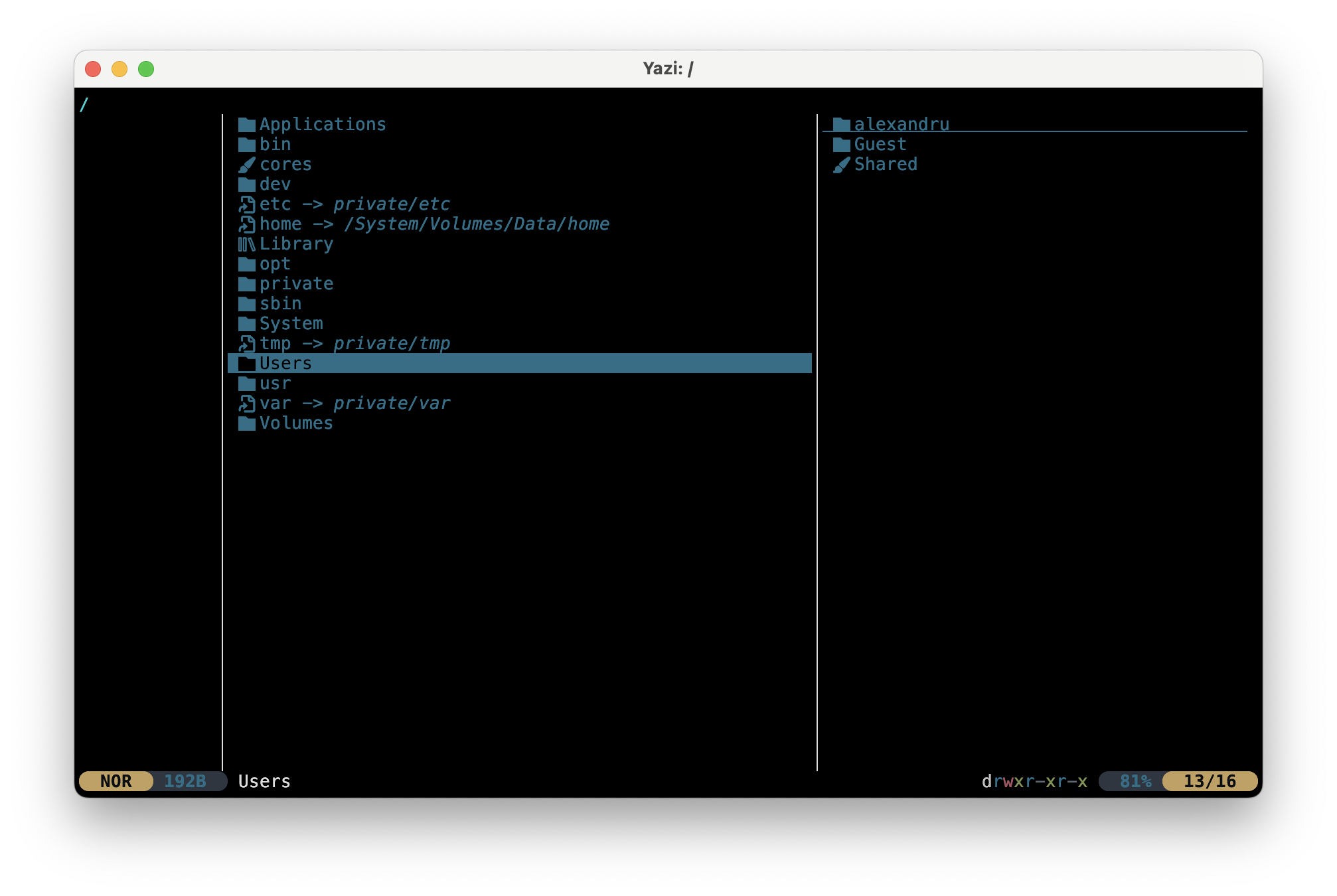
Yazi
Yazi is a file manager that runs in the terminal. It shows your directories in three columns (the parent directory,
the current directory and a preview) and does the work of cd, ls, mkdir, touch, cp, mv and rm with a few
keys. It is fast and works well with Sway, because you never need the mouse.
Installing Yazi on Fedora 44
Yazi is not in the official Fedora repositories. It is available from COPR, a service where Fedora users build extra packages. Enable the Yazi COPR repository and install the package:
sudo dnf copr enable lihaohong/yazi
sudo dnf install yazi
dnf asks you to confirm twice: once to enable the repository, once to install the packages. It also installs a
few optional helpers that Yazi uses for previews. Check that it works:
yazi --version
COPR repositories are unofficial: they are built by Fedora users, not by the Fedora project. The Yazi COPR repository is the one listed on the official Yazi installation page.
If dnf says No such command: copr, install the plugin first with sudo dnf install dnf5-plugins, then run the
commands again.
If the COPR repository does not have a package for your Fedora version yet, you can build Yazi yourself with Rust's
package manager, cargo (it takes a few minutes):
sudo dnf install cargo
cargo install --force yazi-build
A Better Terminal for Yazi: Ghostty
Yazi works in any terminal, including foot, the default terminal of Sway. It looks better in a modern terminal such
as Ghostty: Ghostty comes with the icons that Yazi uses for files and directories already
built in, and Yazi can show previews of pictures inside it. Installing it is optional, but recommended.
Ghostty is not in the official Fedora repositories either. Install it from its COPR repository, the one listed on the official Ghostty installation page:
sudo dnf copr enable scottames/ghostty
sudo dnf install ghostty
Start it from the application launcher ($mod + d, type ghostty) or by running ghostty in
a terminal, then run yazi inside it.
To open Ghostty instead of foot with $mod + Enter, edit your Sway configuration file
~/.config/sway/config (see Modding Sway in lab 01): replace foot with ghostty in
the line set $term foot (or in the line bindsym $mod+Return exec foot), then reload the configuration with
$mod + Shift + c.
Using Yazi
Start it with yazi, or with a directory: yazi ~/Downloads. Quit with q. Press F1 or
~ for the help, which lists every key.
| Key | Action | Like |
|---|---|---|
| ↑ ↓ (or k j) | Choose a file | |
| ← (or h) | Go to the parent directory | cd .. |
| → (or l) | Open the directory or the file | cd |
| . | Show / hide hidden files/directories | ls -a |
| Space | Select a file, for several files | |
| a | Create a file; a name ending with / creates a directory | touch, mkdir |
| r | Rename | mv |
| y then p | Copy (yank), then paste | cp |
| x then p | Cut, then paste | mv |
| d | Move to the trash | |
| D | Delete permanently | rm |
| q | Quit |
The h j k l keys are the same as in Sway and vi (see Default Keybindings in lab 01).
d moves files to the trash (~/.local/share/Trash), so they can be restored. D deletes
them permanently, like rm.
Tabs
Yazi can keep several directories open, one in each tab. Every tab has its own current directory, so tabs make copying and moving between two directories easy.
| Key | Action |
|---|---|
| t then t | Open a new tab, in the current directory |
| 1 ... 9 | Go to tab 1 ... 9 |
| [ ] | Go to the previous / next tab |
| Ctrl+c | Close the current tab |
To copy a file from ~/Downloads to ~/Movies: open ~/Downloads in tab 1, open a new tab with
t t and go to ~/Movies in tab 2. Go back to tab 1 (1), choose the file and press
y, go to tab 2 (2) and press p. Use x instead of y to move it.
Troubleshooting
| Problem | Solution |
|---|---|
No such file or directory | The path is wrong. Check the current directory with pwd, then check the path with ls or realpath. Remember that names are case sensitive |
cd says Not a directory | The path points to a file, not a directory |
rmdir says Directory not empty | rmdir deletes only empty directories. Delete what is inside first, or use rm -r (carefully) |
cp says -r not specified; omitting directory | Add -r to copy a directory |
mv or cp with several files says target ... is not a directory | The last parameter must be an existing directory |
| A name with spaces became several files | Put the name between quotes: touch "shopping list.txt" |
invalid option for a file whose name starts with - | Use a path that does not start with -: ./-list.txt |
Permission denied | You are trying to write outside your home directory (and /tmp) |
yazi: command not found | Yazi is not installed, see Installing Yazi on Fedora 44 |
| Yazi shows strange symbols instead of icons | The terminal font has no icons. Everything still works; for icons, use Ghostty |
Exercises
The exercises get harder as you go:
- 🧪 First Steps (exercises 1 - 34) goes once through everything in this lab, with easy exercises;
- 🏠 Going Further (exercises 35 - 53) has harder exercises;
- 📝 Challenges (exercises 54 - 62) has the hardest ones.
Do the exercises in order: each one uses the files left by the previous ones.
Some exercises ask for things that the lab does not show you, for example an option that is not in the tables
above. Find it in the manual page of the command (man <command>), as explained in
Searching in a Manual Page: search for words that describe what you need.
Keep two terminals side by side in Sway: one to run the commands, and one where you check the result with
tree ~/lab02, ls or pwd after every exercise. In the paths below, replace student with your user name
(run whoami to find it).
If a command prints No such file or directory, the path is wrong: fix it and run the command again.
Some exercises use real files of the operating system, outside your home directory. You can read most of them,
but you cannot change them: they belong to the administrator (root). Never use sudo in these exercises. Without
it, you cannot break anything; with it, a typing mistake in /etc can stop the computer from starting.
🧪 First Steps
Turn off the colors
For this lab, turn off the colors of ls and tree, so that you read the names and the type letters, not
the colors, and your output looks like the one in the lab. Run these two commands in both terminals:
unset LS_COLORS
unalias ls
unset LS_COLORS turns off the colors of tree. On Fedora, ls is an alias for ls --color=auto, which has its own
colors, so unalias ls turns them off too. The change lasts only until you close the terminal: to get the colors back,
open a new terminal.
-
The practice tree:
-
Turn off the colors in both terminals, as explained above.
-
Run these commands to create the directories and files used in the exercises (copy them from the browser with Ctrl+C and paste them in the terminal with Ctrl+Shift+V):
mkdir -p ~/lab02/Photos ~/lab02/Games/2026/puzzles ~/lab02/Recipestouch ~/lab02/books.txt ~/lab02/.secrettouch ~/lab02/Photos/cat.jpg ~/lab02/Photos/dog.jpgtouch ~/lab02/Games/chess.txt ~/lab02/Games/2026/puzzles/sudoku.txt -
Install
treewithsudo dnf install tree, if it is missing. -
Run
tree ~/lab02.
Check: you see this tree, without colors (the order of the lines might be a little different). Keep it open in the second terminal, you will need it in every exercise.
→ The File System Tree · Navigation/home/student/lab02├── books.txt├── Games│ ├── 2026│ │ └── puzzles│ │ └── sudoku.txt│ └── chess.txt├── Photos│ ├── cat.jpg│ └── dog.jpg└── Recipes -
In exercises 2 - 8, run tree ~/lab02 in the second terminal before every command. Find on the tree the
directory you are in, then follow the path of your command one name at a time, before you press Enter.
-
Where am I: Go to the
Gamesdirectory using an absolute path, then intopuzzlesusing a relative path, then back to~/lab02with a singlecdthat uses only... Print the current directory after every step.Check: you end up in
/home/student/lab02. → The Current Directory · Absolute Paths -
Absolute paths: From your home directory, show the details of
cat.jpg, ofsudoku.txtand of theRecipesdirectory itself (not what is inside it) with a singlelscommand and absolute paths. Look inman lsfor the option that lists a directory itself (🔍 search forcontents).Check: you get exactly three lines, and the one of
Recipesstarts withd. → Absolute Paths · Reading the Manual -
Relative paths: Do the same from
~/lab02, this time with relative paths. Then, from~/lab02/Games, list the contents ofPhotosand ofRecipeswith a singlelsand relative paths.Check: the last command shows the two pictures and an empty
Recipes. → Relative Paths -
Going up and down: From
~/lab02/Games/2026/puzzles, show the details ofbooks.txtand ofdog.jpgwith a singlelsand relative paths. Then go toPhotoswith a singlecd, and from there back topuzzleswith another singlecd, both with relative paths.Check: you end up in
/home/student/lab02/Games/2026/puzzles. →.and.. -
Same file, many paths: From
~/lab02/Games/2026, show the details ofbooks.txtwith five different paths: an absolute one, one with~, a relative one with only.., a relative one that goes throughPhotos, and a relative one that goes through bothPhotosandRecipes.Check: all five commands print details about the same file. → Every File is a Path
-
Walk around: From your home directory, go to
~/lab02/Games/2026/puzzleswith a singlecdand an absolute path, then to~/lab02/Recipeswith a singlecdand a relative path. Go back topuzzleswithcd -, then home with the shortest command you can.Check:
cd -prints/home/student/lab02/Games/2026/puzzles, and you end up in/home/student. → Navigation -
Back and forth: Go to
/etc, then to~/lab02/Photos. Using onlycd -, jump back and forth between them twice. Then, fromPhotos, list/etc; jump to/etcwithcd -and, from there, listPhotoswith a relative path.Check: each
cd -prints the directory it went to, and the lastpwdprints/etc. → The Previous Directory:cd - -
Listing: With a single
lscommand, list~/lab02and/so that you see the hidden file, can tell the files from the directories, and read the sizes inK/M(look inman ls, 🔍 search forsizesand read every match).Check: you found
.secret, and three directories. → Navigation · Reading the Manual -
ls with a directory: From your home directory, list
~/lab02/Photos,~/lab02/Games/2026/puzzlesand/with a singlels, without changing the current directory.Check: the output has three parts, one for each directory, and
pwdstill prints your home directory. → Every File is a Path -
First look with tree: Show the tree of
~/lab02only one level deep, then the whole tree with a/after the name of every directory (look inman tree, 🔍 search forAppend).Check: the first command shows
Games,PhotosandRecipes, but notchess.txt; in the second one, every directory ends with/. → Navigation · Reading the Manual -
Type less: Press Tab after typing at most three letters of every name:
- go to
/usr/share/doc; - from there, show the details of
~/lab02/Games/2026/puzzles/sudoku.txt; - find out which names in
/etcstart withpass, without running any command.
Check:
pwdprints/usr/share/doc,ls -lshowssudoku.txt, and Tab Tab showspasswdandpasswd-. → TAB Completion - go to
-
Find by name: Find
sudoku.txttwice: once searching from~/lab02with a relative start, once from your home directory with an absolute start.Check: the first command prints
./Games/2026/puzzles/sudoku.txtand the second one/home/student/lab02/Games/2026/puzzles/sudoku.txt. → Finding Files -
Find by extension: With a single
find, find all the pictures (.jpg) in~/lab02. Then all the.txtfiles.Check: you get
cat.jpganddog.jpg, thenbooks.txt,chess.txtandsudoku.txt. → Finding Files -
Files or directories: Find only the directories in
~/lab02, then only the files.Check: the directories are
.,Games,2026,puzzles,PhotosandRecipes; the files include the hidden.secret. → Finding Files -
Use what you found: From
~/lab02/Recipes, findchess.txtsearching from.., then copy it into/tmpusing the path thatfindprinted.Check:
ls /tmpshowschess.txt. → Finding Files · Every File is a Path -
Which Linux: Print the content of
/etc/os-releasewithcat, with the number of every line in front of it (look inman cat, 🔍 search fornumber). Then open it innanoin view mode and search forVERSIONwith Ctrl+W.Check: the lines
NAME=andVERSION_ID=showFedoraand44, and every line starts with its number. → Viewing Text Files · Reading the Manual -
The identity of the computer: Print the content of
/etc/machine-id, the number that identifies this installation of Linux. Then runhostnamectl, which prints information about the computer.Check: the
Machine IDline ofhostnamectlshows the same number as the file. → Viewing Text Files -
The users: Print
/etc/passwd, the list of the users of the system, and find the line of your user (it starts with your user name. Copy the file to/tmp/users.txtand change the copy withnano.Check:
ls -l /etc/passwd /tmp/users.txtshows that only the copy was changed (look at the dates). → Viewing Text Files · Managing Files -
The shells: Print
/etc/shells, the list of the shells installed. Then show the details of/usr/bin/bash, the shell that runs in your terminal.Check:
/usr/bin/bashis in the list, andls -lshows a file (first letter-) of about 1 MB. → Viewing Text Files · Every File is a Path -
Programs are files: Show the details of the
lsprogram itself,/usr/bin/ls. Then find every program in/usr/binwhose name starts withmk.Check:
mkdiris one of them. → Finding Files -
What is this file: With a single
filecommand, find out the type of/etc/hosts,/usr/bin/ls,/bootand~/lab02/Photos/cat.jpg.Check:
/etc/hostsis text,/usr/bin/lsis anELFexecutable,/bootis a directory, andcat.jpgisempty, even if its name ends with.jpg. → What Kind of File -
Create files: Create an empty file
groceries.txtand a fileplan.txtwith two lines of text in it. Then createsoup.txt,pizza.txtandcake.txtinRecipeswith a single command, without going intoRecipes.Check:
ls -lshows size0forgroceries.txt, but not forplan.txt;Recipeshas the three new files. → Managing Files -
Create directories: Create
Albums/2024/summerandAlbums/2025/winterwith a single command.Check:
treeshows both directories. → Managing Files -
Copy files: Copy
books.txtintoAlbums. Copycat.jpganddog.jpgfromPhotosintoGameswith a single command, and makecpprint the name of every file it copies (look inman cp, 🔍 search forexplain). Copydog.jpgintoAlbums/2025/winterunder the namesnow_dog.jpg. Finally, copybooks.txtintoAlbumsonce more, but makecpask you before it overwrites the file that is already there (🔍 search foroverwrite), and answern.Check:
cpprinted a line like'Photos/cat.jpg' -> 'Games/cat.jpg'for each picture; the two pictures are both inPhotosand inGames, andsnow_dog.jpgis inwinter; the lastcpaskedcp: overwrite 'Albums/books.txt'?. → Managing Files · Reading the Manual -
Copy a directory: Copy the whole
Gamesdirectory to/tmp/Games_backup. Then run exactly the same command a second time, and find out where the second copy went. Delete only the second copy.Check:
tree /tmp/Games_backupshows the same files astree ~/lab02/Games, and nothing more. → Managing Files -
Rename and move: Rename
groceries.txttoshopping.txtand move it intoRecipeswith a singlemv. Moveplan.txtandbooks.txtintoAlbumswith a single command.Check:
Recipeshasshopping.txt;Albumshasbooks.txtandplan.txt; no.txtfile is left directly in~/lab02. → Managing Files -
Delete: Delete
/tmp/Games_backup/chess.txt. Movesudoku.txtfrompuzzlesup intoGames/2026, then delete the emptypuzzlesdirectory. Then deleteAlbums/2024and everything inAlbums/2025using onlyrmdirandrm(no-r). Makermask you before it deletes every file (look inman rm, 🔍 search forprompt).Check:
rmaskedremove regular empty file ...?before every file;Albumshas onlybooks.txtandplan.txt, andGames/2026has onlysudoku.txt. → Managing Files · Reading the Manual -
Spaces in names: In
~/lab02/Recipes, create the directoryShopping Listsand, inside it, the filesweek 1.txtandweek 2.txtwith a single command. Copyweek 1.txtto/tmp, and renameweek 2.txttolast week.txt. At the end, delete the wholeShopping Listsdirectory.Check:
ls /tmpshows'week 1.txt'; before the last stepShopping Listshasweek 1.txtandlast week.txt, and after itRecipesno longer hasShopping Lists. → Names with Spaces and Special Characters -
Install Yazi: Install Yazi.
Check:
yazi --versionprints a version number. → Installing Yazi on Fedora 44 -
Look around: Open
~/lab02in Yazi. Walk down intoAlbumsand back up to~/lab02, first with the arrow keys, then without them. Make the hidden file appear, then hide it again.Check:
.secretappears and disappears. → Using Yazi -
Create and rename: With Yazi only, in
~/lab02, create a filemenu.txtand an empty directoryDrafts. Renamemenu.txttodinner.txt, and renamesoup.txtinRecipestotomato_soup.txt.Check:
treeshowsdinner.txt,DraftsandRecipes/tomato_soup.txt. → Using Yazi -
Copy and move: With Yazi only, copy
dinner.txtintoRecipes. Movedog.jpgfromPhotosintoDrafts.Check:
dinner.txtis both in~/lab02and inRecipes;dog.jpgis inDraftsand no longer inPhotos. → Using Yazi -
Tabs: With Yazi only, open
Albums,RecipesandDraftsin three different tabs. Without leaving any of the three directories:- copy
plan.txtintoRecipes; - move
shopping.txtintoAlbums.
Check:
plan.txtis both inAlbumsand inRecipes;shopping.txtis inAlbumsand no longer inRecipes. → Tabs - copy
🏠 Going Further
-
Calculate: Go to
~/lab02/Games. Create the file~/lab02/answers.txtwithnano, without leavingGames. In it, write the absolute path of each of these relative paths:../Photos/cat.jpg./2026/../chess.txt../../lab02/Recipes/.2026/../../Albums/books.txt../Games/2026/../../Photos/./cat.jpg../../../../..
Check:
realpathprints the same absolute paths as the ones you wrote. → From Relative to Absolute -
Above the root: Go to
/and try to go even higher. Find out, withrealpathandls, where/../../..leads. From/, reach~/lab02with a relative path that starts with../...Check:
pwdprints/no matter how many times you try to go up, and the lastcdworks. →.and.. -
Home from anywhere: List
~/lab02from/usr/bin, from/tmpand from/usr/share/doc, each time with a relative path. Write inanswers.txthow many..you needed each time. Then letrealpathcalculate, for each of the three directories, the relative path from it to~/lab02(look inman realpath, 🔍 search forrelative).Check: the three commands print the same files, and
realpathprints the same relative paths as yours. → The Home Directory:~· Reading the Manual -
Fix the path: Each of these commands fails. Find out why and fix it:
ls ~/lab02/games/2026cd ~/lab02/Games/chess.txtls ~/lab2ls ~/lab02/Photos/cat.jpg/cd ../lab02/Games(run it from~/lab02/Photos)
Check: the commands print no error. → Troubleshooting
-
More tree: Show the tree of
~/lab02(look inman treefor the options):- only the directories, but also the hidden ones (🔍 search for
onlyand forhidden); - with the hidden files, two levels deep;
- with the size of every file, in
K/M, and the directories listed before the files (🔍 search forhumanand forbefore).
Then show only the directories of
/usr, two levels deep.Check: only the second command shows
.secret; in the third one, every name has its size in brackets, like[4.0K], in front of it, and in every directory the subdirectories come first. → Navigation · Reading the Manual - only the directories, but also the hidden ones (🔍 search for
-
Not too deep: Find the
.txtfiles of~/lab02that are at most two levels deep (look inman find, 🔍 search forlevels). Then find all the empty files in~/lab02(🔍 search forempty).Check:
chess.txtand the files inAlbumsandRecipesappear, but notsudoku.txt; the empty files includechess.txtandcat.jpg, but notplan.txt. → Finding Files · Reading the Manual -
Somewhere in the system: Find the file called
hostsin/etc, and every file whose name starts withpasswdin/etc. Ignore thePermission deniedmessages. Then find, in/usr/share/doc, the files calledreadme, written with any upper or lower case letters:README,Readme, ... (look inman find, 🔍 search forinsensitive).Check: the results include
/etc/hostsand/etc/passwd, and the last command finds many files calledREADME. → Finding Files · Reading the Manual -
Settings of the package manager: Find, somewhere in
/etc, the file calleddnf.conf(the settings ofdnf, the program that installs packages). Print it using the path thatfindprinted.Check: the file is
/etc/dnf/dnf.conf, and it has a line[main]. → Finding Files · Viewing Text Files -
Names of computers: Print
/etc/hosts, the file that gives names to network addresses, and find the line withlocalhost. Then open it withnano -vand search forlocalhostwith Ctrl+W.Check: the line starts with
127.0.0.1, the address of your own computer. → Viewing Text Files -
The kernel: Find the files of the kernel in
/boot(their names start withvmlinuz), then show their details with the sizes inM(look inman ls, 🔍 search forsizes).Check: you find at least one
vmlinuz-...file, of a few MB. → Finding Files · Navigation · Reading the Manual -
Logs: List the details of
/var/log, the directory where the system keeps its logs, with the files changed most recently at the top (look inman ls, 🔍 search fornewest). Try to print some of the text files there (check them withfilefirst): find one that you are allowed to read, and one that you are not.Check: the dates go from the newest to the oldest, and for one of the files you get
Permission denied. → Viewing Text Files · Reading the Manual -
Look, do not touch: Try to create
/etc/test.txt, to save/etc/hostsfromnanoafter adding a letter (exit without saving after the error), and to delete/etc/hosts(ifrmasksremove write-protected regular file?, answery).Check: every attempt prints
Permission denied, and/etc/hostsis unchanged. → Troubleshooting -
Moving around the system: From
/usr/share/doc, go to/etcwith the shortest relative path, then to/var/logwith another relative path, and back to/usr/share/docwith a third one. Jump to/var/logwithcd -.Check: after each
cd,pwdprints the directory you wanted to reach. → Relative Paths · The Previous Directory:cd - -
The extension lies: Copy
/usr/bin/lsto/tmp/song.mp3and/etc/hoststo/tmp/program, and find out what they really are. Then run/tmp/song.mp3 ~/lab02. Delete both copies at the end.Check:
song.mp3is anELFexecutable andprogramis text;/tmp/song.mp3 ~/lab02lists~/lab02, exactly likels ~/lab02. → What Kind of File -
Paths everywhere: From
~/lab02/Games/2026, without changing the current directory, copycat.jpgfromPhotosintoRecipesusing only relative paths. Delete the copy, then copy it again using only absolute paths. Copy it a third time, with relative paths, so thatcpasks before overwriting it, and answery.Check:
Recipeshascat.jpg, and the thirdcpaskedcp: overwrite '../../Recipes/cat.jpg'?. → Every File is a Path · Reading the Manual -
Delete a directory: Delete
/tmp/Games_backupwith everything inside it with a single command, and makermprint everything it deletes (look inman rm, 🔍 search forexplain).Check: the last line printed by
rmisremoved directory '/tmp/Games_backup', andls /tmpno longer shows it. → Managing Files · Reading the Manual -
Strange names: In
/tmp, create the filesrock & roll.txt,price $5.txt,it's here.txtand-help.txt. Check the names withls -l, then delete the four files, with onermfor each of them.Check:
ls -l /tmpshows the four names exactly as above, and none of them at the end. → Names with Spaces and Special Characters -
Several files: With Yazi only, copy both pictures from
GamesintoAlbumswith a single paste. Then movetomato_soup.txt,pizza.txtandcake.txtfromRecipesintoDraftswith a single paste, and movepizza.txtandcake.txtback intoRecipeswith another single paste.Check:
Albumshascat.jpganddog.jpg;Draftshasdog.jpgandtomato_soup.txt;Recipeshaspizza.txtandcake.txt. → Using Yazi -
Trash or delete: With Yazi only, send
dinner.txt(the one in~/lab02) to the trash, and deleteDraftspermanently. Then, from the terminal, finddinner.txtin the trash and move it back to~/lab02.Check:
dinner.txtis back in~/lab02, andDraftsis gone. → Using Yazi
📝 Challenges
-
Tricky paths: From
~/lab02/Photos, calculate where../Games/2026/./../../Photos/../Recipesleads, and write each step of the calculation inanswers.txt. Go there with a singlecd. Then go back toPhotoswith a path that contains exactly two...Check: you are back in
/home/student/lab02/Photos. → From Relative to Absolute -
Reorganize: Using the terminal for half of the work and Yazi for the other half, change
~/lab02so thattree ~/lab02prints exactly this tree (delete everything that is not in it):/home/student/lab02├── Games│ ├── 2026│ │ └── sudoku.txt│ ├── cat.jpg│ ├── chess.txt│ └── dog.jpg├── Notes│ ├── books.txt│ └── plan.txt└── Recipes├── desserts│ └── cake.txt└── pizza.txtTry to use as few commands as possible, and write their number in
answers.txtbefore deleting it.Check: compare your
tree ~/lab02with the tree above, line by line (the order of the lines does not matter). → Managing Files · Using Yazi
Exercises 56 - 62 start from the tree of exercise 55: do them only after tree ~/lab02 shows
exactly that tree.
-
Exactly five: From
~/lab02/Recipes/desserts, write a relative path tosudoku.txtthat contains exactly five..and no.. Use it withls -l.Check:
ls -lshowssudoku.txt, andrealpathof your path prints/home/student/lab02/Games/2026/sudoku.txt. → From Relative to Absolute -
Shortest path: Find the shortest relative path from
/usr/share/docto~/lab02/Notes, and the shortest one from~/lab02/Notesback to/usr/share/doc. Use each of them with a singlecd, then jump between the two directories twice more withcd -only.Check: after each
cd,pwdprints the directory you wanted to reach. → Relative Paths -
Clean up a path: Write the shortest absolute path equivalent to
/home/../../../home/student/lab02/./Notes/../Games/2026/../../Recipes/desserts/.., first on paper, then check it.Check:
realpathprints the path you wrote. → From Relative to Absolute -
Swap: Swap the names of
Notes/books.txtandNotes/plan.txtusing onlymv.Check:
ls -l ~/lab02/Notesshows thatbooks.txtnow has the size thatplan.txthad before, andplan.txtis empty. → Managing Files -
Mirror: Create in
/tmp/mirrorthe same directory structure as~/lab02(only the directories, no files), with a singlemkdircommand that prints every directory it creates (look inman mkdir, 🔍 search formessage).Check:
mkdirprinted acreated directoryline for every directory, and the trees of/tmp/mirrorand~/lab02have the same directories. → Managing Files · Reading the Manual -
From far away: Go to
/tmp. With a singlemvcommand and only relative paths, movechess.txtandcat.jpgfromGamesintoRecipes/desserts. Then move them back with a singlemv, this time from~/lab02/Notes.Check: after the first
mv,dessertshas three files; after the second one,tree ~/lab02shows the tree of exercise 55 again (with the names of exercise 59). → Every File is a Path -
Backup with tabs: With Yazi only, create the directory
~/lab02/Backup, then copy theGames,NotesandRecipesdirectories into it using two tabs and a single paste. DeleteBackuppermanently at the end.Check: before deleting it,
tree ~/lab02/Backupshows the three directories with all their files. → Tabs · Using Yazi
Wrap-up Questions
Use the last 5 minutes of the lab to answer these questions together with your colleagues and the teaching assistant. There are no wrong answers for the last two.
- What is the difference between an absolute and a relative path? How can you tell them apart at a glance?
- What do
.,..and~mean? - Why does a relative path stop working when you change the current directory?
- How does the operating system turn a relative path into an absolute one?
- What does
[ ]and...mean in theSYNOPSISof a manual page? - Why must the last parameter of
cp a b cbe a directory? - What is the difference between
rmin the terminal and d in Yazi? - When would you use the terminal, and when Yazi?
- What was the hardest path to calculate today?
Extra
- Hidden files: Run
ls -a ~. Most of the hidden files and directories are settings of your programs. Find the directory where Yazi keeps the trash. → Using Yazi - The whole tree: Run
tree -L 1 /and compare it with the tree in The File System Tree. Find in/etcthe file that says which Linux this is, and print it (hint: its name ends withrelease). → The File System Tree - Yazi help: Press F1 in Yazi and find the key that filters the files in the current directory by name. → Using Yazi
- Ghostty: Install Ghostty, open
~/lab02/Photoswith Yazi inside it and compare it with Yazi infoot. Then make Ghostty the terminal that opens with $mod + Enter. → A Better Terminal for Yazi: Ghostty